

Mastering Regular Expressions in Google Analytics 4: A Comprehensive Guide
Last Modified: February 17, 2025

In the fast-evolving landscape of digital marketing, the ability to extract precise, actionable data from vast datasets is a superpower. Digital analytics has transformed how we understand user behavior, but as data volume grows, so does the complexity of filtering that information. Enter Regular Expressions, or RegEx—a powerful tool that has long been a staple for analysts and marketers alike.
While the transition from Universal Analytics (UA) to Google Analytics 4 (GA4) has brought significant structural shifts, RegEx remains an indispensable asset. Whether you are a seasoned analyst or a marketing professional getting your feet wet with data, understanding how to leverage RegEx in the GA4 ecosystem is no longer optional—it is a competitive necessity.
What is RegEx and Why Should You Use It?
At its core, a Regular Expression is a sequence of characters that forms a search pattern. It is a language of its own, used to identify, manipulate, and extract specific strings within a larger body of text. While it may seem daunting to the uninitiated, RegEx is essentially a logic-based shorthand.
In the context of Google Analytics, RegEx acts as a filter that allows you to match complex criteria that standard "equals to" or "contains" filters simply cannot handle. For instance, if you want to isolate traffic from multiple subdomains or specific campaign naming conventions that follow a dynamic pattern, RegEx allows you to capture those variables in a single, efficient command.
The primary objective of using RegEx is to achieve more with less. Instead of manually searching for individual items, you define a rule—a pattern—that automates the extraction process. This is particularly vital when dealing with dynamic URL structures, varying campaign parameters, or non-standard event naming conventions.
The Chronology of RegEx in Analytics
RegEx predates modern web analytics, originating in the field of theoretical computer science and formal language theory in the 1950s. By the time the early versions of web tracking emerged, developers were already using RegEx to parse server logs.
When Google acquired Urchin (the precursor to Google Analytics), the inclusion of RegEx support provided power users with the ability to segment traffic with surgical precision. Throughout the Universal Analytics era, RegEx became the "gold standard" for troubleshooting filter issues and defining complex goals.
With the launch of GA4, the interface was rebuilt from the ground up to focus on event-based data. While many legacy features were deprecated, Google wisely retained RegEx functionality. However, it is now powered by the RE2 engine, which prioritizes efficiency and safety, albeit with some limitations on back-references and look-around assertions that were previously possible in older PCRE (Perl Compatible Regular Expressions) engines.
Understanding RegEx Match Types in GA4
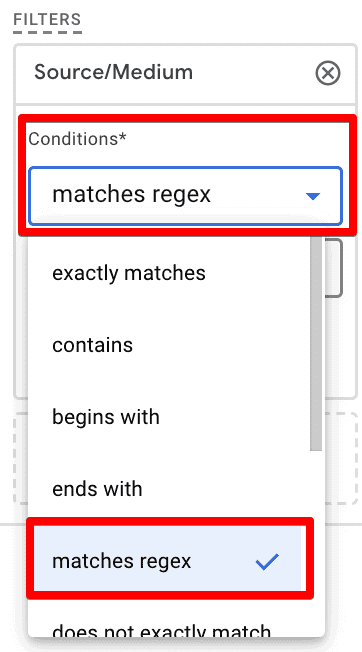
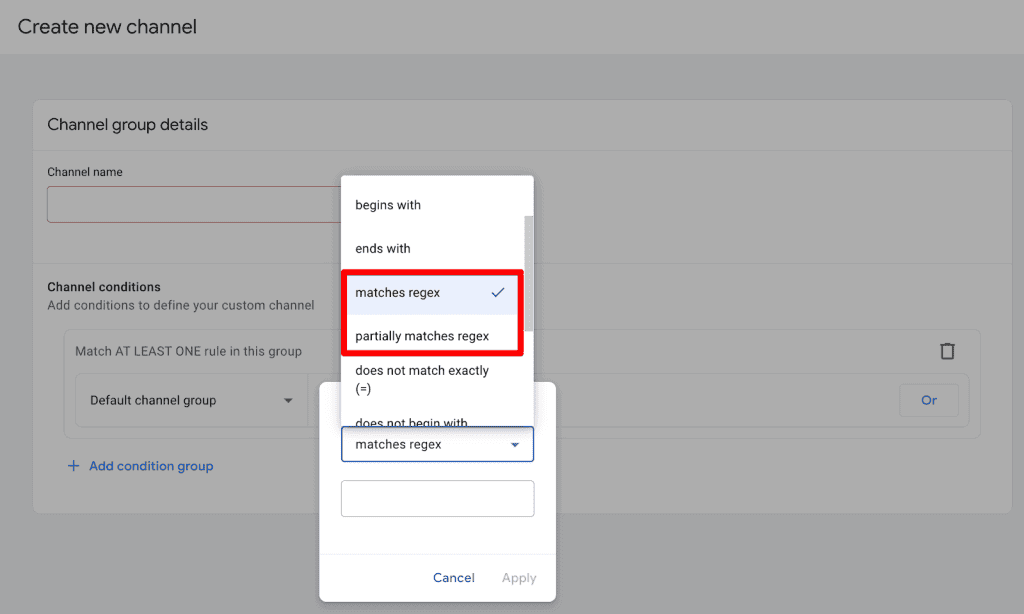
To use RegEx effectively, one must understand the "match types" available within the interface. These are the gatekeepers of your data, determining how your search pattern interacts with the database.
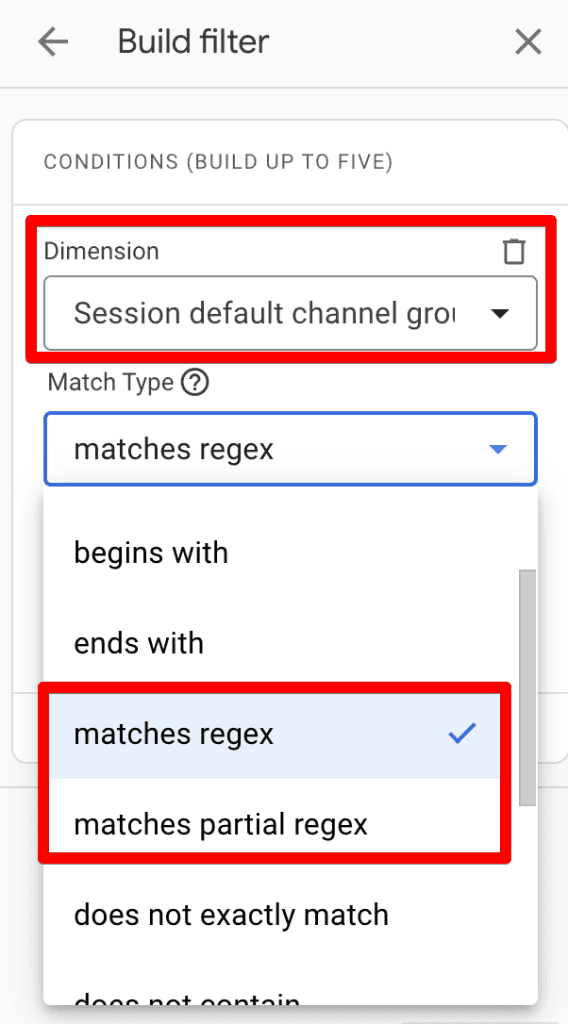
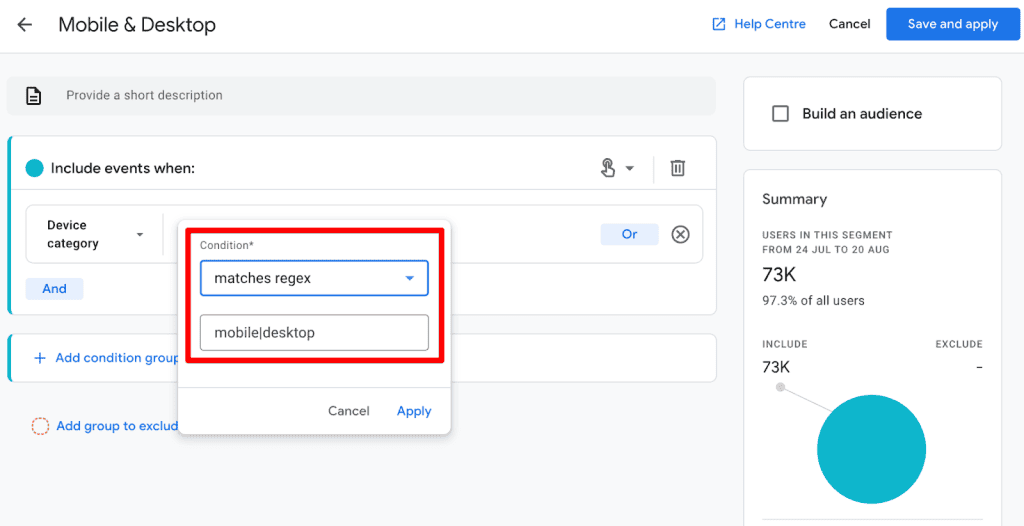
- Matches Regex: This is the default setting for most GA4 filters. It requires the entire string to match the pattern provided.
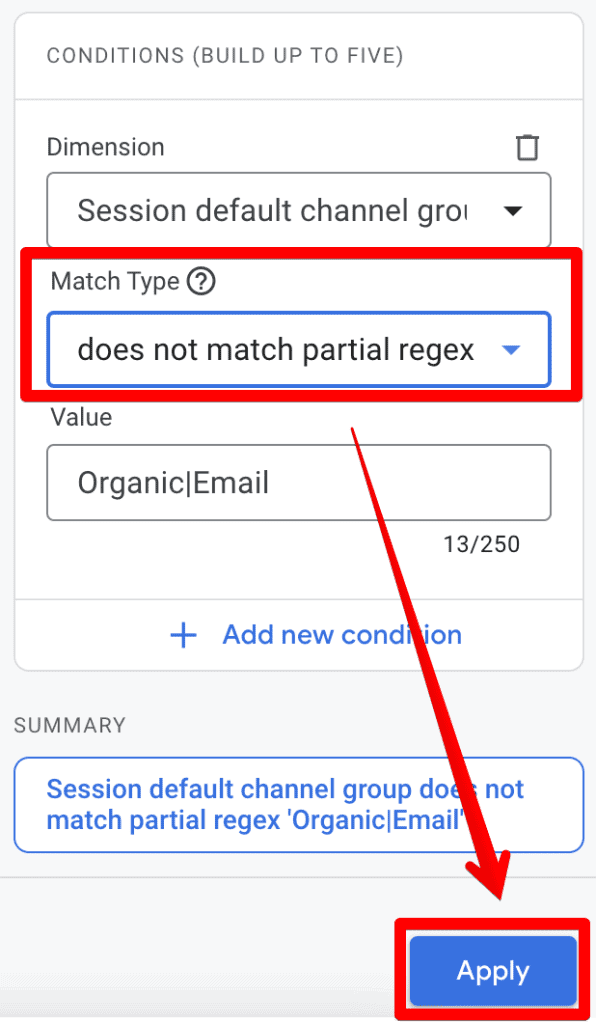
- Matches Partial Regex: This looks for the existence of your pattern anywhere within the target string. This is often the more useful option for day-to-day analysis, especially when filtering by URL paths or campaign parameters.
- Does Not Match (Regex/Partial): These are the inverse filters, essential for excluding noise, such as internal traffic or test environments, from your clean data sets.
Crucial Note: GA4 filters are case-sensitive by default. If your RegEx pattern is written in lowercase but your data contains uppercase letters, the filter will return nothing. Always account for case sensitivity by using the appropriate flags or by ensuring your pattern is comprehensive.
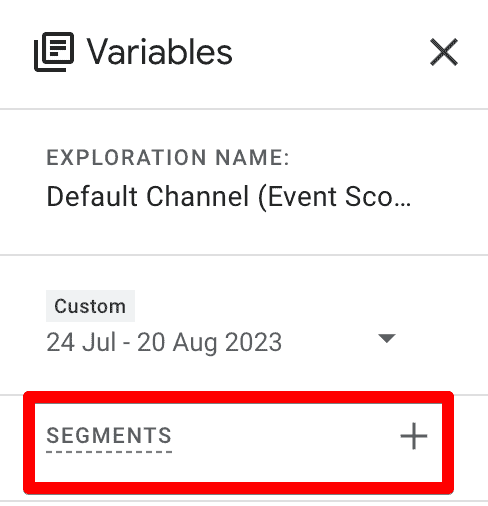
Strategic Implementation: Where to Use RegEx in GA4
RegEx is not a "one-size-fits-all" solution; it is a surgical tool that should be applied where it adds the most value. Here are the primary areas within the GA4 ecosystem where RegEx is supported:
1. Standard Reports and Filtering
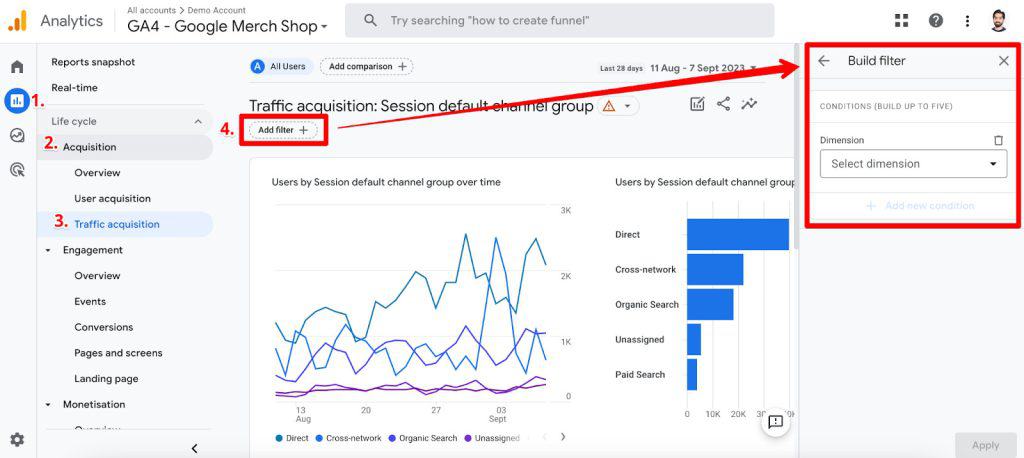
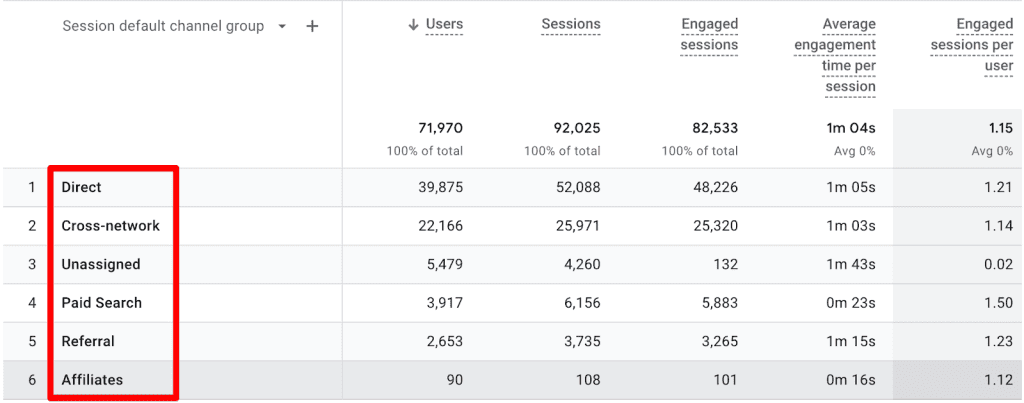
Standard reports are the backbone of GA4 analysis. When you click "Add a filter" at the top of a report like Traffic Acquisition, you are presented with the opportunity to refine your data. By selecting "matches regex" or "matches partial regex," you can aggregate disparate data points.
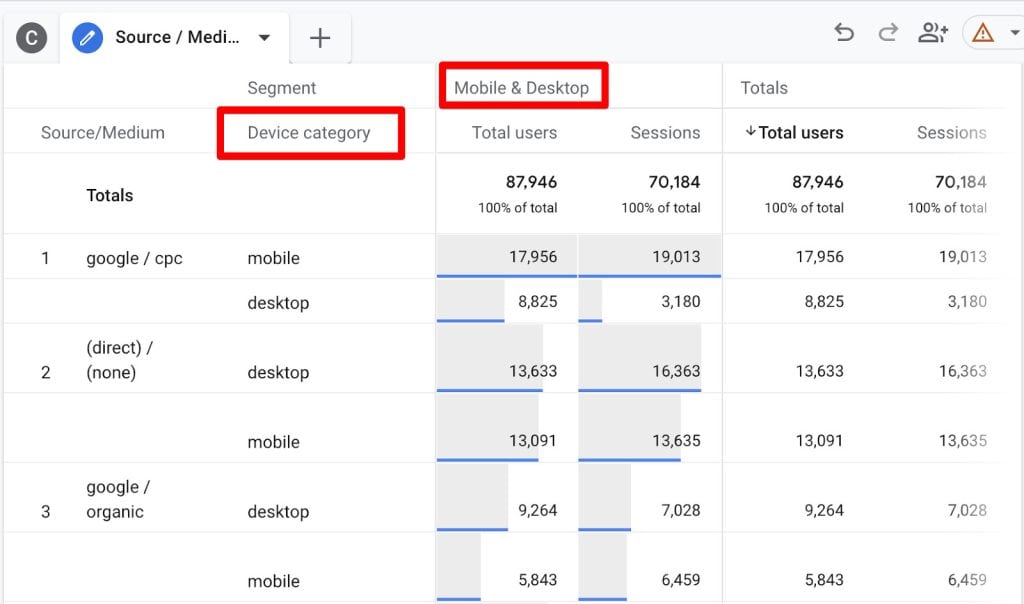
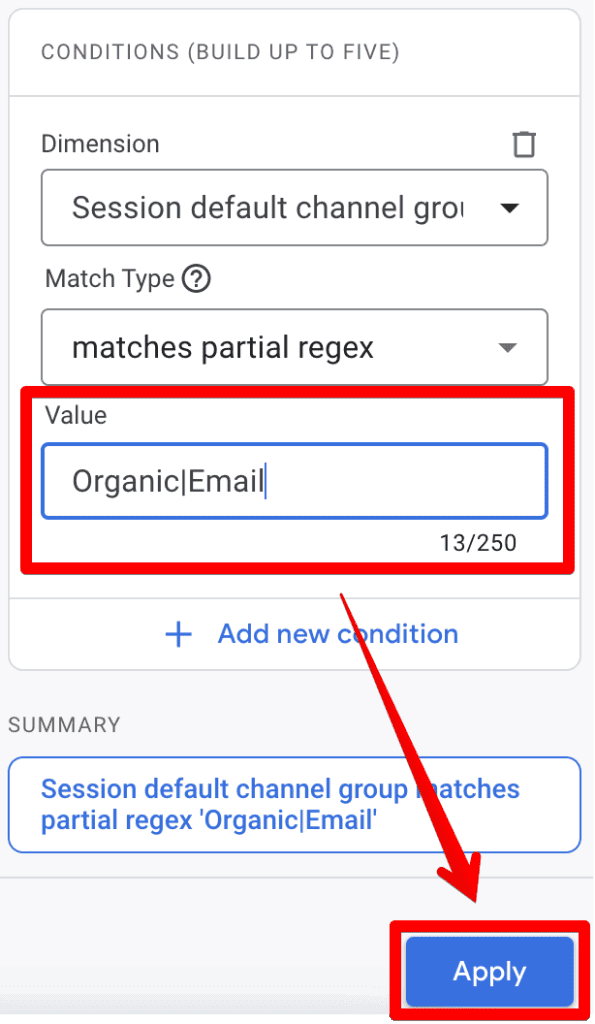
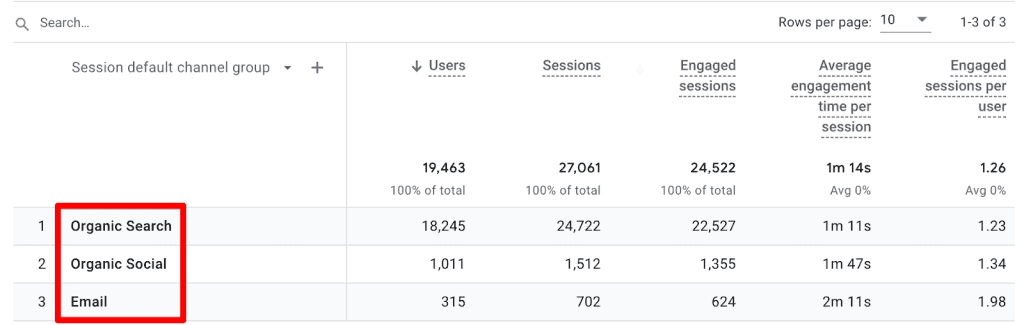
Example: To view traffic from both "Organic" and "Email" channels simultaneously, you can use the pattern Organic|Email. The pipe (|) symbol functions as an "OR" operator, allowing you to bundle these distinct sources into one view.
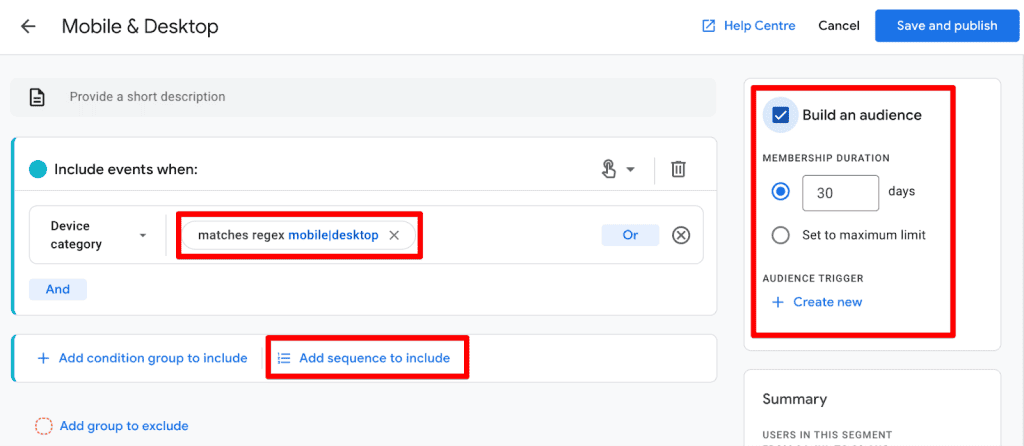
2. Explorations
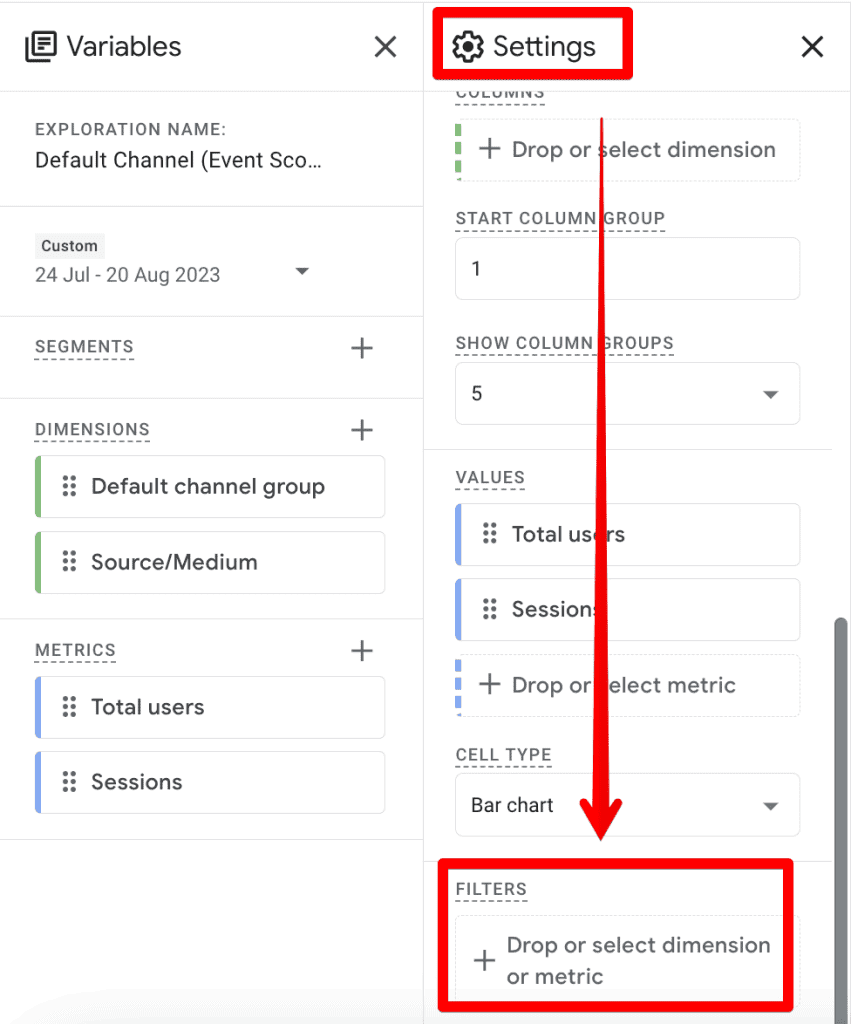
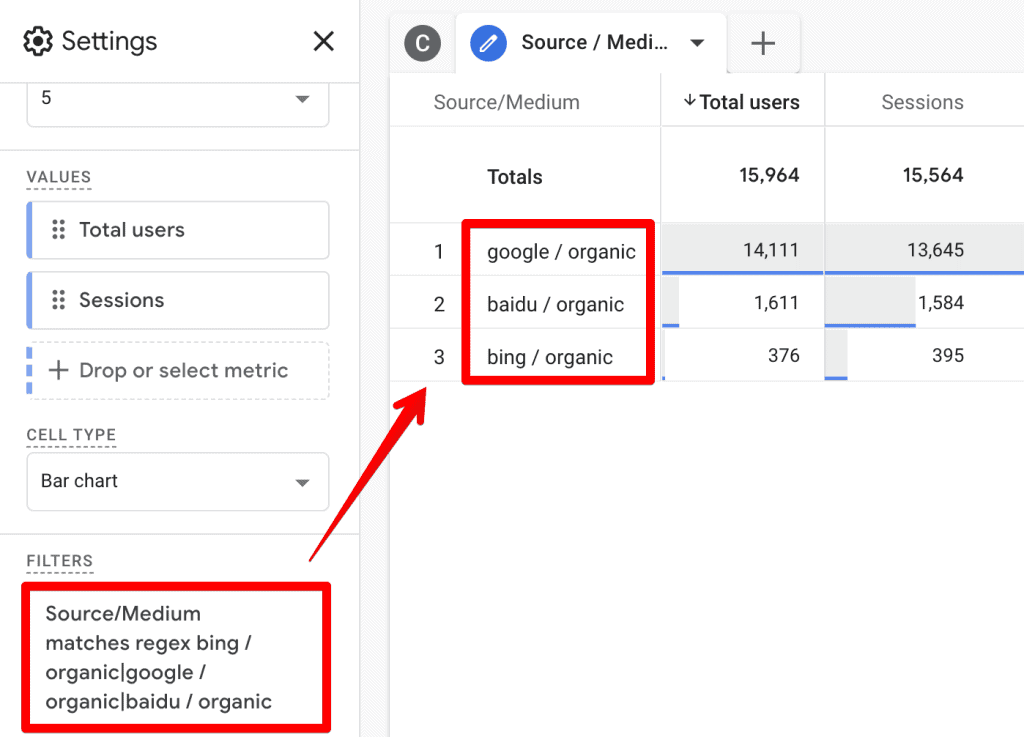
The Explore module is where GA4 truly shines for deep-dive analysis. While the interface for filters in Explorations is robust, it lacks "partial match" functionality in some areas. This means you must be more explicit with your patterns. You may need to list full source/medium strings (e.g., google / organic|bing / organic) to ensure the filter captures the data accurately.

3. Internal Traffic and Unwanted Referrals
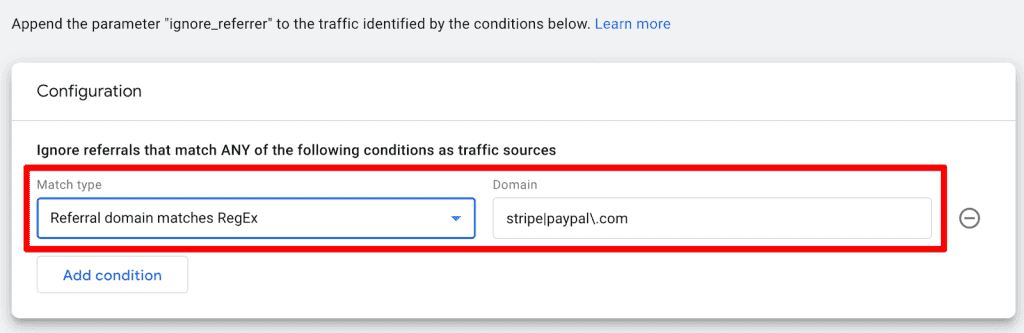
One of the most practical applications of RegEx is in Data Streams under the Admin panel. By defining internal traffic or excluding unwanted referrals (like third-party payment processors), you ensure your data remains untainted.
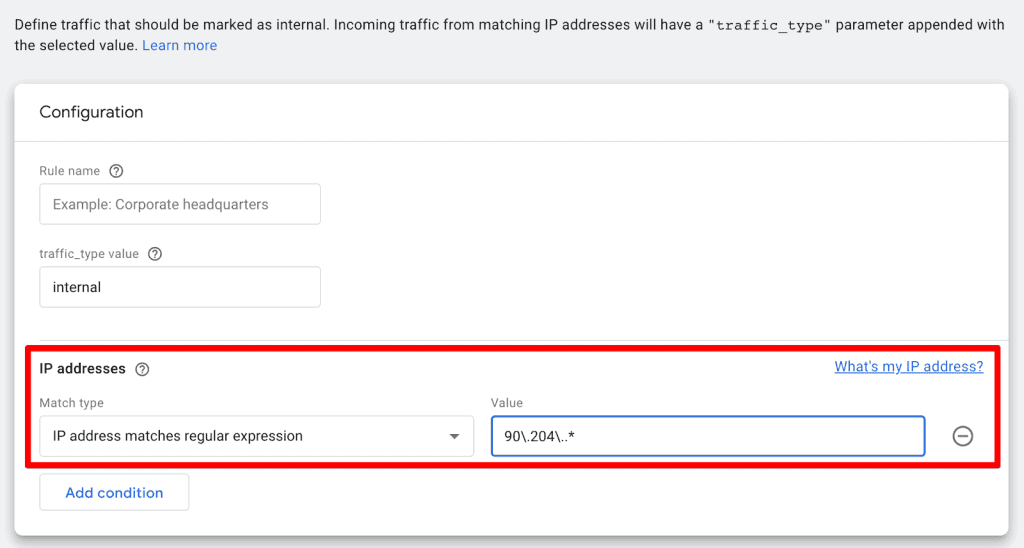
- IP Filtering: Use a pattern like
90.204..*to capture all traffic originating from a specific office network range. - Referral Exclusions: Use
stripe|paypal.comto strip away payment gateway traffic that would otherwise skew your referral reports.
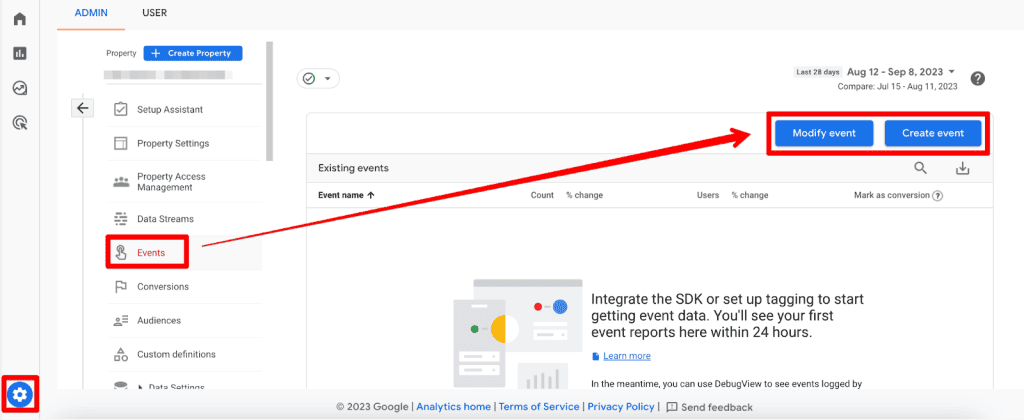
4. Event Creation and Modification
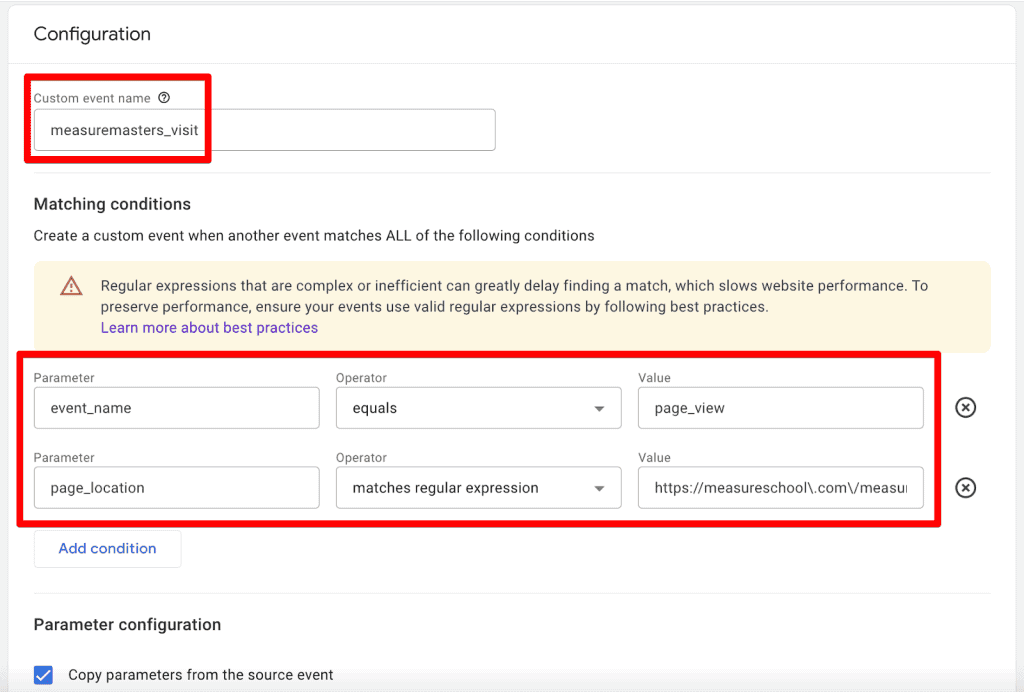
GA4 allows you to create or modify events on the fly. If you want to track a "MeasureMasters Visit" as a unique event, you can trigger this based on a page_view where the page path matches a specific RegEx pattern. This prevents the need for constant developer intervention for every minor tracking tweak.
5. Custom Channel Groups
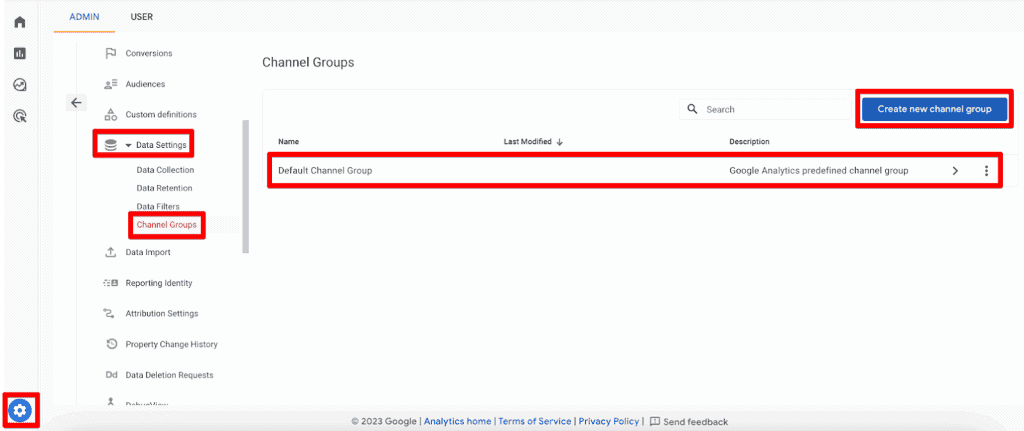
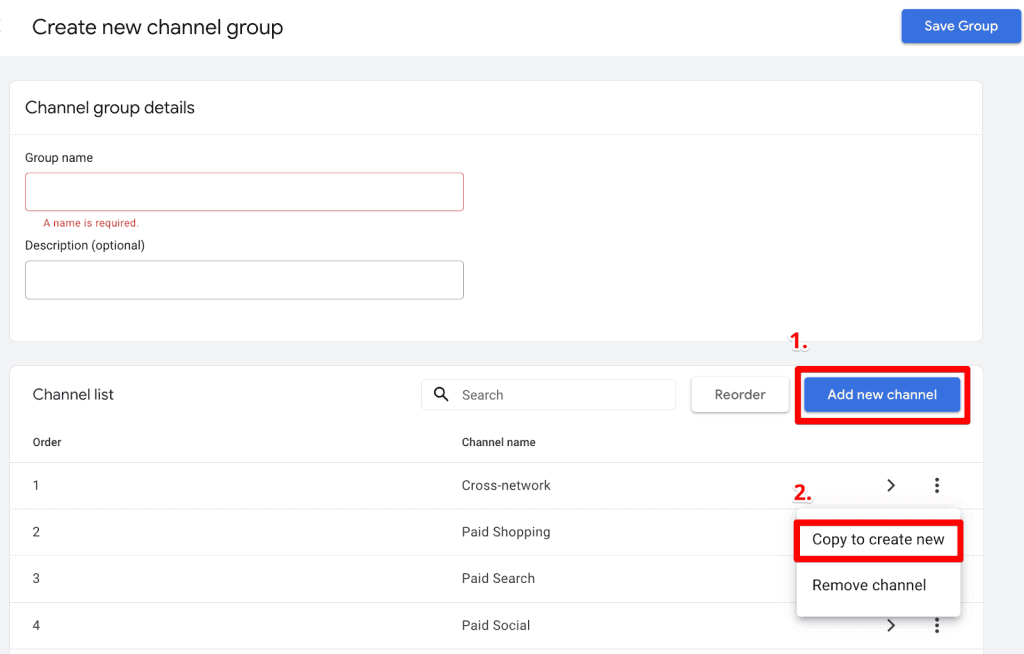
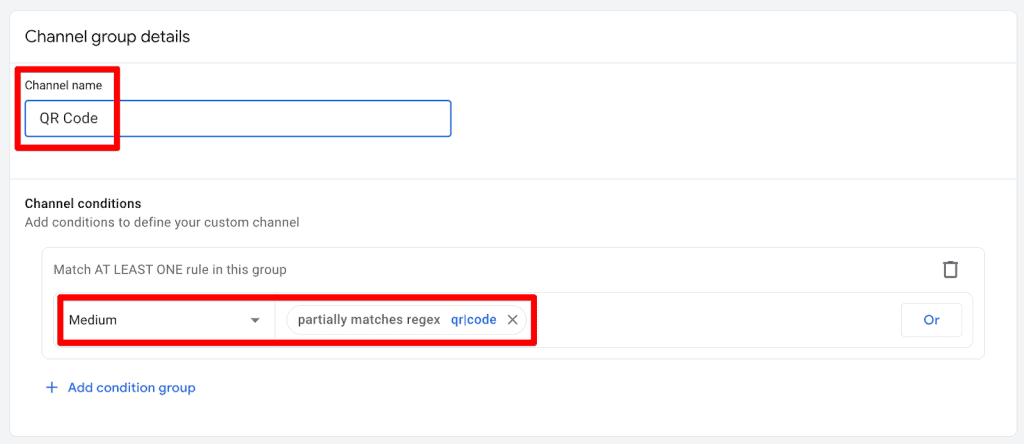
For advanced marketers, Custom Channel Groups are the holy grail. When building these groups in the Admin section, you have the option to use "partially matches regex." This is incredibly powerful for classifying traffic based on URL parameters or specific campaign naming conventions that might change over time.
Common RegEx Characters: A Cheat Sheet
While you don’t need to be a programmer, knowing these characters will significantly speed up your workflow:
|(Pipe): The OR operator. Use this to match one string or another..(Dot): Matches any single character. Useful for wildcards.^(Caret): Matches the start of a string.$(Dollar): Matches the end of a string.(Backslash): An escape character. Used to tell GA4 to treat a special character (like a dot in a URL) as a literal character.- *`` (Asterisk):** Matches zero or more occurrences of the preceding element.
+(Plus): Matches one or more occurrences.?(Question Mark): Makes the preceding element optional.()(Parentheses): Used for grouping expressions.[](Brackets): Matches any character within the brackets.(Curly Braces): Specifies a specific number of repetitions.
Best Practices and Industry Implications
When implementing RegEx, follow these professional best practices to ensure data integrity:
- Always Test Before You Apply: Never push a RegEx filter into a production view without testing it first. Use platforms like RegEx101.com. It provides a "Golang" flavor, which is the engine GA4 uses, and offers real-time explanations of why a pattern matches or fails.
- Keep it Simple: Just because you can write a complex, nested RegEx pattern doesn’t mean you should. If a simple "contains" filter works, use it. Complex RegEx can be difficult for your team to maintain and debug later.
- Document Your Patterns: If you are using custom channel groups or complex event modifications, keep a internal log of the RegEx patterns used. This is critical for institutional knowledge.
- The "Safety" Principle: Remember that incorrectly configured RegEx can inadvertently filter out 100% of your data. Always verify the before-and-after numbers in your reports.
Official Stance and Future Outlook
Google has been clear that GA4 is designed to be a "future-proof" analytics platform. The move to RE2 regex, while restrictive compared to older standards, was a strategic choice to ensure faster processing speeds and better security. As the platform matures, we anticipate Google will continue to expand the locations where RegEx can be applied, particularly within the standard report interface and custom comparison tools.
Conclusion: The Path Forward
Regular Expressions are a fundamental skill for any data-driven professional. While they may seem intimidating at first, they are ultimately a tool of empowerment—a way to cut through the noise of modern digital marketing and find the signal that matters.
Start by experimenting with simple patterns in your exploration reports. Use the resources available, like community forums and testing tools, and don’t be afraid to ask for help from AI-driven coding assistants to refine your syntax. By mastering the characters and the logic behind them, you will transition from merely "reporting" data to "interpreting" it, ultimately driving better business outcomes through superior analytical clarity.
How are you using RegEx to optimize your GA4 data? Share your favorite patterns in the comments below.
