

Mastering UTM Attribution: A Comprehensive Guide to Analyzing Campaign Performance in GA4
Last Modified: February 17, 2025

In the modern digital marketing landscape, data is the currency of success. However, data without context is merely noise. For digital marketers and business owners, the ability to trace the precise origin of every website visitor is not just a luxury—it is a fundamental requirement for optimizing Return on Ad Spend (ROAS). This is where UTM (Urchin Tracking Module) parameters become indispensable.

While most marketers are well-versed in the creation of UTM codes to tag their campaigns, a significant "data gap" exists: many practitioners struggle to locate, filter, and analyze these parameters once they land within the Google Analytics 4 (GA4) interface. This guide serves as a definitive resource for demystifying UTM data, providing a deep dive into how you can transform raw URL strings into actionable business intelligence.
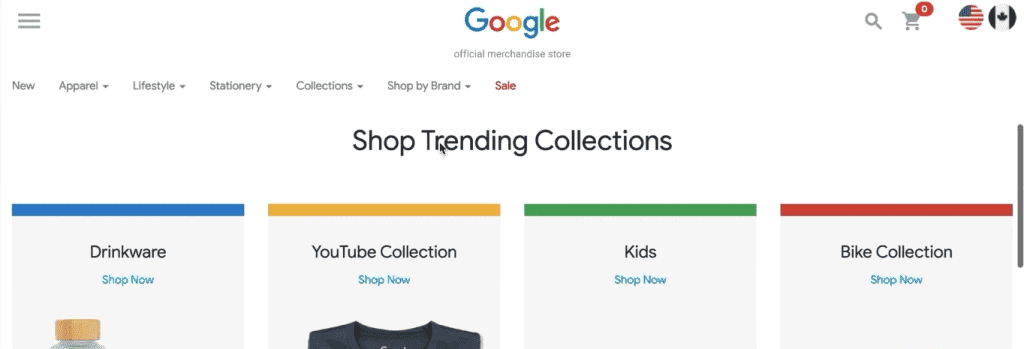
Main Facts: What Are UTM Parameters and Why Do They Matter?
At their core, UTM parameters are simple text snippets appended to the end of a URL. When a user clicks a link containing these tags, the information is transmitted to Google Analytics, allowing you to identify the "who, how, and what" behind your traffic.
The Anatomy of a UTM Link
A standard URL with UTMs might look like this: example.com/?utm_source=newsletter&utm_medium=email&utm_campaign=spring_sale. The ? signals the start of the parameters, while the & separates individual tags.
Why Precision is Non-Negotiable
Without UTM parameters, GA4 must rely on "Referrer" data, which is often incomplete or misleading. For example, if you run a campaign across LinkedIn, Facebook, and Google Ads, and 1,000 users convert, a basic setup might show all that traffic as coming from "Social" or "Direct." With proper UTM tagging, you gain the clarity to see exactly which ad creative or email blast drove the sale. This enables you to pivot resources toward high-performing channels and away from those that fail to convert.
Chronology: The Evolution of UTM Implementation
The utility of UTMs has evolved alongside the shift from Universal Analytics (UA) to Google Analytics 4. In the previous iteration of Google Analytics, data was often siloed by session. In GA4, the data model is event-based, providing a more holistic view of the user journey.
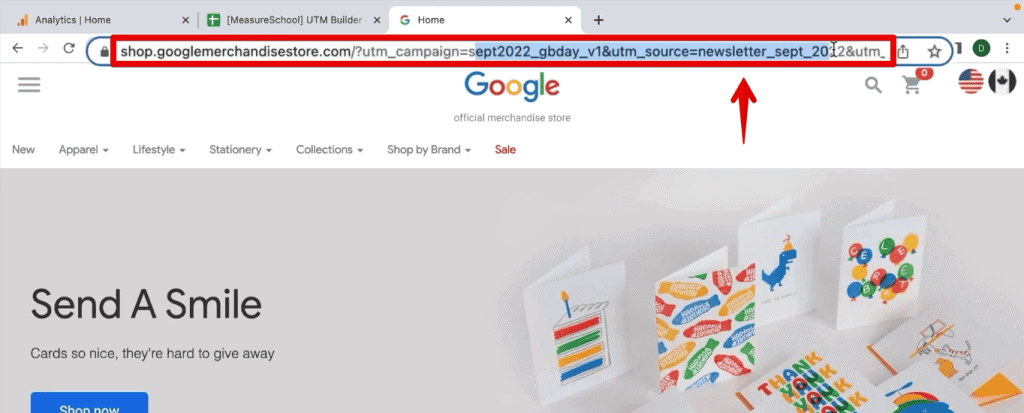
- The Planning Phase: Defining a standardized naming convention is the first step. Without consistency (e.g., using "Email" vs "email"), your data becomes fragmented.
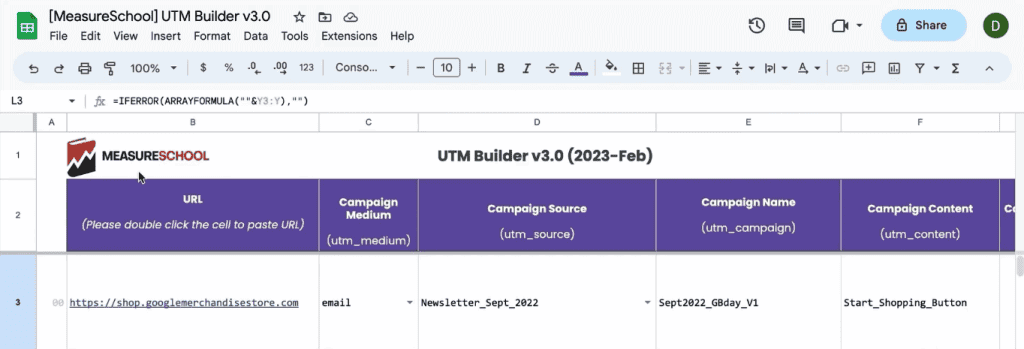
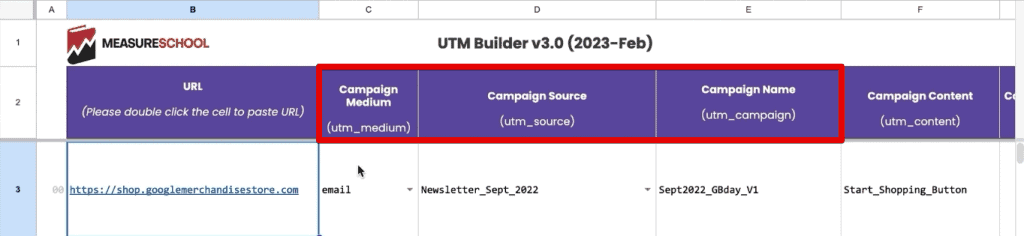
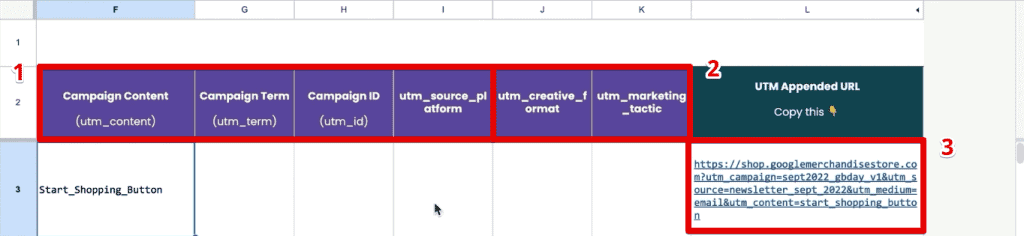
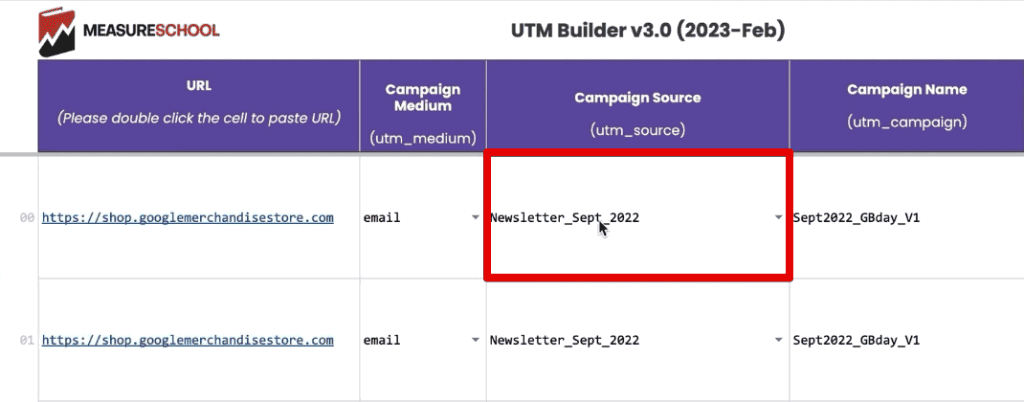
- The Generation Phase: Tools like the Campaign URL Builder or internal spreadsheets (such as the MeasureSchool UTM Builder Sheet) are used to append the required
utm_source,utm_medium, andutm_campaignfields. - The Execution Phase: Links are deployed across newsletters, social media, and paid ads.
- The Analysis Phase: Once traffic begins to flow, the data is captured by the GA4 tracking pixel, processed, and surfaced in reporting modules.
Supporting Data: Navigating GA4 Reporting
To analyze your UTMs effectively, you must understand where to look. There are two primary ways to approach this: Standard Reports and Exploration Reports.
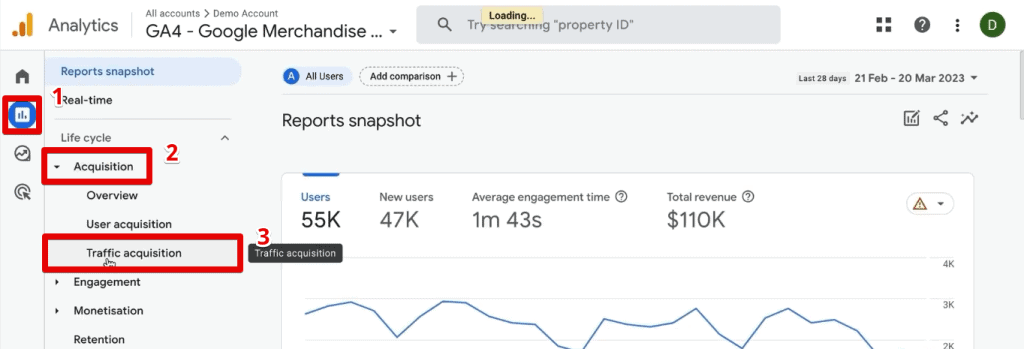
1. The Standard Approach: Traffic Acquisition
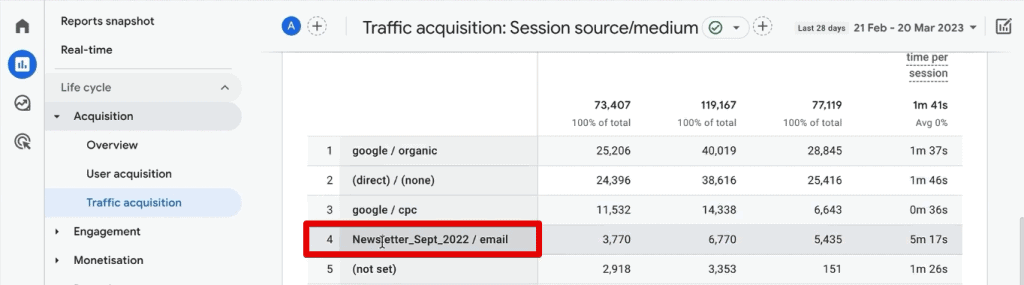
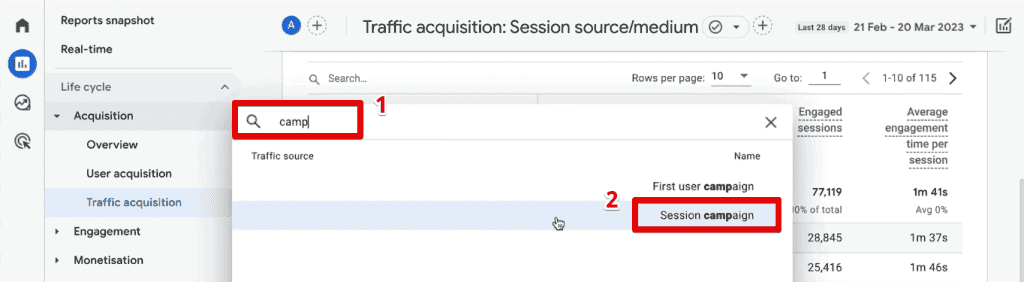
For a quick pulse check, navigate to Reports > Acquisition > Traffic Acquisition. By default, this table shows the "Default Channel Grouping." To reveal your specific UTM data:
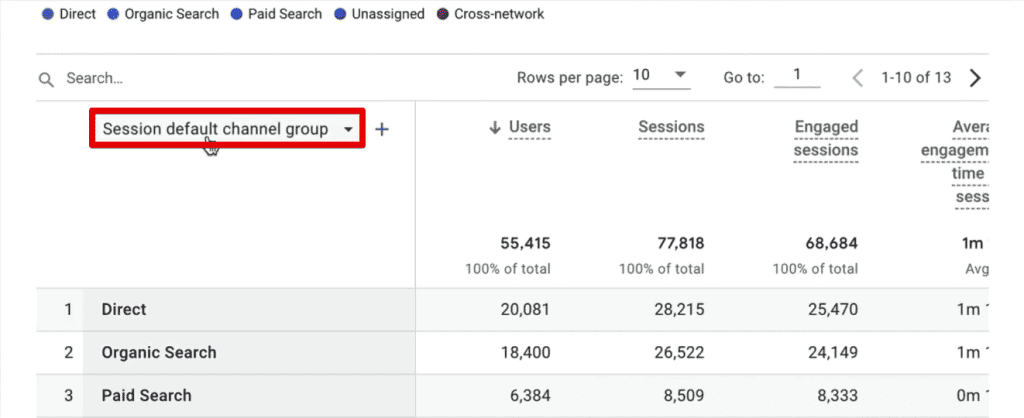
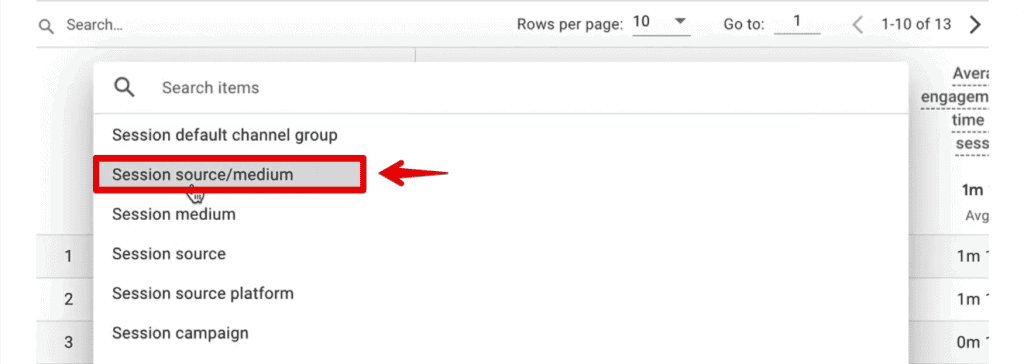
- Click the dropdown menu currently labeled Session default channel group.
- Select Session source/medium.
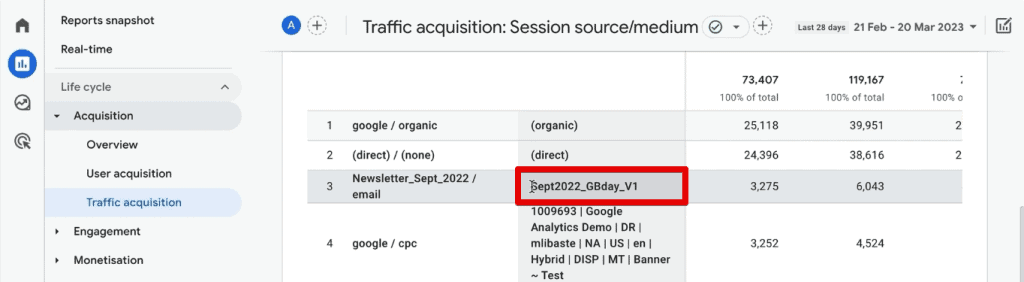
- This will display the traffic sources in a clean, readable table. To add even more depth, click the
+button to add a secondary dimension, such as Session campaign.
2. The Power User Approach: Exploration Reports
The "Explorations" feature in GA4 is where true analysis happens. It is a canvas for custom reports that allows you to slice data in ways the standard reports cannot.
Setting up a Custom Exploration:
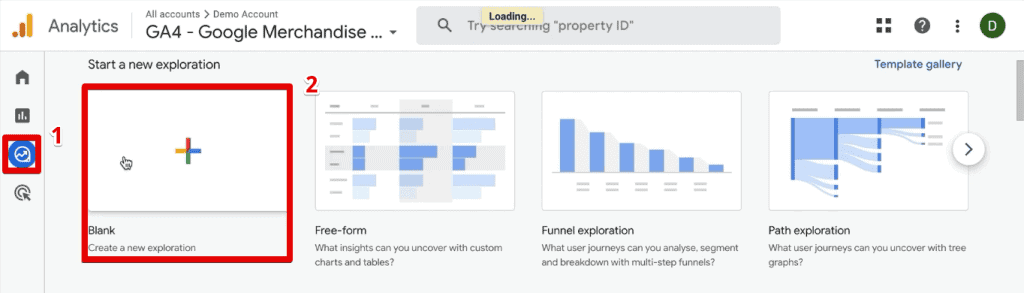
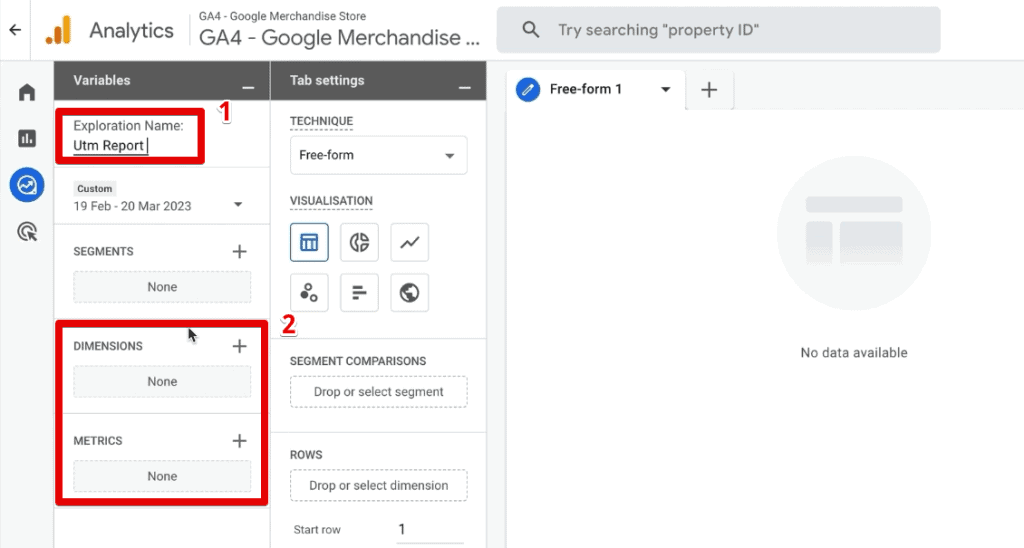
- Go to Explore > Blank.
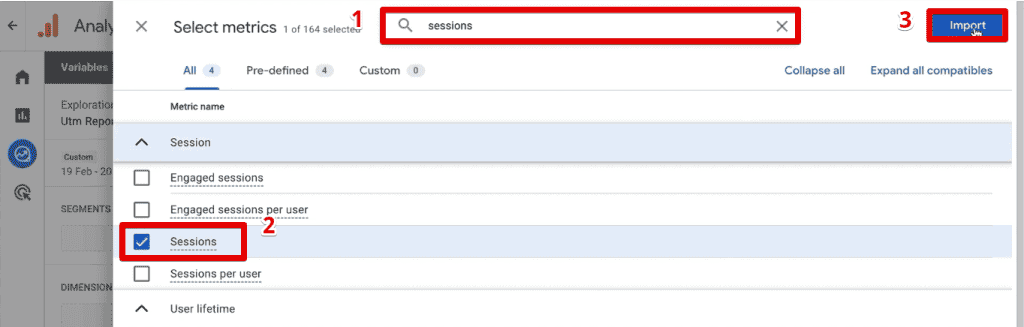
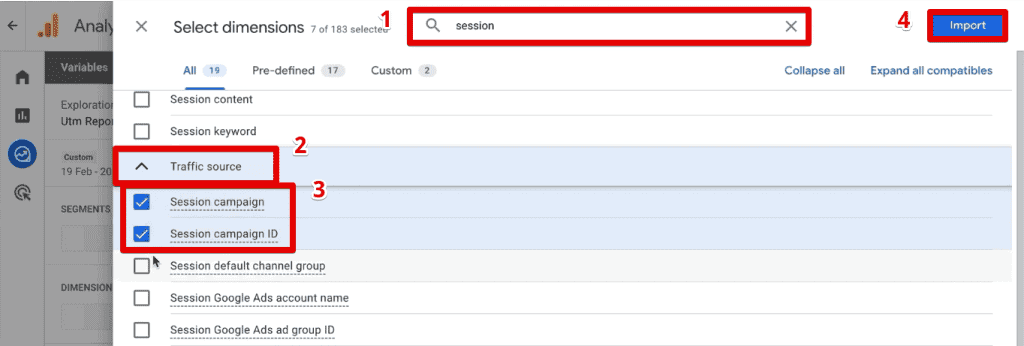
- Import your Metrics (e.g., Sessions, Transactions) and Dimensions (e.g., Session source, Session medium, Session campaign).
- The Dimension Mapping Rule: While some dimensions are obvious, others require knowledge of the GA4 schema. For instance,
utm_contentis mapped to Session manual ad content. - Applying Filters: Use the "Include Only Selection" feature to filter your table. This allows you to drill down into specific newsletters or ad campaigns without being overwhelmed by unrelated data.
Official Responses and Best Practices
Google’s official documentation emphasizes that the quality of your analytics is entirely dependent on the quality of your inputs. To ensure your UTM data remains accurate, follow these industry-standard best practices:
- Mandatory Fields: Always use
utm_source,utm_medium, andutm_campaign. These are the pillars of attribution. - Optional but Recommended: Utilize
utm_contentfor A/B testing ad creatives andutm_termfor keyword tracking. - Avoid Internal Tagging: Never use UTM parameters for internal links on your own website, as this will restart the user session and overwrite the original traffic source.
- Naming Consistency: Adopt a "lowercase-only" policy for all parameters to prevent "Facebook" and "facebook" from appearing as two distinct sources.
Implications: Advanced Strategies for the Modern Marketer
For sophisticated organizations, UTM tracking extends beyond simple website visits.
CRM Integration
If you are running a lead-generation business, you need to track which specific campaign led to a closed deal. This requires capturing UTM parameters from the URL and passing them into hidden fields in your CRM forms (e.g., Salesforce, HubSpot, or ConvertKit). By doing this, you can attribute actual revenue back to the specific email or social post that started the conversation.
Troubleshooting Misattributed Traffic
A common issue is "Direct" traffic spikes. If your direct traffic exceeds 30%, it is highly likely that your UTM strategy is failing. Often, this happens because mobile apps or secure-to-insecure redirects strip the referrer information. Implementing robust UTM tagging on every external link is the only way to mitigate this.

Additionally, be wary of the "Source Bucket" problem. If you use a non-standard source name like psoc instead of paid_social, GA4 may fail to group your traffic into the correct channel, leaving you with an inaccurate view of your marketing performance.
Conclusion: Turning Data into Action
The ability to analyze UTM parameters in Google Analytics 4 is a skill that separates high-performing marketers from the rest. By moving away from surface-level reports and embracing the power of Exploration Reports and segments, you can unlock a granular view of your audience.
Whether you are testing two different versions of a newsletter button or comparing the efficacy of various Google Ads campaigns, the process remains the same:
- Document your naming conventions.
- Standardize your inputs.
- Analyze using Explorations.
- Segment to compare performance side-by-side.
As you refine your approach, remember that GA4 is a flexible platform. Don’t be afraid to experiment with custom dimensions and filters. The insights you gain from your UTMs will not only justify your marketing budget but also provide the strategic direction needed to scale your business effectively.
Frequently Asked Questions (FAQ)
Can I analyze UTM parameters in Google Analytics 4 Exploration Reports?
Absolutely. Exploration Reports offer the most flexibility for UTM analysis. By creating a blank report and importing specific dimensions like "Session source" and "Session campaign," you can build a highly customized view that allows for deep-dive analysis and side-by-side comparison.
How can I compare different versions of UTM content in Google Analytics 4?
The most efficient way to compare A/B test variations in your UTMs is to use the "Segments" feature within Explorations. By creating a segment for "Version A" and another for "Version B" using your specific utm_content parameters, you can view their performance metrics—such as transactions or engagement rate—in a single, comparative table.
Can I create segments and audiences based on UTM parameters in Google Analytics 4?
Yes. Once you have identified a segment of users based on a specific UTM parameter (e.g., users who arrived via a "Spring_Sale" campaign), you can save that selection as a segment. This segment can then be used to build a remarketing audience, which can be exported to Google Ads for highly targeted follow-up campaigns.
