

Mastering Attribution: A Comprehensive Guide to Tracking Lead Sources in ActiveCampaign
In the high-stakes world of digital marketing, the ability to trace a conversion back to its origin is the difference between a thriving business and one that burns through its advertising budget with little to show for it. When a user lands on your website, engages with content, and eventually signs up for a service, knowing how they arrived—whether through a targeted Google Ads campaign, a specific email blast, or a social media referral—is paramount.

However, many businesses struggle with "attribution drift." A user might visit your site, leave, and return days later to make a purchase, causing the original traffic source to be lost in the shuffle. This article explores a robust technical solution for capturing and storing UTM parameters directly into your CRM, specifically using ActiveCampaign, Google Tag Manager (GTM), and first-party cookies.
The Strategic Importance of Lead Attribution
Attribution is the backbone of budget allocation. If you are spending thousands of dollars on pay-per-click (PPC) campaigns, you need to know exactly which keywords and ad sets are generating qualified leads. Without accurate tracking, you are essentially flying blind, unable to discern which channels provide a return on investment (ROI) and which are merely draining resources.
By importing UTM parameters—specifically source, medium, campaign, content, and term—directly into the contact record within your CRM, you create a permanent link between the user’s identity and their initial touchpoint. This data allows for sophisticated segmentation. You can build automated email workflows tailored to the user’s origin, calculate the lifetime value of customers based on their acquisition channel, and refine your marketing strategy based on hard, historical data.
Phase 1: Setting the Foundation in ActiveCampaign
The journey to accurate attribution begins inside your CRM. Before you can track a lead’s source, you must create a "home" for that data within the user profile.
Creating Custom Fields
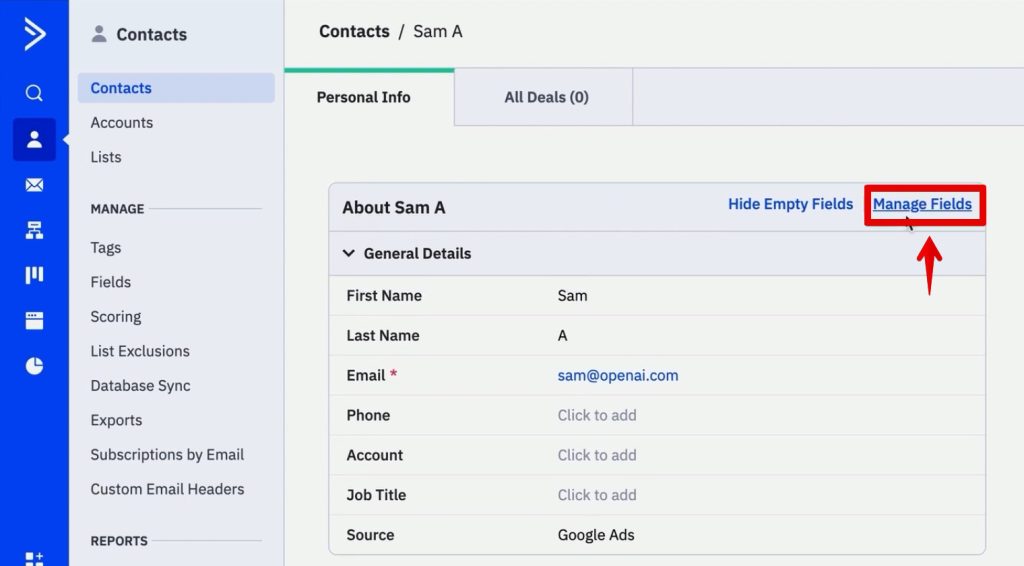
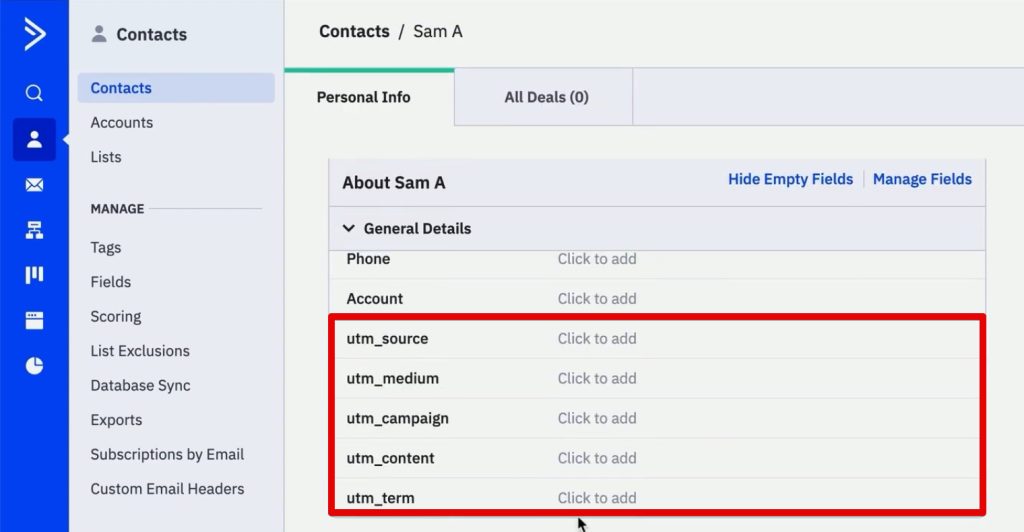
- Navigate to the Contacts Section: Log in to your ActiveCampaign account and locate the Manage Fields option.
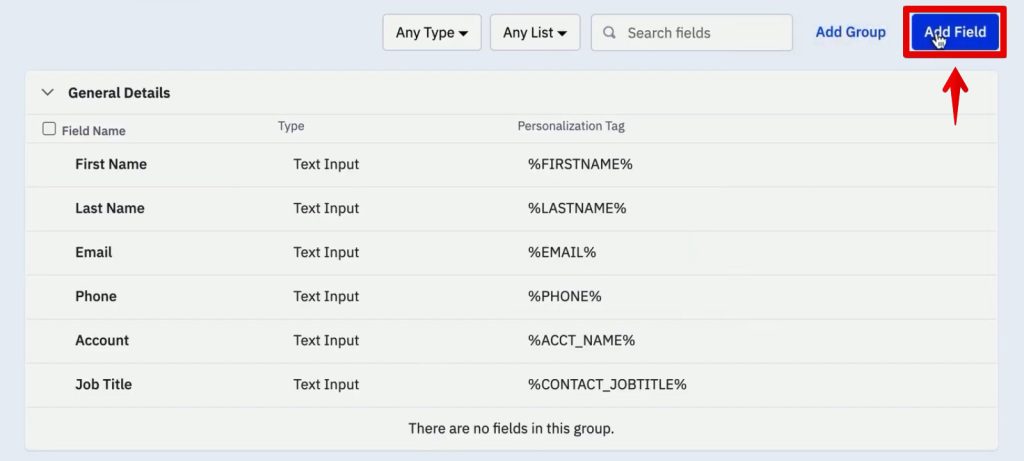
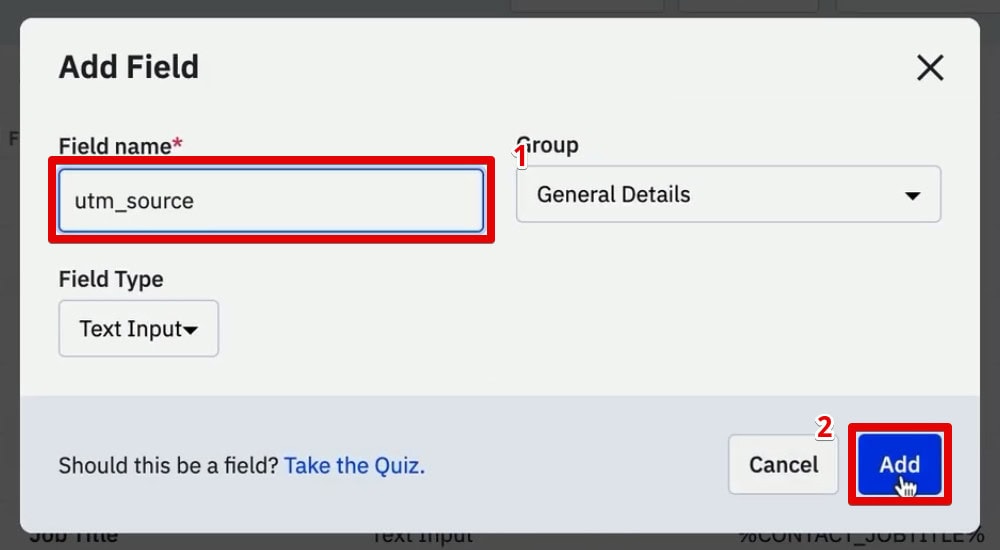
- Define Your Parameters: You need to create distinct fields for the five standard UTM parameters. Click Add Field in the top-right corner.
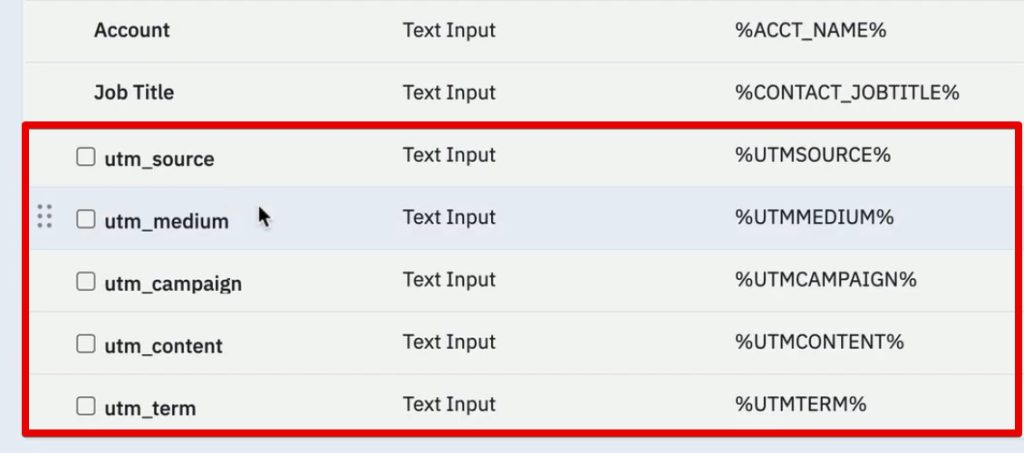
- Naming Convention: For consistency, label them clearly as
utm_source,utm_medium,utm_campaign,utm_content, andutm_term. Use the "Text" field type for each. - Verification: Once created, these fields will be available for every contact profile. When a lead submits a form, the data will be automatically mapped to these specific slots.
Building the Capture Mechanism
Next, you must build the gateway: your sign-up form.
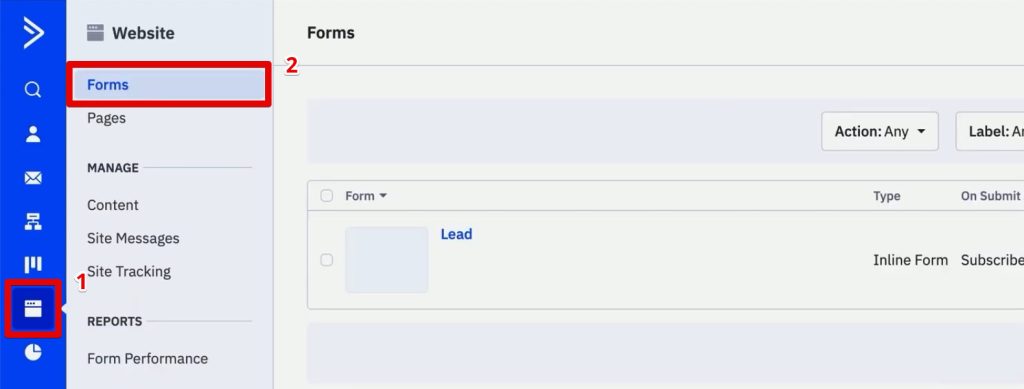
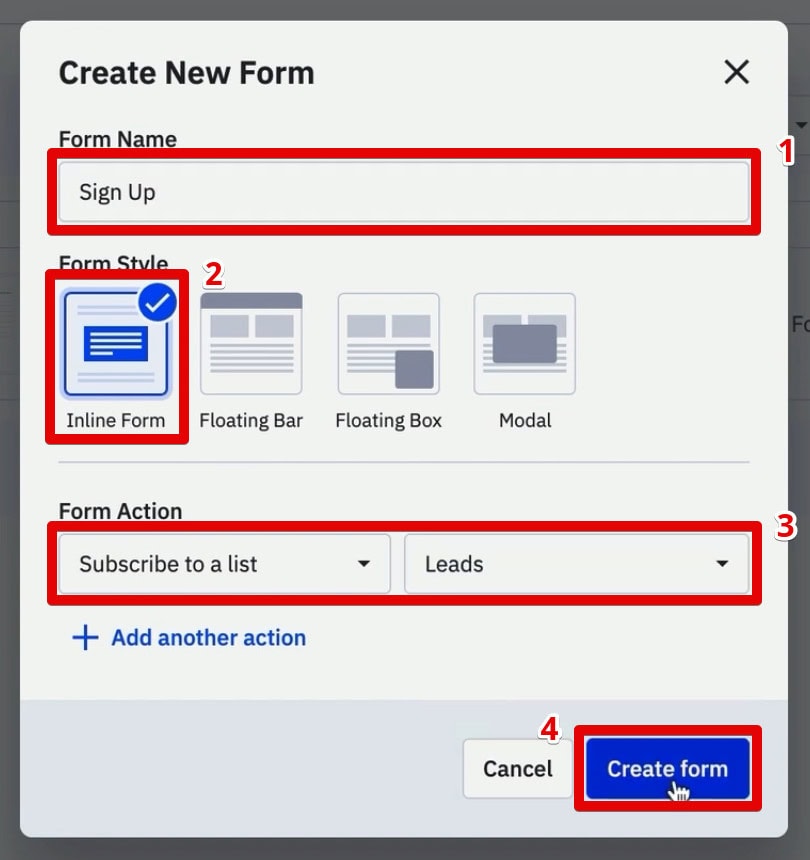
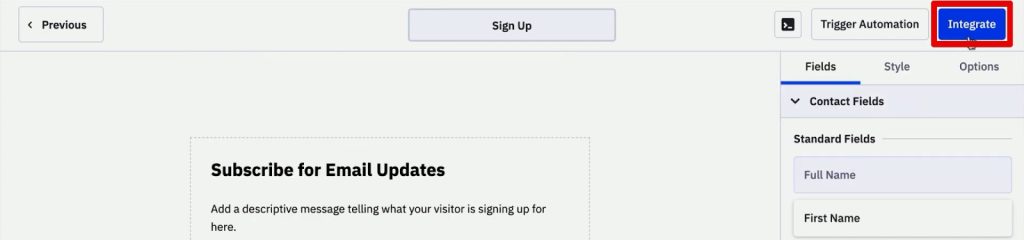
- Create an Inline Form: Navigate to Website > Forms and create a new form. Set the action to "Subscribe to a list."
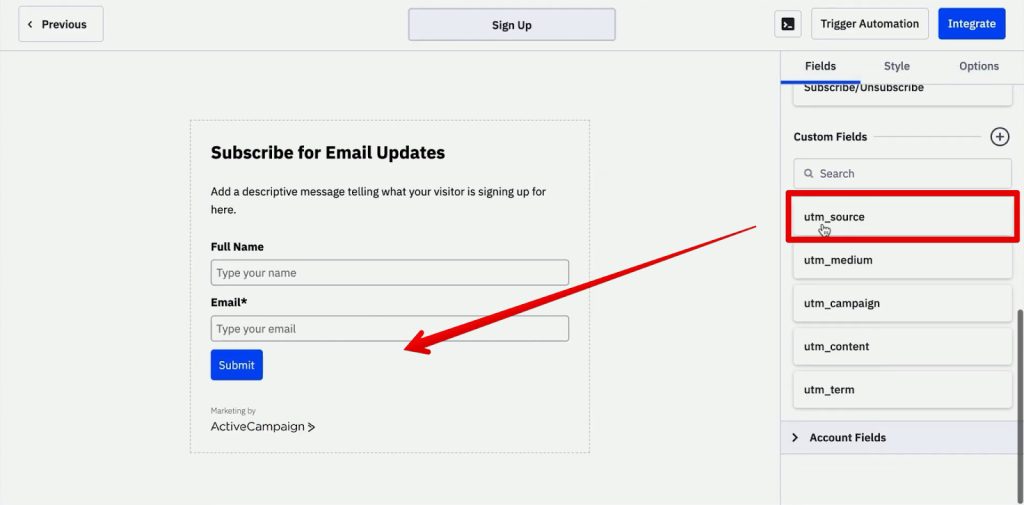
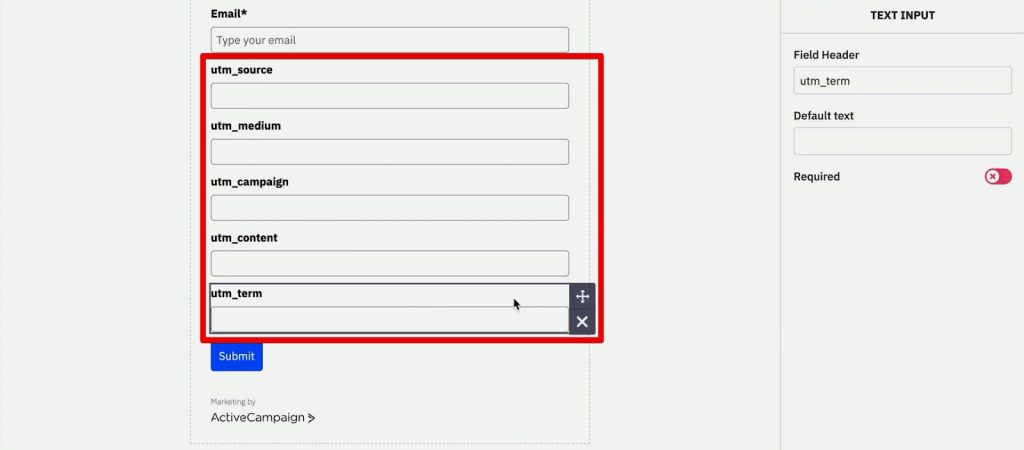
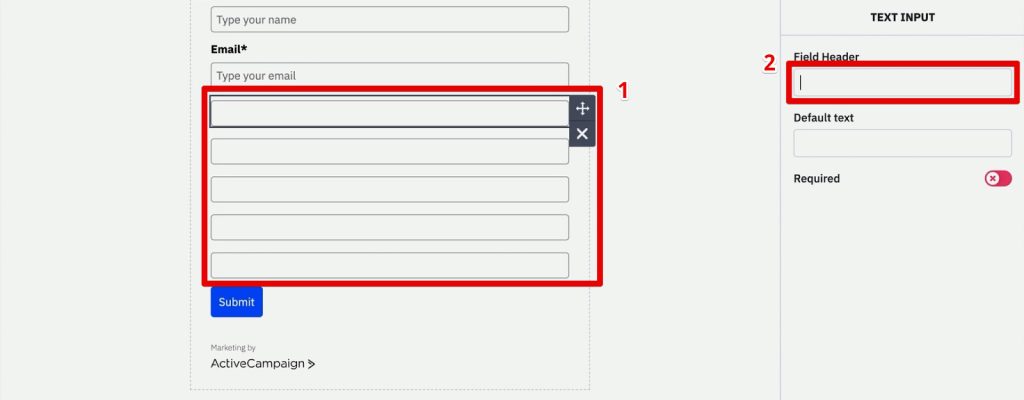
- Incorporate Custom Fields: Drag and drop the five newly created UTM fields into your form.
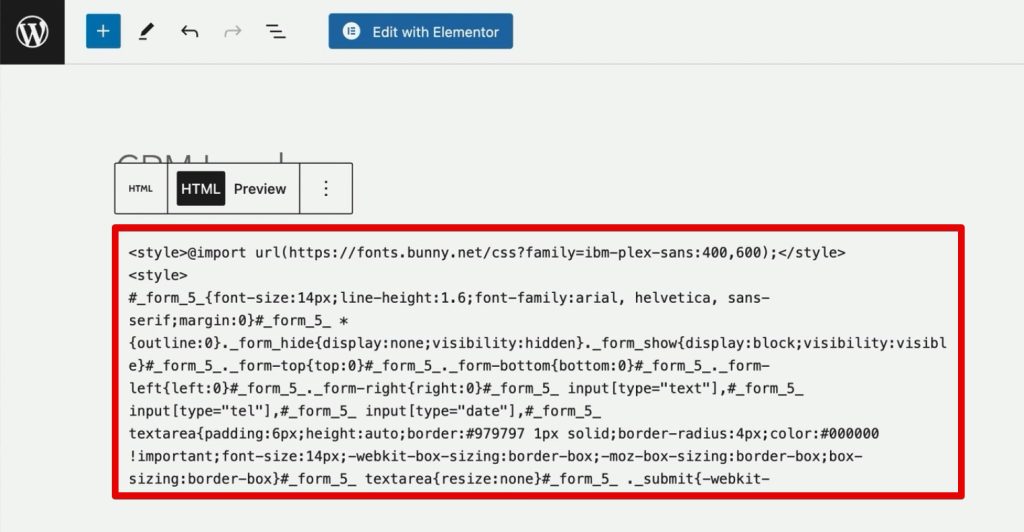
- The "Hidden" Strategy: While these fields are necessary, you do not want to clutter your user interface with them. You will later hide these fields so they remain invisible to the end user but functional for data collection.
Phase 2: Utilizing Google Tag Manager for Seamless Data Capture
Capturing UTM parameters in a URL is simple; keeping them alive after a user navigates to a second or third page is where the technical challenge lies. This is where first-party cookies and GTM become essential.
The Role of First-Party Cookies
When a user arrives at your landing page, the UTM parameters are present in the URL query string. As soon as the user clicks to another page, that query string disappears. To prevent this, we use a custom JavaScript tag in GTM to "grab" the URL parameters and store them in a persistent first-party cookie.
Step-by-Step Implementation
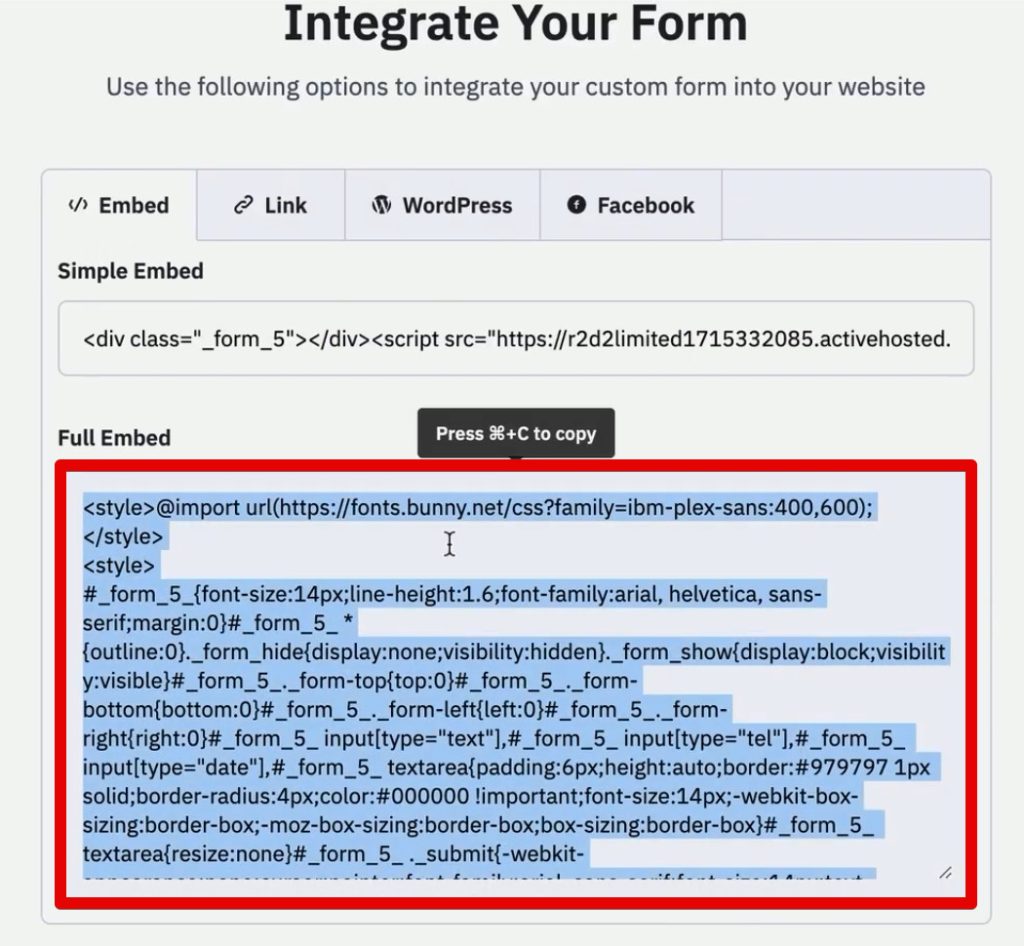
- Create a "Set Cookie" Tag: In GTM, create a new "Custom HTML" tag. Use a script that parses the URL query string and sets a cookie (e.g.,
source_query). - Define the Trigger: Set this tag to fire on a "Page View" trigger, specifically only when the URL contains "utm_medium." This ensures the cookie is set immediately upon arrival from a tracked source.
- The "Form Fill" Tag: Create a second Custom HTML tag. This script is designed to run once the page is fully loaded ("DOM Ready"). Its purpose is to look for the hidden form fields and inject the values stored in our cookie into those fields.
Phase 3: The Technical Workflow (Chronology)
- Arrival: The user clicks an ad with UTM tags. The GTM "Set Cookie" tag fires, saving the parameters into the browser’s local storage.
- Navigation: As the user moves through your site, the browser remembers the cookie, even though the URL no longer shows the UTM parameters.
- Form Interaction: When the user arrives at the signup form, the "Form Fill" script detects the form and, using CSS selectors, maps the stored cookie values to the hidden input fields.
- Submission: Upon clicking "Submit," the user’s name, email, and the hidden UTM data are transmitted to ActiveCampaign.
- Storage: ActiveCampaign records the lead and populates the custom fields with the original acquisition data.
Supporting Data: Why This Method Wins
Traditional analytics platforms like Google Analytics 4 (GA4) are powerful, but they are subject to cookie consent banners, ad blockers, and cross-device tracking limitations. By moving the data into your CRM, you own the attribution record.
- Data Integrity: Because the data is stored in your CRM, it is not subject to the 30-day or 90-day data retention limits found in some analytics tools.
- Sales Attribution: You can track a lead from their first click on an Instagram ad to their eventual purchase three months later, all within one system. This provides a "full-funnel" view that pure analytics platforms often struggle to provide.
Official Perspectives and Best Practices
Industry experts emphasize that "privacy-first" tracking is the future. While this guide focuses on first-party cookies, it is essential to ensure that your implementation complies with local regulations like GDPR or CCPA. Always ensure your cookie consent manager is configured correctly.
Furthermore, relying solely on CSS selectors for form field identification can be fragile. If your website design changes, your GTM tags might break. It is highly recommended to use consistent data-name attributes or unique IDs in your HTML to ensure your scripts remain robust even during site redesigns.
Implications for Future Marketing
By successfully implementing this system, you move beyond "vanity metrics" and into the realm of actionable intelligence. The implications are significant:
- Enhanced ROI Analysis: You can finally answer the question: "Which specific campaign actually drove the high-value sale?"
- Automated Personalization: Imagine an email flow that triggers immediately after a signup, where the copy specifically references the campaign the user engaged with. This level of personalization significantly increases conversion rates.
- Reduced Ad Waste: By identifying which sources generate "junk leads," you can optimize your ad spend, shifting budget away from underperforming channels in real-time.
Conclusion: The Path Forward
Tracking lead sources in ActiveCampaign via Google Tag Manager is more than just a technical exercise; it is a fundamental shift toward data-driven decision-making. While the setup requires a degree of technical proficiency—particularly with JavaScript and CSS selectors—the long-term rewards of clear, accurate attribution are immense.
As you refine your tracking, remember that there are always more advanced methods available, such as capturing Google Click IDs (GCLID) for offline conversion tracking or utilizing dedicated tools like the SourceLink App to automate the process. However, the manual implementation described here provides the best possible education in how data flows from the web into your business ecosystem.
Start by setting up your custom fields today, and take the first step toward a more transparent and profitable marketing strategy. If you encounter hurdles, remember that the digital marketing community is a vast resource, and tools like ChatGPT can assist in writing the specific CSS selectors or JavaScript snippets needed to perfect your implementation. Happy tracking!
