

Mastering Attribution: How to Track Lead Sources in ActiveCampaign via Google Tag Manager
In the modern digital marketing landscape, the ability to trace a lead back to its origin is not just an advantage—it is a fundamental necessity. Marketers frequently face a recurring frustration: a user arrives on a website, engages with content, and later completes a purchase or registers for a webinar. However, because the user may have left and returned through a different channel, the original entry point is often lost, rendering multi-channel attribution impossible.

For businesses utilizing ActiveCampaign, solving this attribution gap is essential for accurate return on investment (ROI) calculations and budget allocation. By capturing Uniform Resource Locator (URL) tracking parameters—commonly known as UTMs—and injecting them directly into your Customer Relationship Management (CRM) system, you gain the granular visibility needed to understand which campaigns are driving actual revenue.
This article provides a comprehensive guide on bridging the gap between your web traffic and your CRM, ensuring that every lead is attributed to its correct source.
The Strategic Importance of Lead Source Attribution
Attribution is the process of identifying the touchpoints that lead to a conversion. Without it, marketing teams are effectively operating in the dark. When you know exactly which ad campaign, social post, or email newsletter prompted a user to sign up, you can optimize your marketing spend toward the highest-performing channels.
The challenge lies in the "session-based" nature of web analytics. Standard tracking tools like Google Analytics 4 (GA4) are excellent at recording session data, but this data is often siloed from the CRM. If a user visits your site today via a paid search ad but doesn’t fill out a form until three days later, direct attribution can become fragmented. By capturing this data at the point of form submission and storing it in a persistent field within ActiveCampaign, you create a permanent record of the "first touch" that can be used for sophisticated segmenting and reporting.
Chronology: Implementing the Tracking Infrastructure
To successfully implement this tracking, we must follow a systematic approach: setting up custom fields, preparing the form, creating a storage mechanism, and automating the data transfer.
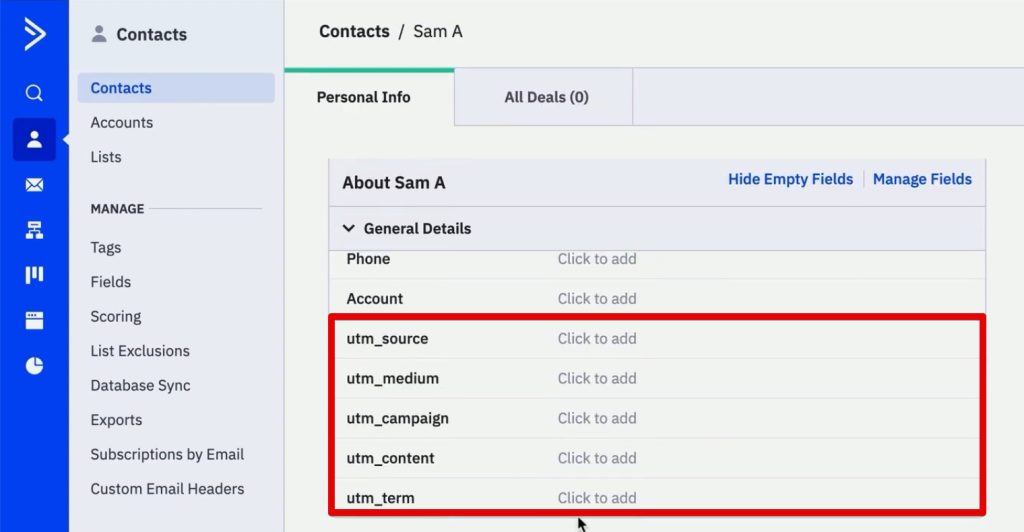
Phase 1: Configuring Custom Fields in ActiveCampaign
The foundation of this process is ensuring your CRM is capable of storing the incoming data.
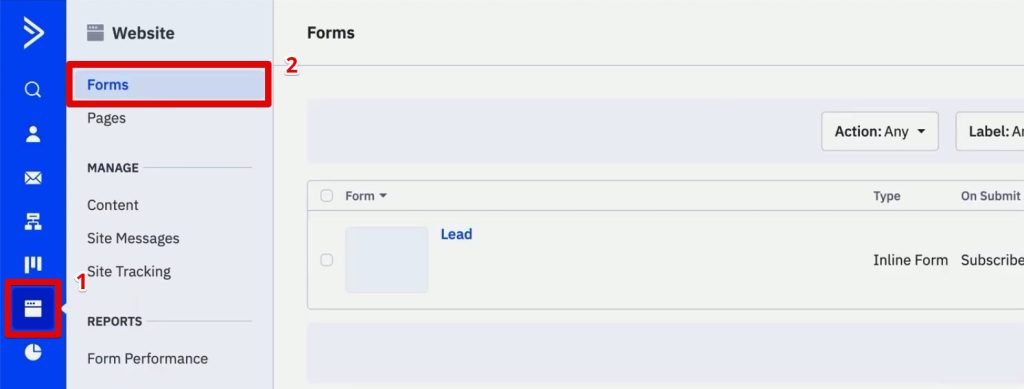
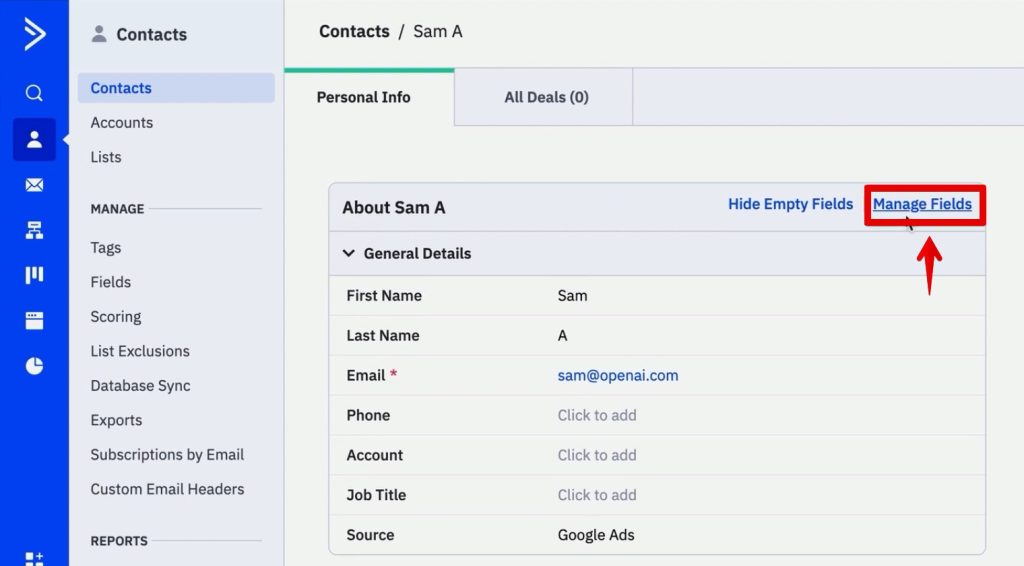
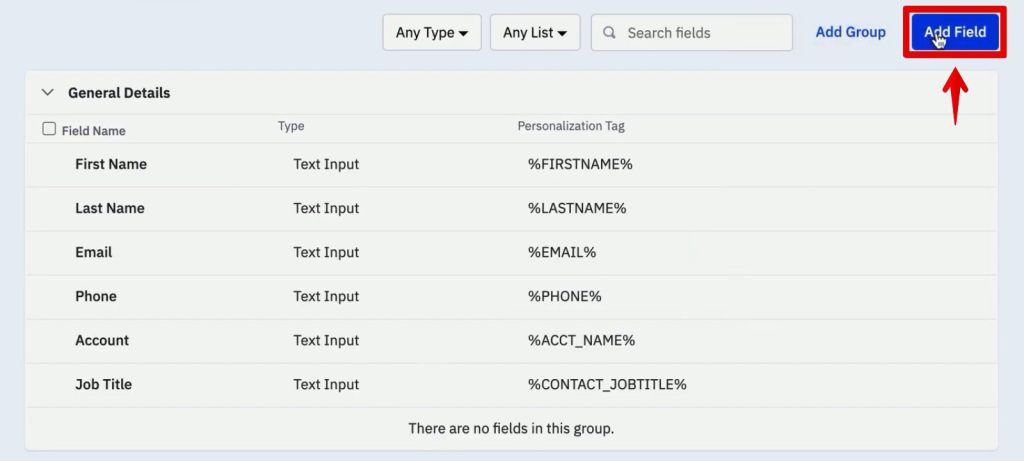
- Navigate to Contacts: In your ActiveCampaign dashboard, go to the "Contacts" menu and select "Manage Fields."
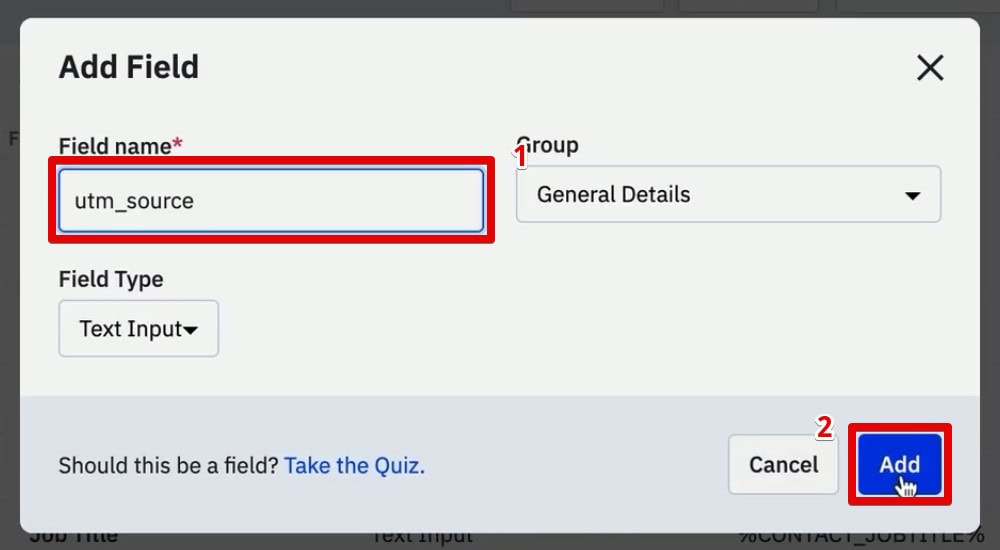
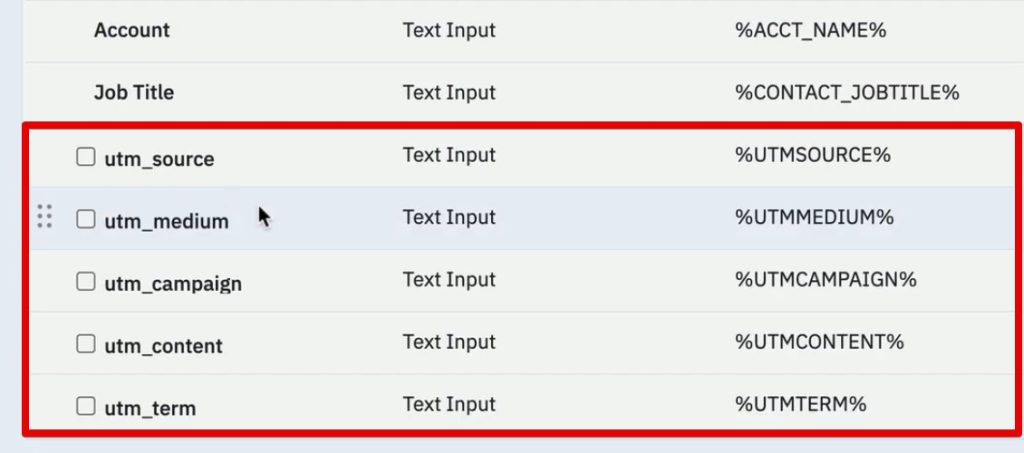
- Add New Fields: You need to create five distinct fields to capture the standard UTM parameters:
utm_source,utm_medium,utm_campaign,utm_content, andutm_term. - Save and Validate: Ensure these fields are set to "Text Input" types. Once created, these fields will be available for every contact record, serving as the containers for your attribution data.
Phase 2: Building the Lead Capture Form
Once the fields exist, they must be integrated into your lead generation forms.
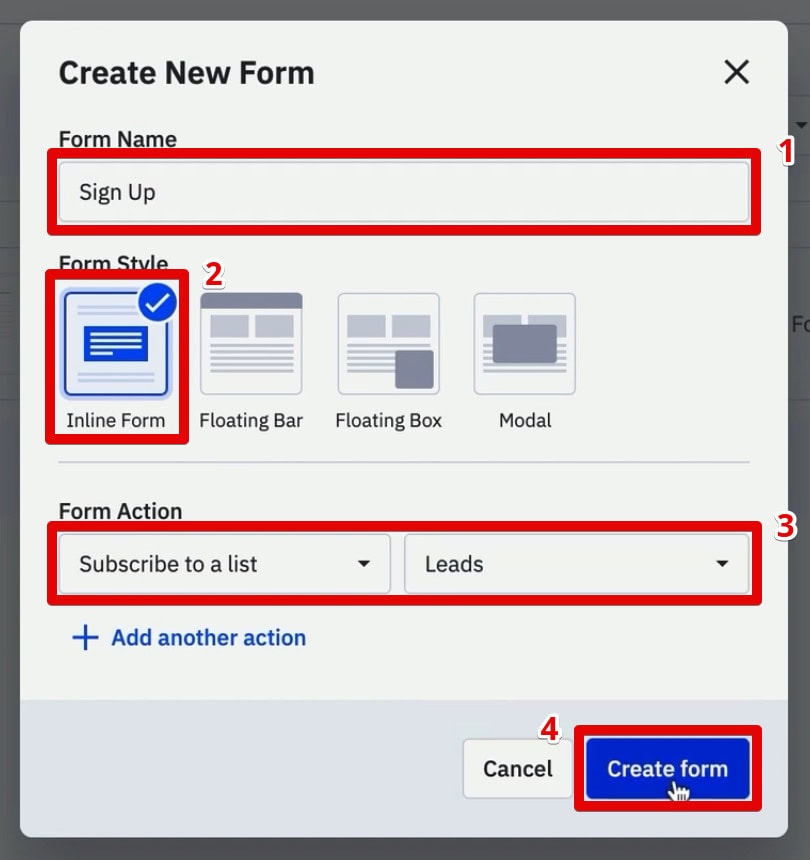
- Create an Inline Form: Navigate to "Website" and then "Forms." Select "Add New Form."
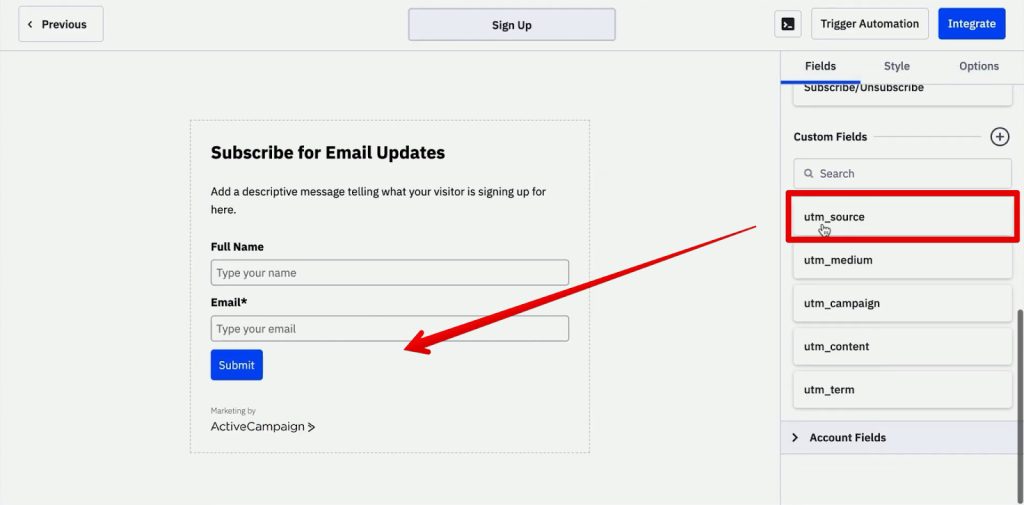
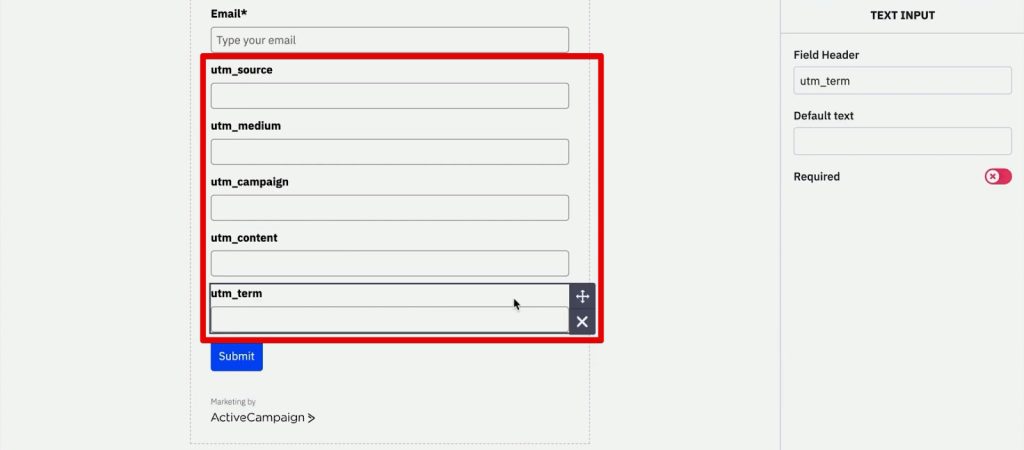
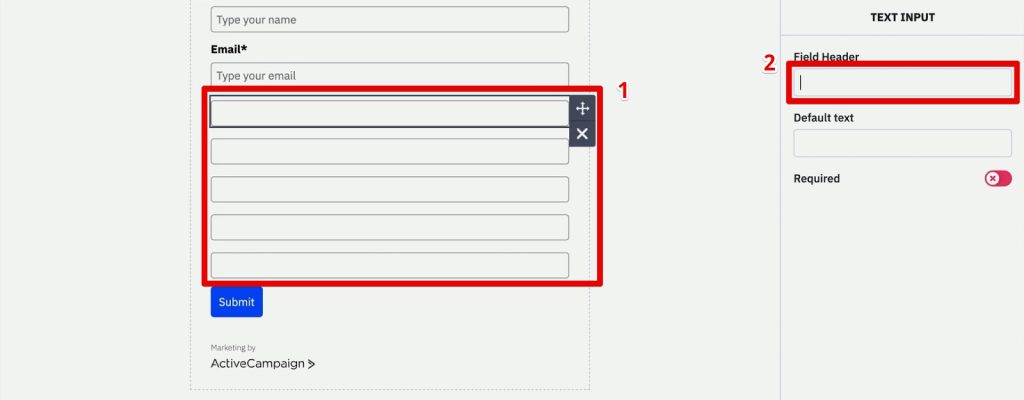
- Field Integration: Use the drag-and-drop interface to add your newly created UTM custom fields to the form.
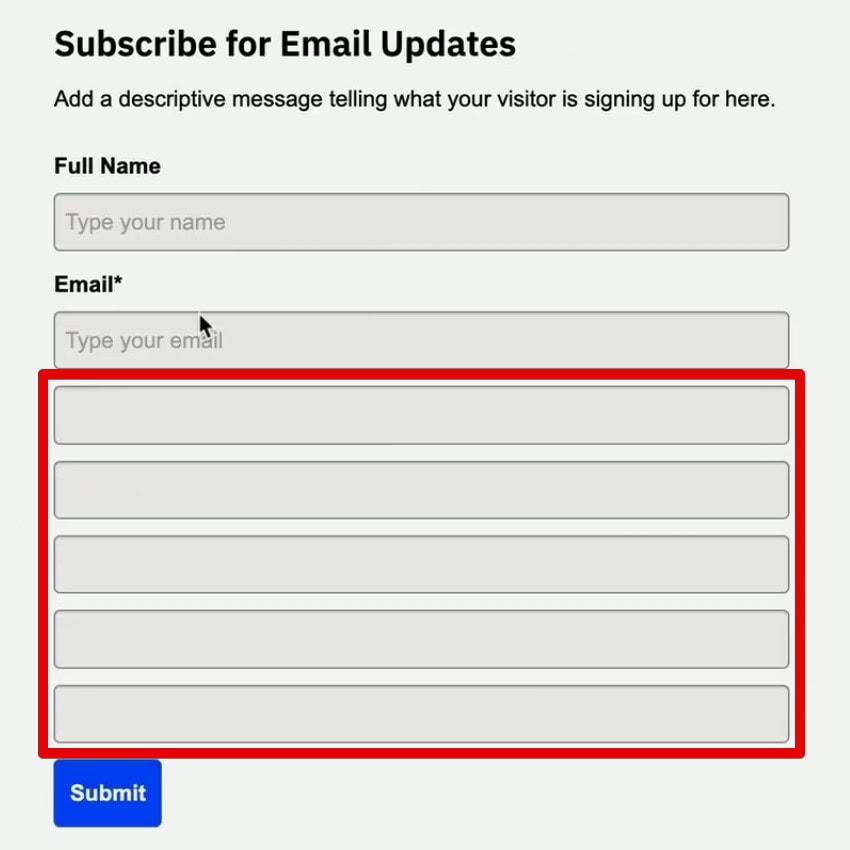
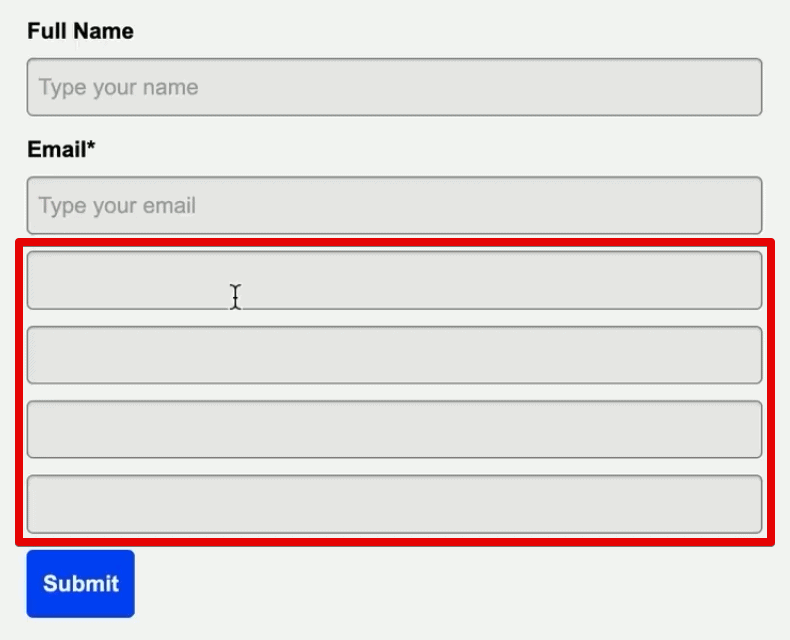
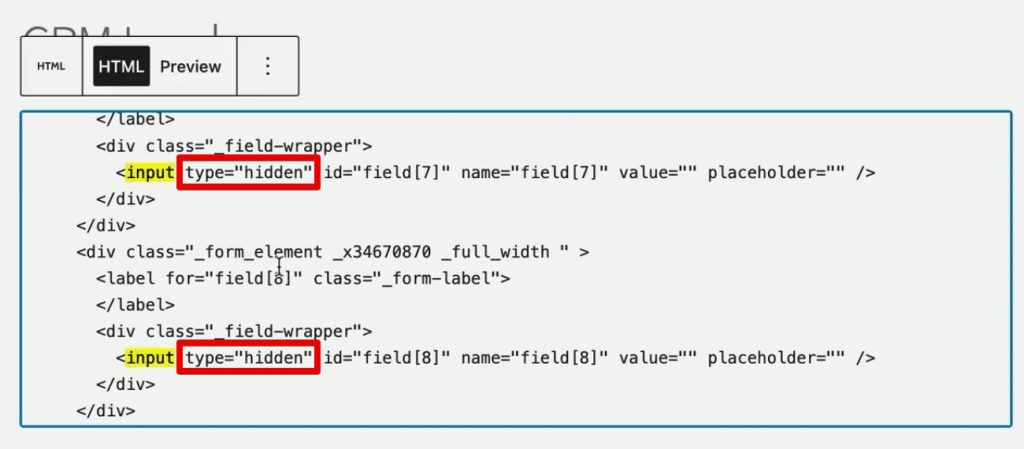
- Preparation for Stealth: While you will see these fields on the form builder, your goal is to make them invisible to the end-user. Do not remove them from the form itself, as they need to exist in the HTML structure to receive data.
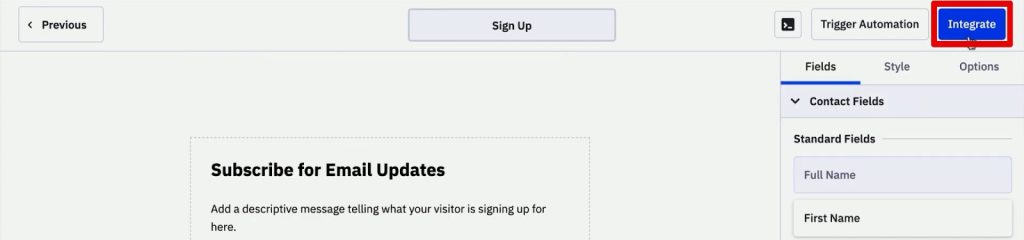
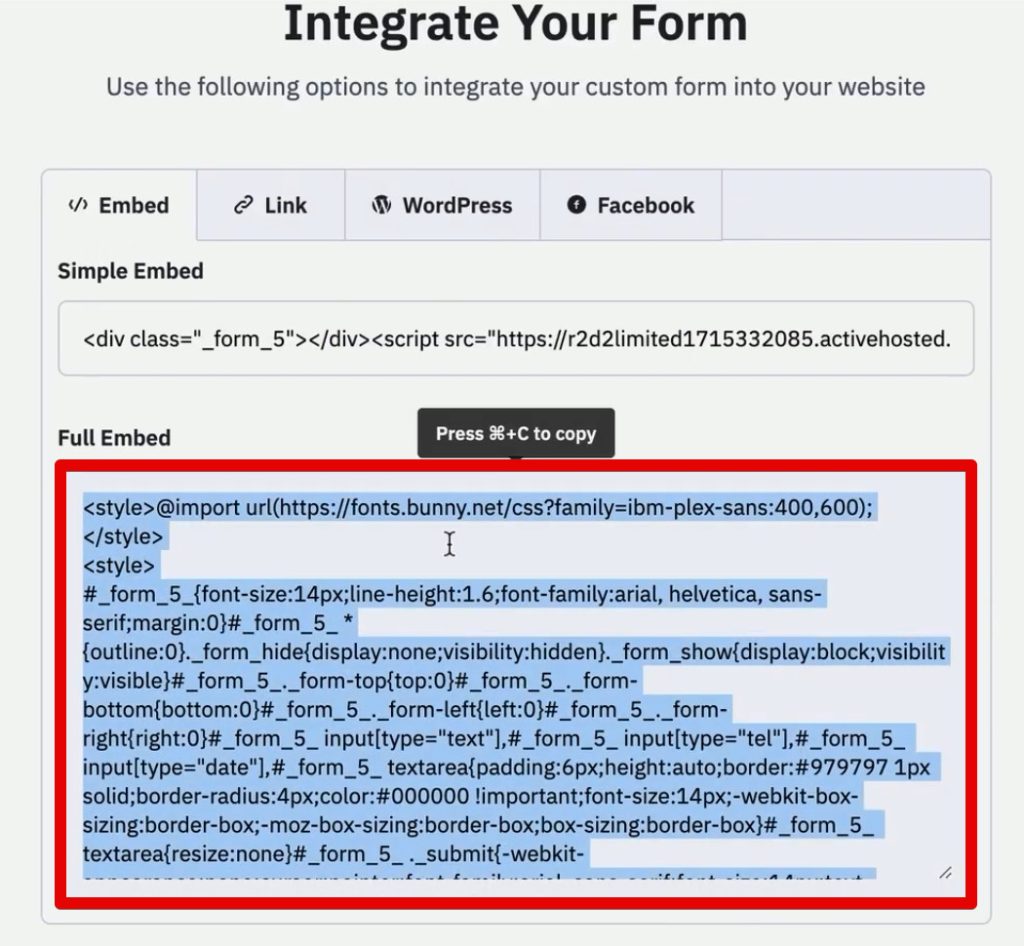
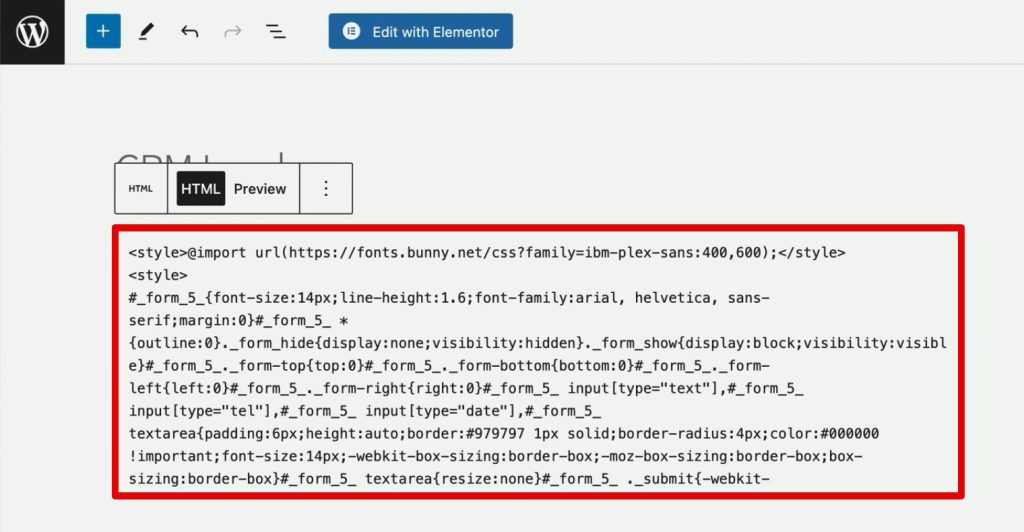
- Integration: Click "Integrate" to generate the HTML embed code. Paste this code onto your website where you intend to host the sign-up form.
Phase 3: The Role of First-Party Cookies
When a user arrives at your site, the URL parameters (the query strings) only exist on the landing page. If the user navigates to a different page, those parameters disappear from the browser’s address bar.
To solve this, we use Google Tag Manager (GTM) to set a first-party cookie. This cookie acts as a "memory bank," holding onto the UTM information even as the user traverses the site.
- Create a "Set Cookie" Tag: In GTM, create a new "Custom HTML" tag.
- The Script: Insert a JavaScript snippet designed to read the query strings from the URL and save them as a cookie named
source_query. - Triggering: Configure this tag to fire on "Page View" events only when the URL contains UTM parameters.
Phase 4: Automating Form Population
The final step is to instruct the browser to take the data stored in the source_query cookie and inject it into the hidden form fields before the user hits "Submit."
- DOM Ready Trigger: Create a second GTM tag. Use a "DOM Ready" trigger—this is crucial, as the form must be fully rendered in the browser before the script can attempt to fill the fields.
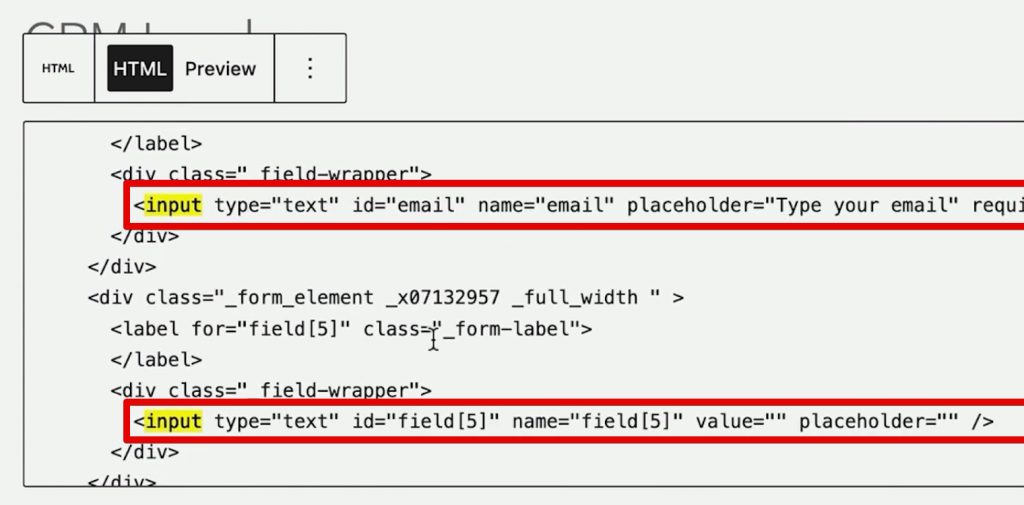
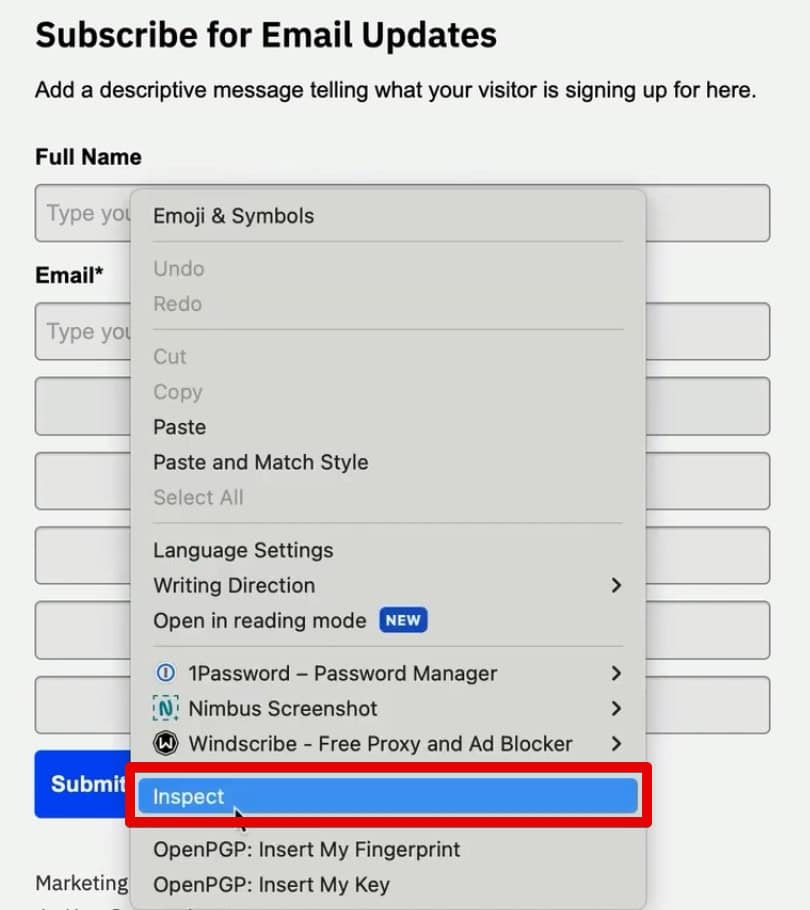
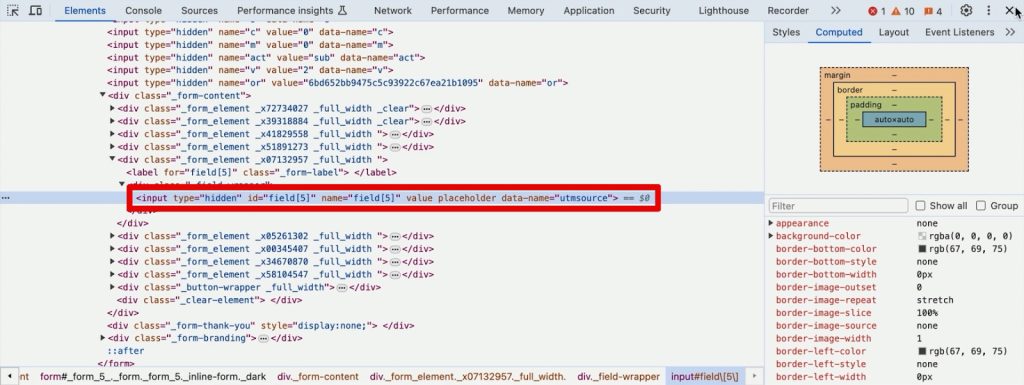
- CSS Selectors: You must identify the specific CSS selectors for your hidden form fields. By using the "Inspect" function in Chrome Developer Tools, you can locate the unique ID or name attribute of your hidden fields.
- Map and Inject: The script will map the UTM values from the cookie to these selectors, automatically populating the form fields in the background.
Supporting Data: Ensuring Technical Accuracy
The effectiveness of this method relies on the precision of your CSS selectors. If the script cannot find the target field, the data will not pass to ActiveCampaign.
When you inspect a form element, look for the data-name or id attribute. While many platforms generate dynamic IDs, identifying the field by its name attribute or a consistent class is the most robust way to ensure your script remains functional even if your website layout undergoes minor changes.
Testing Protocol:
- Preview Mode: Always utilize GTM’s Preview and Debug mode.
- Simulated Traffic: Manually input a URL with full UTM parameters (e.g.,
?utm_source=google&utm_medium=cpc...) and navigate through your site. - Cookie Inspection: Use the "Application" tab in Chrome Developer Tools to verify that the
source_querycookie is being set and that it contains the correct values. - Form Submission: Finally, unhide the fields (change the input type to "text" via the inspector) to confirm the data is actually populating before submission.
Implications and Advanced Considerations
The Shift Toward Privacy-First Tracking
It is important to acknowledge that the landscape of tracking is evolving. With the deprecation of third-party cookies, relying on first-party cookies (as described in this guide) is a best-practice strategy. Because these cookies are set on your own domain and are directly related to the user’s interaction with your form, they are significantly more resilient to browser privacy restrictions than third-party tracking scripts.
Offline Conversion Tracking
Once you have successfully captured the UTM data in ActiveCampaign, the implications for your business are profound. You can now track "Offline Conversions." If a user submits a form and eventually closes a deal via a sales call, you can trace that revenue back to the original source. This allows you to shift your marketing focus from "cost per lead" to "cost per acquisition" or "return on ad spend."
Scaling and Maintenance
While the manual GTM/JavaScript approach provides immense control and costs nothing but time, it does require maintenance. If you update your website’s form provider, you may need to update your CSS selectors in GTM.
For high-growth organizations, there is a clear trend toward automated middleware. Tools like SourceLink or similar attribution-focused plugins are emerging to handle this "heavy lifting" by automatically injecting these scripts and managing the data flow between landing pages and CRMs. As the complexity of your marketing stack grows, evaluating whether to build (as shown here) or buy (using a dedicated tool) becomes a necessary strategic decision.
Conclusion: Turning Data into Decisions
Capturing lead sources is no longer an optional task; it is the backbone of efficient digital marketing. By following the steps outlined—from creating custom fields in ActiveCampaign to utilizing JavaScript and GTM for persistent cookie storage—you move from guessing which campaigns work to knowing exactly where your growth is coming from.
The "magic" of this implementation lies in its seamless nature. The user experiences a simple, clean form, while you, the marketer, receive a treasure trove of data that enables better targeting, more personalized email automation, and, ultimately, higher profitability.
What UTM information is most vital to your business? Are you tracking the ‘Term’ for paid search or the ‘Content’ for A/B testing? The beauty of this system is its flexibility; you can adapt these scripts to capture any parameter that informs your specific business goals. Start with the basics, test your implementation, and watch as your attribution data transforms from a guessing game into a clear roadmap for your marketing success.
