
Last Modified on February 17, 2025
Mastering the Language of Data: Why Regular Expressions Remain Indispensable in Google Analytics 4

Digital analytics has undergone a profound transformation, evolving from rudimentary data collection to sophisticated systems capable of yielding invaluable insights. At the heart of this evolution lies a powerful, yet often underestimated, tool: Regular Expressions, universally known as RegEx, RegExp, or Regex. As of February 17, 2025, RegEx continues to be a cornerstone for data professionals navigating the complexities of Google Analytics 4 (GA4), enabling precision in data collection, analysis, and segmentation that simpler filtering methods cannot achieve.
The Enduring Power of Pattern Matching: A Chronological Perspective

The concept of Regular Expressions is not new; it originated in theoretical computer science in the 1950s with mathematician Stephen Cole Kleene’s work on formal languages. Over decades, RegEx transcended academic theory to become a fundamental utility in programming languages, text editors, and databases for its unparalleled ability to define and match text patterns.
In the realm of digital analytics, RegEx gained prominence with platforms like Universal Analytics (UA) and Google Tag Manager (GTM). Analysts routinely leveraged RegEx for tasks such as grouping page URLs, standardizing campaign parameters, and creating intricate filters. While some found RegEx intuitive, others grappled with its syntax, often relying on basic patterns to "make things work." The mantra, "As long as it works," often sufficed in UA’s more forgiving environment.
However, the advent of Google Analytics 4 marked a significant shift. GA4, built on an event-driven data model, introduced new ways of thinking about user interactions and data structuring. Despite these architectural changes, RegEx not only survived but solidified its role as an indispensable skill. Its ability to extract, filter, and manipulate string-based data remains critical, adapting to GA4’s unique interface and underlying mechanisms. Understanding when and where to deploy RegEx in GA4 is paramount for extracting the deepest, most actionable insights from your data.
Deciphering the Digital Landscape with RegEx: What It Is and Why It’s Essential

At its core, a Regular Expression is a sequence of characters that defines a search pattern. When applied to text (or "strings"), it allows analysts to identify, match, and manipulate specific data points based on that pattern. This capability becomes incredibly powerful in digital analytics, where data often arrives in varied or semi-structured formats.
The primary objective of RegEx in GA4 is to efficiently match specific patterns within your data, returning all values that meet the defined criteria. This capability saves countless hours of manual data sifting, particularly when dealing with dynamic or large datasets where exact values are unpredictable.

Here’s a concise look at some key applications for RegEx within GA4:
- Data Filtering: Isolating specific subsets of data in reports, explorations, or segments (e.g., traffic from multiple specific campaigns).
- Data Grouping: Consolidating variations of a dimension into a single, cohesive category (e.g., different spellings of a product name, or multiple subdomains).
- Data Extraction: Pulling specific pieces of information from a larger string (e.g., extracting product IDs from URLs, or specific terms from search queries).
- Event Creation/Modification: Defining conditions for new events or adjusting existing ones based on URL patterns or parameter values.
- Exclusion Rules: Defining internal traffic or unwanted referral domains based on complex IP patterns or multiple domain names.
While RegEx offers a wide range of uses, its most common application in GA4 remains sophisticated text data filtering and extraction, allowing for a level of granularity and flexibility unmatched by standard "contains" or "starts with" operators.

Understanding RegEx Match Types in GA4
The effectiveness of a RegEx pattern in GA4 is significantly influenced by the chosen "match type." These filtering conditions, familiar from both UA and GA4, dictate how the RegEx pattern interacts with the data. Often overlooked, the match type plays a critical role in the accuracy of your results.

Let’s recap the primary RegEx match types encountered in GA4:
- Matches Regex: This is an "exact match" type. The entire string must precisely match the RegEx pattern. If the pattern is
apple, it will only matchapple, notred appleorapple pie. - Matches Partial Regex: This is a "contains" match type. The RegEx pattern only needs to be found anywhere within the string to trigger a match. If the pattern is
apple, it will matchred apple,apple pie, andapple. - Does Not Match Regex: Excludes strings that exactly match the RegEx pattern.
- Does Not Match Partial Regex: Excludes strings that contain the RegEx pattern.
Important Note: Filter match types in GA4 are case-sensitive by default. If your data contains "organic" and "Organic," a RegEx searching for "organic" will only match the lowercase version unless you explicitly account for case variations in your pattern or use a "matches regular expression (ignore case)" option where available.

GA4’s RE2 Syntax: Navigating Nuances and Limitations
It’s crucial for GA4 practitioners to understand that Google Analytics 4 utilizes the RE2 RegEx syntax. RE2 is a fast, safe, and efficient RegEx engine developed by Google. While powerful, it comes with certain deliberate limitations compared to more feature-rich RegEx engines (like PCRE, used in many programming languages). These limitations are primarily for performance and security, ensuring that complex or malicious RegEx patterns don’t degrade system performance.

Key RE2 limitations include:
- No Lookarounds: Patterns like
(?=...)(positive lookahead) or(?<!...)(negative lookbehind) are not supported. - No Backreferences: You cannot refer back to a previously matched group using
1,2, etc. - No Conditional Expressions: Constructs like
(?(condition)true_regex|false_regex)are not available. - Limited Escaping: Some escape sequences found in other engines might not be recognized or have different meanings.
- No Recursive Patterns: Self-referencing patterns are not supported.
- No POSIX Character Classes: While standard character classes like
d,w,sare supported, more extensive POSIX classes like[:alpha:]are not. - No Callouts or Comments: Features for debugging or annotating RegEx are absent.
These limitations mean that while RE2 is highly performant, users must sometimes adapt their patterns to work within its constraints, often requiring simpler, more direct approaches to pattern matching.

Strategic Applications: Where RegEx Empowers Your GA4 Analysis
RegEx can be strategically deployed across various sections of the GA4 interface to enhance data granularity and reporting flexibility.
Standard Reports
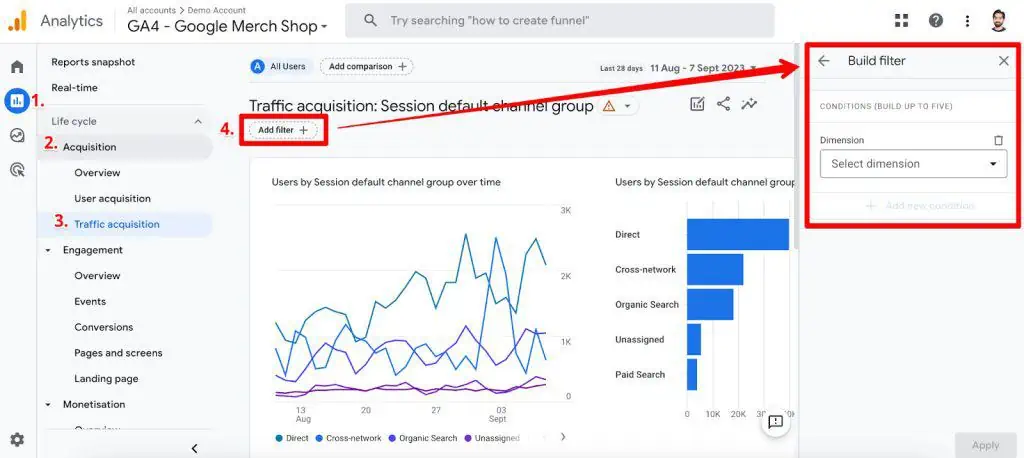
In GA4’s default "Standard Reports" (also known as detailed reports), RegEx offers enhanced filtering capabilities. While table filters and comparisons currently lack RegEx support, the "Add filter" option at the top of many reports is where this power resides.
To illustrate, navigate to Reports → Acquisition → Traffic Acquisition. Click the "Add a filter" button. In the "Build filter" interface, you can select a dimension (e.g., "Session default channel group"). If you wish to view traffic performance for both "Organic" and "Email" channels simultaneously, you would choose "matches partial regex" and enter Organic|Email in the value field. The pipe | acts as an "OR" operator, ensuring that any channel containing either "Organic" or "Email" is included. This immediately refines your report to show only these specific channels, excluding all others. Conversely, selecting "does not match partial regex" would exclude these channels, allowing you to focus on the remainder of your traffic sources.

Explorations
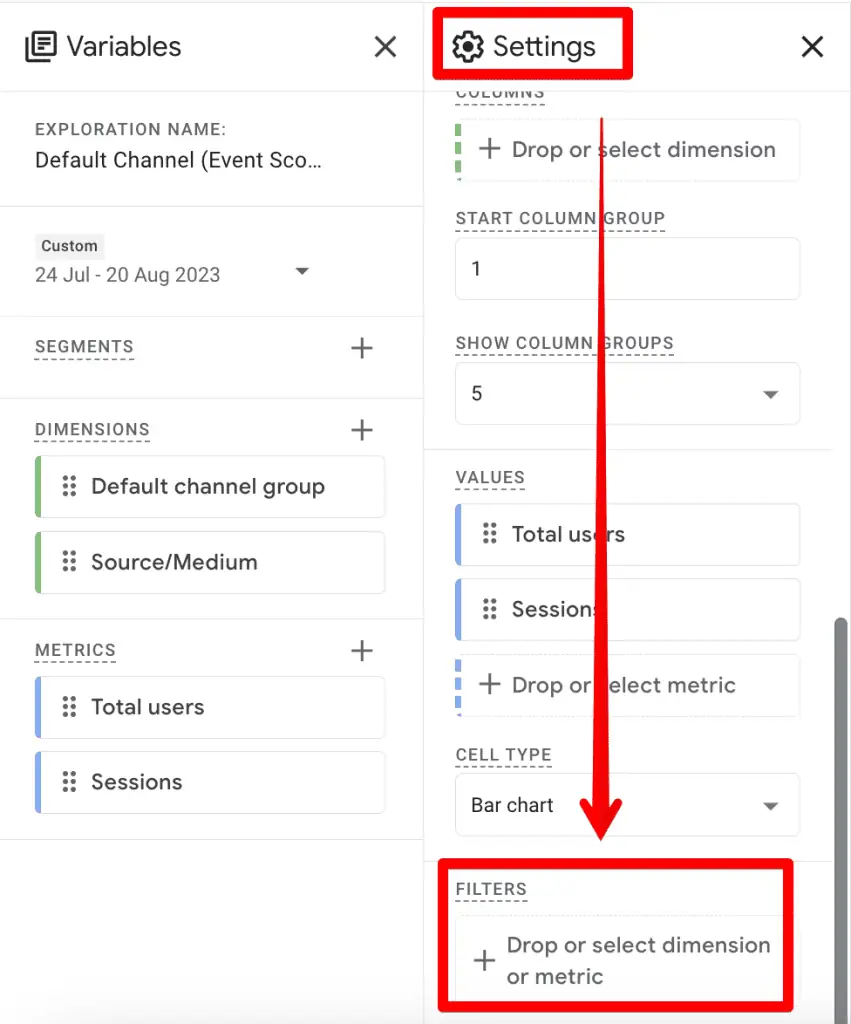
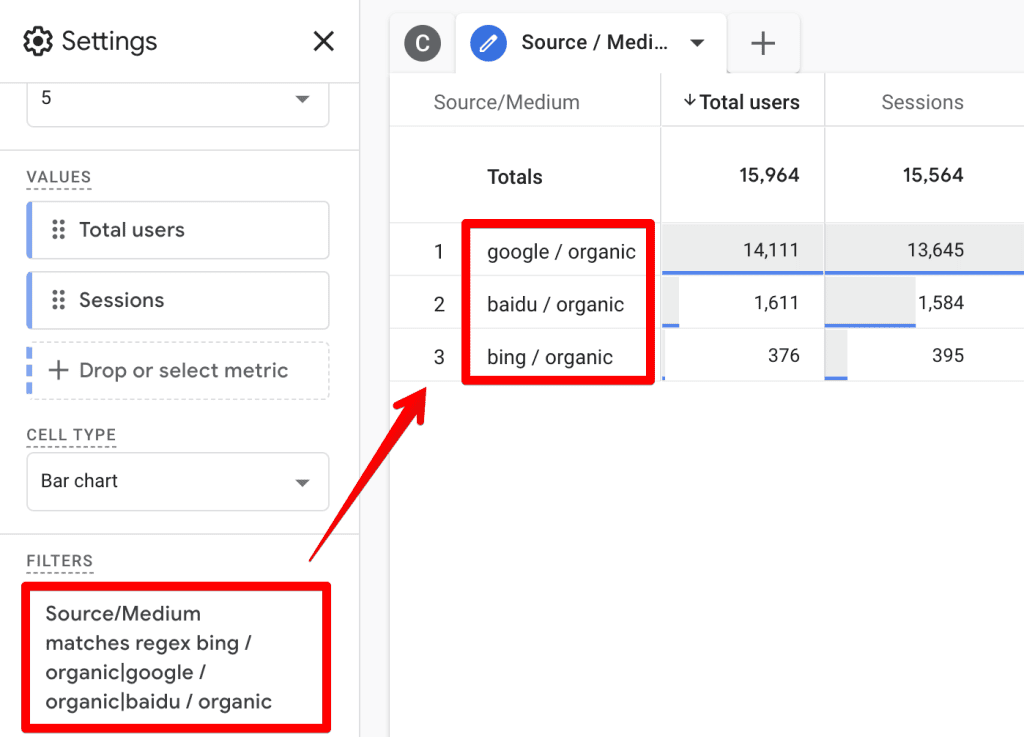
GA4’s "Explorations" provide a highly customizable canvas for deep data dives. Within an Exploration, under the "Settings" column, you can apply filters to dimensions and metrics. For dimensions like "Source/Medium," RegEx can be invaluable.
However, a critical distinction in Explorations is that only "matches regex" and "does not match regex" options are typically available, not "matches partial regex." This means that for a dimension like "Source/Medium," if you want to include all organic sources, you cannot simply use organic as your pattern. Instead, you must list the exact values as they appear in your data, such as bing / organic|google / organic|baidu / organic. This requires a prior understanding of your data’s exact values, making it less flexible than a partial match. This limitation is a common point of frustration, and many analysts hope for the inclusion of "matches partial regex" in future GA4 updates for Explorations.
Segments and Audiences
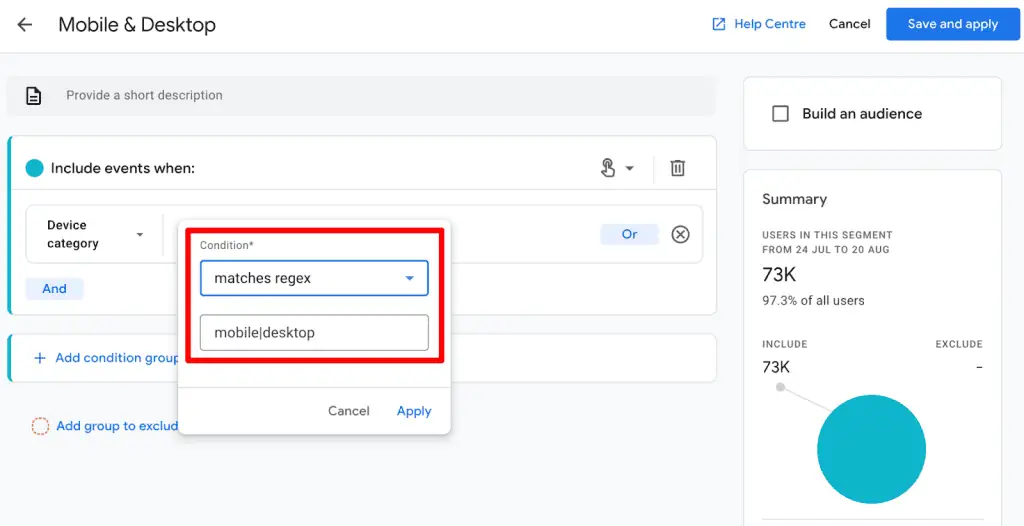
RegEx significantly enhances the creation of granular "Segments" (for retrospective analysis in Explorations) and "Audiences" (for remarketing and future analysis). When defining a new segment or audience, you can set conditions based on various user, session, or event properties.
For instance, to analyze events occurring on both mobile and desktop devices, you can create a segment using "Device category" and set the condition to "matches regex" with the value mobile|desktop. Similar to Explorations, the "matches regex" operator requires exact matches for each specified value. Once saved, this segment can be applied to your Explorations, providing a focused view of data from these device types. The ability to build audiences directly from these RegEx-driven segments further extends their utility into activation.

Internal Traffic and Unwanted Referrals
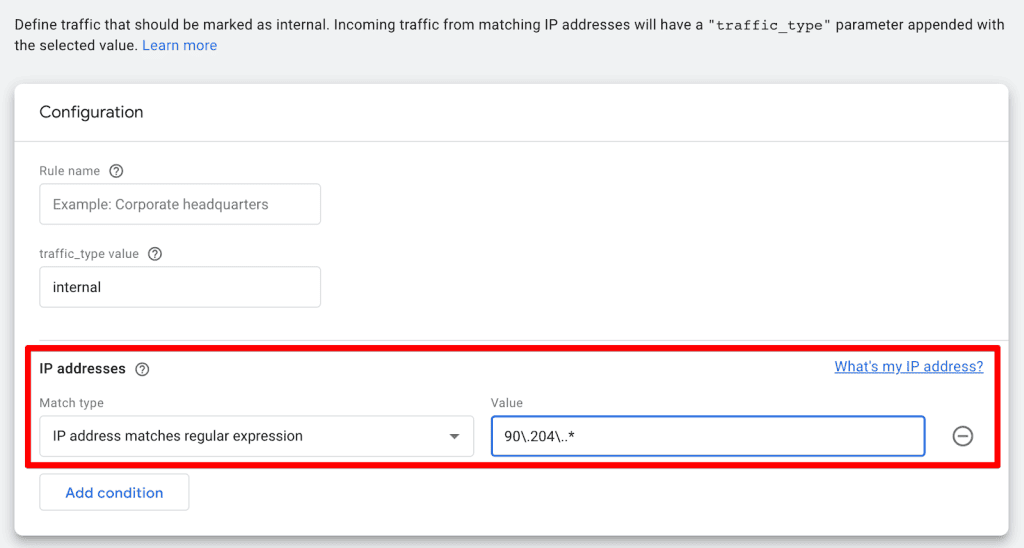
RegEx is crucial for data hygiene within GA4, particularly for defining internal traffic and filtering out unwanted referrals. These settings are found under Admin → Data Streams → Configure tag settings.
- Define Internal Traffic: Here, you can specify IP addresses or ranges that belong to your organization. Using "IP address matches regular expression," you can define patterns for multiple IP addresses. For example,
^90.204..*would identify any IP address starting with "90.204." and followed by any characters. This ensures that your internal team’s browsing activity doesn’t skew your analytics data. - List Unwanted Referrals: This feature helps exclude third-party payment processors, CRM systems, or other domains that aren’t true traffic sources but might appear as referrers. By selecting "Referral domain matches RegEx," you can use a pattern like
stripe.com|paypal.comto exclude referrals from both Stripe and PayPal. The backslashis essential here to escape the dot., as.is a special RegEx character meaning "any character."
Create or Modify Events
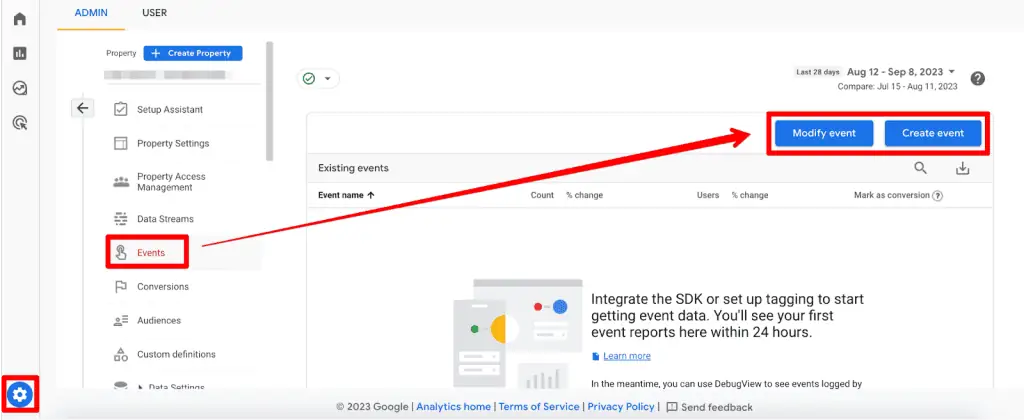
RegEx provides flexibility in managing events in GA4, located under Admin → Events. You can either "Create event" (from an existing event) or "Modify event" (changing an existing event’s parameters).

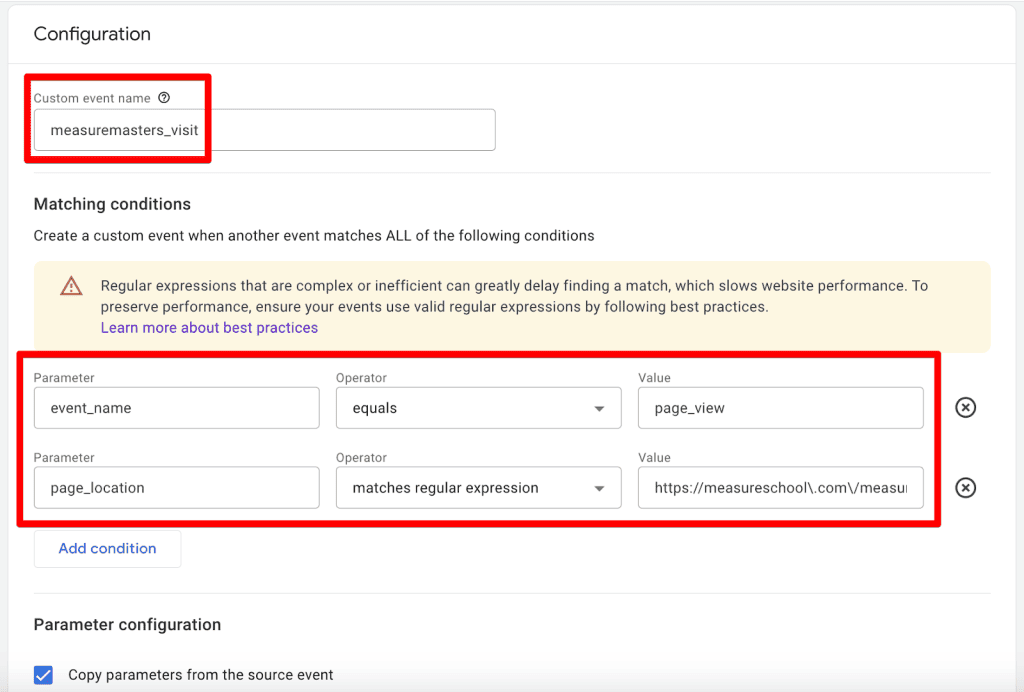
For both options, you have "matches regular expression" and "matches regular expression (ignore case)" conditions. Suppose you want to trigger a custom event, measuremasters_visit, whenever a user visits a specific page like https://measureschool.com/measure-masters/. You can create a new event based on the page_view event, with a condition where "page_location" "matches regular expression" https://measureschool.com/measure-masters/. Note the need to escape special characters like . and / with a backslash to ensure they are treated as literal characters. Google’s interface often highlights warnings against unnecessary RegEx use, encouraging simpler conditions when applicable, but for complex URL patterns, RegEx is indispensable.
Custom Channel Groups
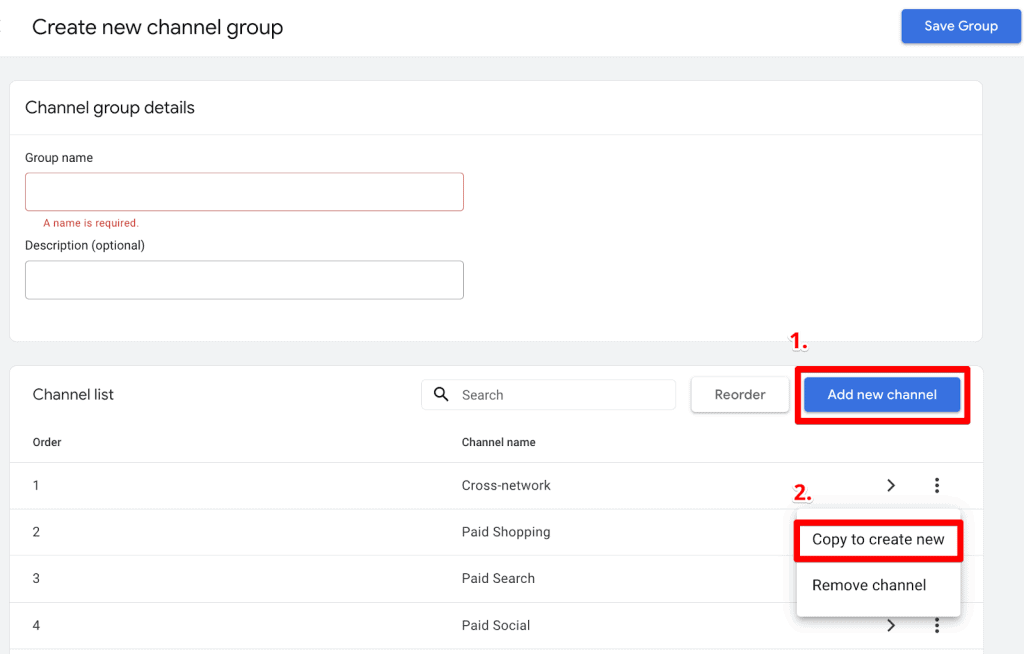
Finally, RegEx is instrumental in creating "Custom Channel Groups" within GA4, enabling more precise categorization of traffic sources beyond Google’s default groupings. Access this via Admin → Data Settings → Channel Groups.

While Google’s predefined channel groups are immutable, you can create new custom groups. When defining a new channel, you’ll find the invaluable "partially matches regex" option. This is particularly useful for consolidating various iterations of a medium or source into a single channel. For example, to create a "QR Codes" channel, you could set a condition where "Medium" "partially matches regex" qr|code. This pattern would capture traffic from mediums like "qr_code," "QR," or simply "code," providing a unified view of QR-driven engagement.
The RegEx Toolkit: Common Characters and Their Power
While mastering RegEx can be a journey, understanding a few common characters can immediately elevate your GA4 analysis:
.(Dot): Matches any single character (except newline).- Example:
a.bmatchesacb,a1b,axb.
- Example:
- *`` (Asterisk):** Matches the preceding character zero or more times.
- Example:
ab*cmatchesac,abc,abbc.
- Example:
+(Plus): Matches the preceding character one or more times.- Example:
ab+cmatchesabc,abbc, but notac.
- Example:
?(Question Mark): Matches the preceding character zero or one time (makes it optional).- Example:
colou?rmatchescolorandcolour.
- Example:
|(Pipe): Acts as an OR operator, matching either the expression before or after it.- Example:
apple|orangematchesappleororange.
- Example:
[](Square Brackets): Matches any one character within the brackets (a character set).- Example:
[aeiou]matches any single vowel. - Example:
[0-9]matches any single digit.
- Example:
()(Parentheses): Groups parts of a RegEx together, often for applying quantifiers or for logical grouping.- Example:
(ab)+matchesab,abab,ababab.
- Example:
^(Caret): Matches the beginning of the string.- Example:
^HomematchesHomepagebut notMy Home.
- Example:
$(Dollar Sign): Matches the end of the string.- Example:
page$matcheslanding pagebut notpage views.
- Example:
(Backslash): Escapes a special character, treating it as a literal character.- Example:
.matches a literal dot, not "any character."/matches a literal forward slash.
- Example:
n,m(Curly Braces): A quantifier that matches the preceding character or group at leastntimes, but no more thanmtimes.- Example:
d3,5matches 3, 4, or 5 digits.
- Example:
-(Hyphen): Used within[]to specify a range of characters.- Example:
[a-z]matches any lowercase letter.
- Example:
Official Responses & Best Practices for Effective RegEx Use

To harness RegEx effectively in GA4 and avoid common pitfalls, consider these best practices:
- Start Simple and Iterate: Begin with the most straightforward pattern possible and gradually add complexity as needed. Overly complex RegEx can be difficult to debug and maintain.
- Test Thoroughly with External Tools: Before deploying any RegEx in GA4, always test it. Tools like
regex101.comare invaluable. Select the "Golang" flavor on RegEx101 to ensure compatibility with GA4’s RE2 engine. This allows you to input sample data and see exactly what your pattern matches, providing real-time feedback and explanations. This step is crucial for preventing unexpected filtering or data loss. - Document Your Patterns: For team collaboration and future reference, document the purpose of each RegEx pattern, where it’s used, and any specific considerations. This ensures consistency and simplifies troubleshooting.
- Understand Case Sensitivity Defaults: Remember that GA4 filters are often case-sensitive. If your data varies (e.g., "Organic" vs. "organic"), you must account for this in your RegEx (e.g.,
[Oo]rganicorOrganic|organic) or use a case-insensitive match type if available. - Prioritize Simplicity Over Complexity: If a simpler filtering option (like "contains" or "starts with") achieves your goal, use it. RegEx should be reserved for scenarios where standard filters are insufficient, such as combining multiple conditions, handling dynamic values, or extracting specific sub-strings.
- Leverage AI for Assistance: Tools like ChatGPT can be incredibly helpful for generating RegEx patterns based on plain-language descriptions or for explaining existing patterns. While not a replacement for understanding, they can accelerate learning and problem-solving.
These practices focus not just on learning the syntax, but on integrating RegEx intelligently into your GA4 workflow, maximizing its benefits while minimizing potential errors.
Implications: The Strategic Edge of RegEx Mastery in GA4
The mastery of Regular Expressions in Google Analytics 4 is more than just a technical skill; it’s a strategic advantage for any digital professional. Its implications extend across several critical areas:
- Enhanced Data Accuracy and Reliability: By precisely filtering out irrelevant data (like internal traffic or unwanted referrals) and grouping related dimensions, RegEx ensures that your GA4 reports reflect the true state of your digital performance. This leads to more accurate insights and more reliable decision-making.
- Deeper Insights and Granularity: RegEx allows analysts to slice and dice data in ways impossible with standard filters. It enables the identification of nuanced patterns, segments, and user behaviors that can unlock new growth opportunities or reveal hidden challenges.
- Operational Efficiency and Automation: Automating complex data grouping and event creation saves significant manual effort. Once a RegEx pattern is established, it can consistently process vast amounts of data, freeing up analysts for higher-value strategic work.
- Career Advancement and Adaptability: Proficiency in RegEx is a highly sought-after skill in the digital analytics industry. It demonstrates an ability to work with data at a granular level and adapt to evolving platforms. As analytics tools continue to advance, the underlying principles of pattern matching will remain constant, making RegEx a future-proof skill.
- Improved Customization: RegEx empowers users to tailor GA4 to their unique business needs, creating custom channel groupings, events, and segments that align perfectly with their reporting requirements and strategic objectives.
Summary
Regular Expressions are a powerful and enduring tool in the digital analyst’s arsenal, proving their worth even more with the shift to Google Analytics 4. From precisely filtering standard reports and building intricate segments in Explorations to ensuring data hygiene by excluding internal traffic and unwanted referrals, RegEx offers unparalleled control over your analytics data. It extends to creating custom events and defining highly specific channel groups, allowing for a truly tailored and insightful GA4 implementation.

While the RE2 syntax used by GA4 has specific limitations, understanding common RegEx characters like |, ^, $, . (when escaped), and * can immediately enhance your analytical capabilities. The key to mastering RegEx lies in consistent practice, thorough testing using tools like RegEx101.com (with the "Golang" flavor), and a pragmatic approach: use it where necessary for complexity, but opt for simpler filters when they suffice.
The ability to speak the language of data patterns is no longer optional but essential for extracting maximum value from your digital analytics efforts. It’s time to embrace RegEx and transform your GA4 data into a clearer, more actionable narrative.
How do you leverage RegEx in GA4 for your day-to-day analysis? Share your experiences in the comments below.
