
Unlocking Marketing ROI: A Deep Dive into Tracking Lead Sources in ActiveCampaign
The modern digital marketing landscape is a complex tapestry of channels, campaigns, and customer touchpoints. For businesses striving to optimize their efforts and maximize return on investment, understanding precisely where leads originate is not just beneficial—it’s imperative. This article delves into a robust, technical approach to tracking lead sources in ActiveCampaign, leveraging the power of UTM parameters, Google Tag Manager (GTM), and first-party cookies, ensuring every conversion can be accurately attributed.

The Critical Imperative: Why Accurate Lead Source Attribution Matters
In an era where customer journeys are rarely linear, a user might first encounter your brand through a social media ad, click through, browse your site, leave, and then return days later via a direct link or organic search to fill out a signup form. Without a sophisticated tracking mechanism, attributing that eventual sale or webinar attendance back to the initial, influential touchpoint becomes a formidable challenge.
Main Facts: The core problem lies in the inherent difficulty of connecting a final conversion event to the initial marketing source, especially when users revisit a website without the original tracking parameters. This attribution gap leads to misallocated budgets, inefficient campaigns, and a skewed understanding of marketing effectiveness. The solution involves meticulously capturing and storing source data at the earliest possible interaction within your Customer Relationship Management (CRM) system, such as ActiveCampaign. By doing so, businesses gain clarity on which marketing efforts truly drive value, enabling data-driven decisions for budget allocation and campaign optimization.
The Technical Blueprint: Integrating UTMs into ActiveCampaign
This guide outlines a methodical, chronological process for implementing comprehensive lead source tracking.
1. Laying the Foundation: Custom Fields in ActiveCampaign
The first step in building a robust attribution system is to create dedicated storage for source information within your CRM. ActiveCampaign allows for highly customizable contact profiles, making it an ideal platform for this purpose.

Chronology:

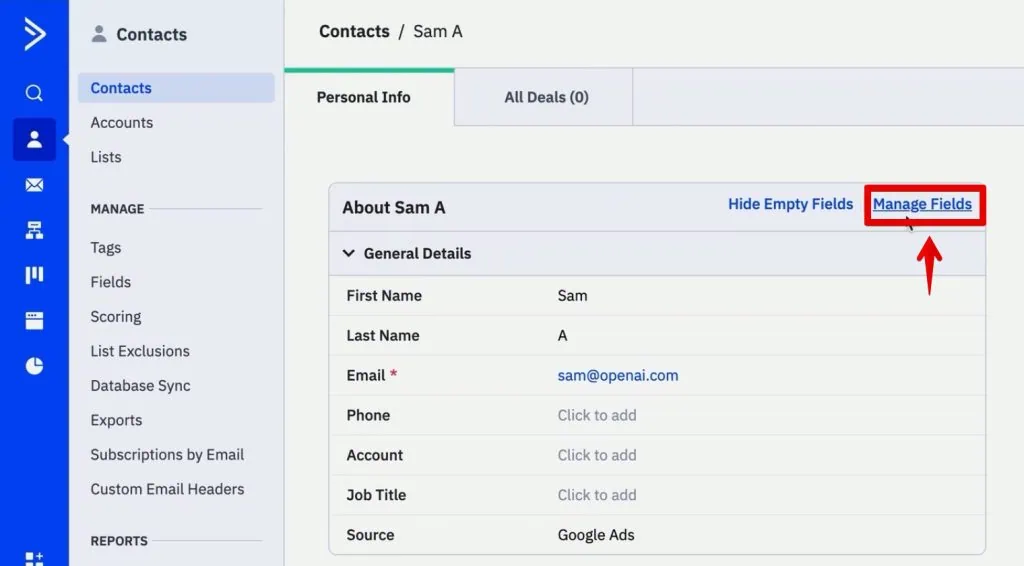
- Navigate to the Contacts section within ActiveCampaign.
- Select Manage Fields. This area is where you define the data points you want to collect for each contact.
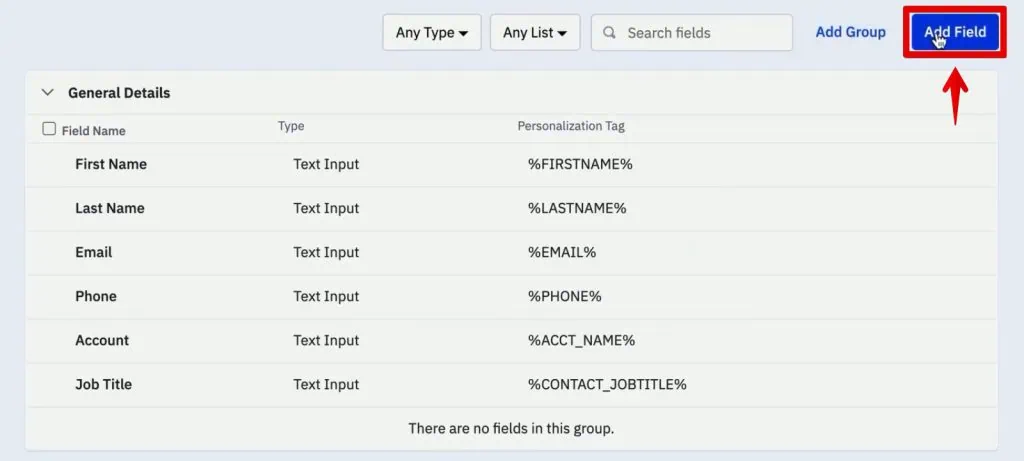
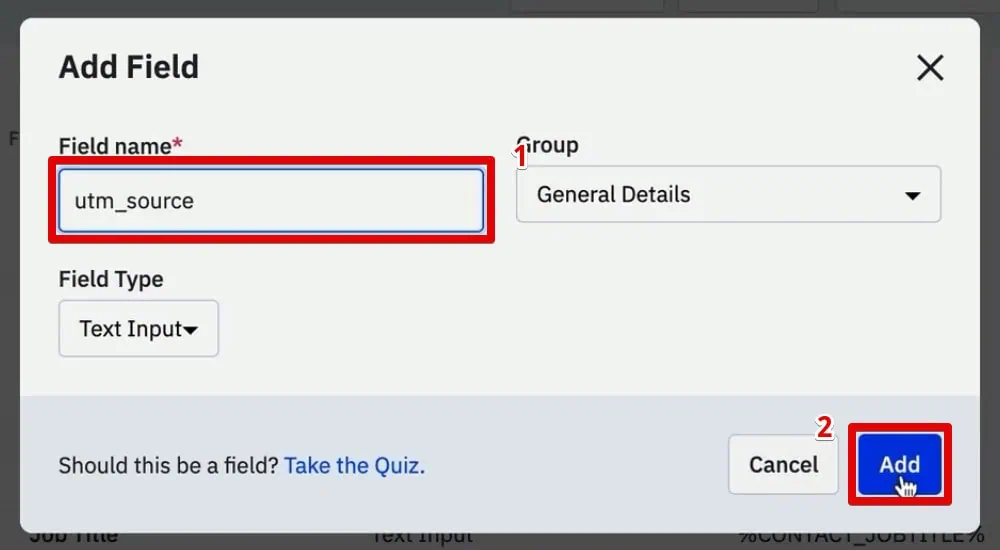
- Click Add Field to introduce new custom fields.
Supporting Data: Standard UTM (Urchin Tracking Module) parameters are the industry-recognized method for tracking the origin of website traffic. These are short text codes appended to URLs that allow analytics tools to identify where traffic came from, how it arrived, and what campaign it was part of. For effective tracking, it’s crucial to create custom fields for the five most common UTM parameters:

utm_source: Identifies the origin of your traffic (e.g., Google, Facebook, newsletter).utm_medium: Describes the mechanism that delivered the traffic (e.g., CPC, organic, email).utm_campaign: Identifies a specific product promotion or strategic campaign (e.g., summer_sale, new_product_launch).utm_content: Differentiates similar content or links within the same ad (e.g., banner_top, text_link).utm_term: Identifies keywords for paid search campaigns (e.g., marketing+automation, crm+software).
By creating these as individual text fields in ActiveCampaign, you ensure that specific data points are captured and associated with each lead, providing granular insight into their origin. While more advanced UTM parameters exist, these five provide a solid foundation for most attribution needs. Once created, these fields become visible within each user’s contact profile, ready to be populated.
2. Crafting the Capture Mechanism: ActiveCampaign Forms
To automate the data capture, these custom UTM fields need to be integrated into your website’s signup forms. ActiveCampaign’s form builder provides the necessary tools.

Chronology:

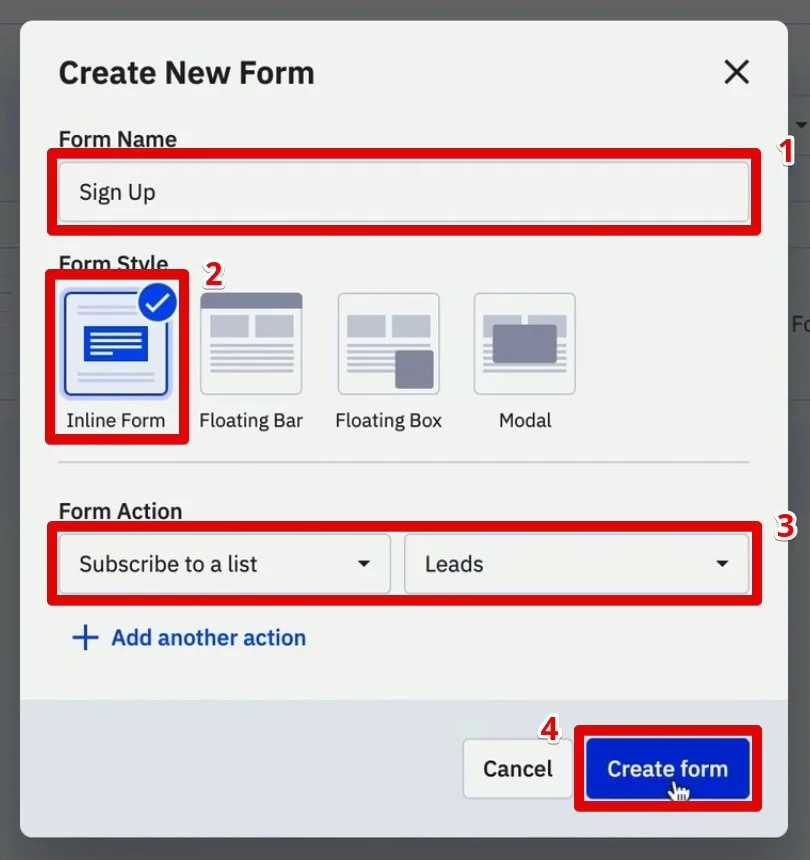
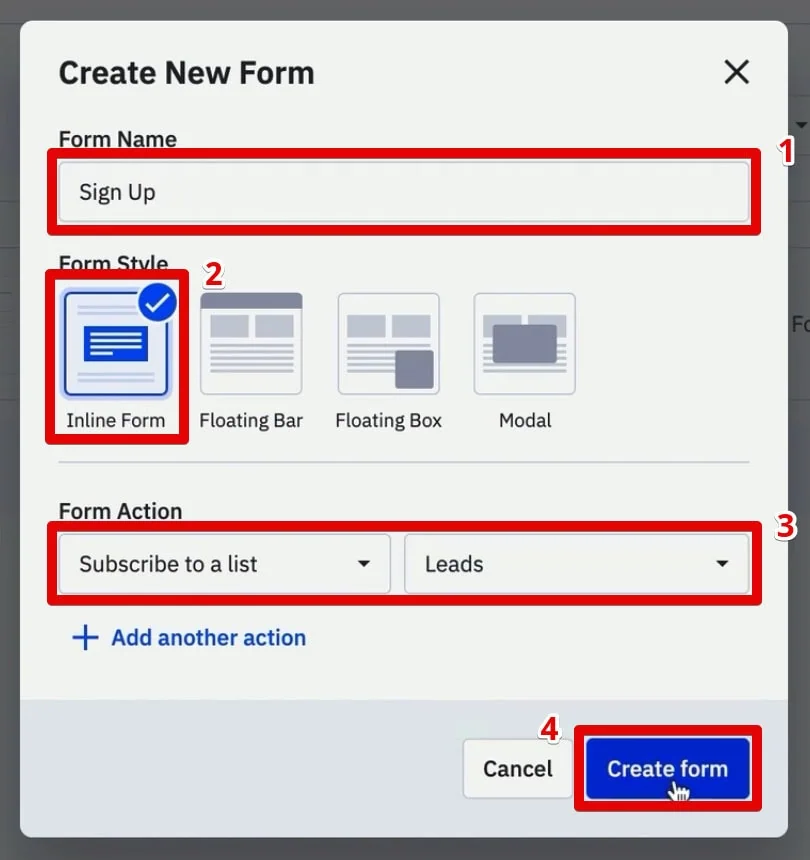
- From the ActiveCampaign dashboard, go to Website and then Forms.
- Initiate the creation of a New Form.
- Assign a clear, descriptive name (e.g., "Website Signup Form with UTMs").
- Crucially, select the Inline Form style. This choice is vital because it provides the flexibility to directly embed and modify the form’s HTML code on your website, which is a key step in hiding the UTM fields from the user.
- Specify the form action, typically Subscribe to a list, and select the relevant list (e.g., "Leads").
- Proceed to Create form.
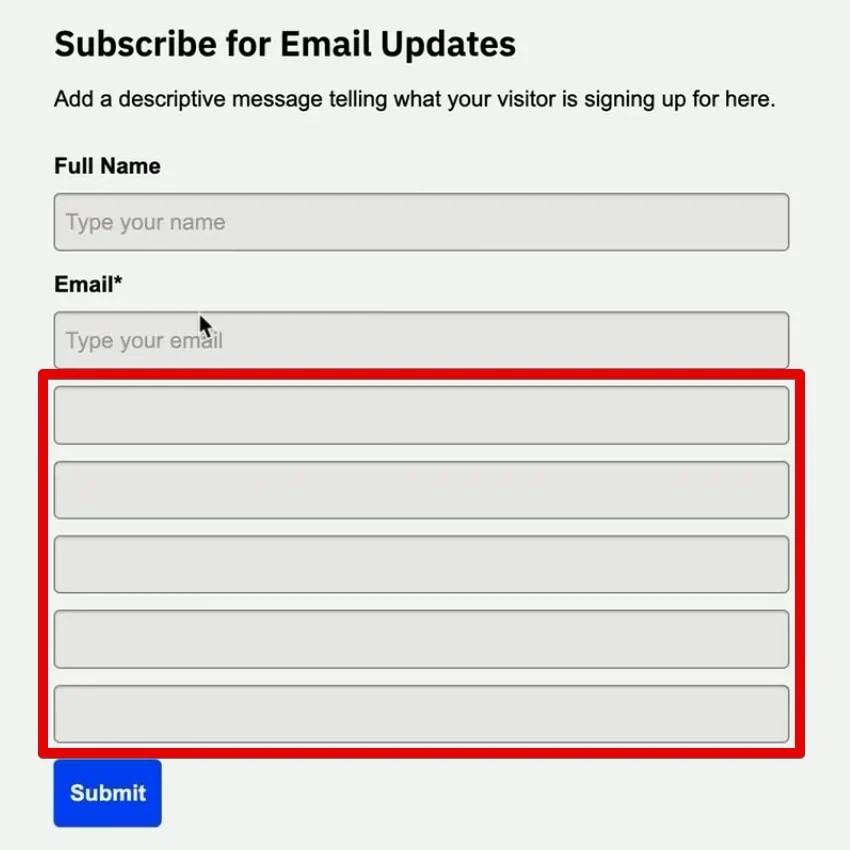
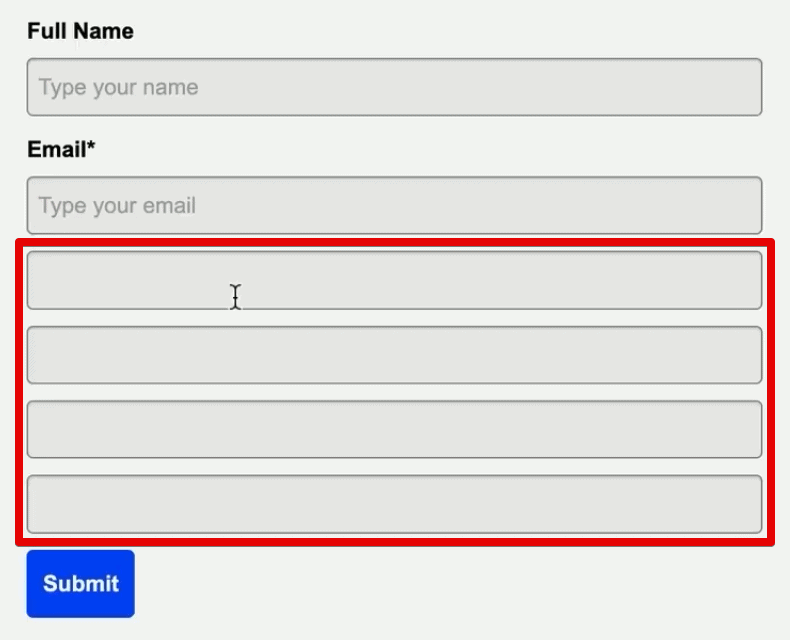
Official Responses/Expert Insights: The selection of an "Inline Form" is an expert recommendation. Unlike modal pop-ups or floating bars, inline forms offer greater control over the underlying HTML structure, which is essential for our stealth data capture strategy. Once the basic form is established, drag and drop the previously created UTM custom fields onto the form canvas. Initially, these fields will be visible to users. To maintain a clean user experience, the next step involves making them invisible while still allowing them to collect data. For each UTM field added, clear its default "field header" text to prepare for the visual concealment.

3. The Stealth Integration: Hiding Form Fields on Your Website
After embedding the ActiveCampaign form HTML onto your website, the visible UTM fields must be hidden from the end-user. This is achieved by modifying the form’s HTML structure.

Chronology:
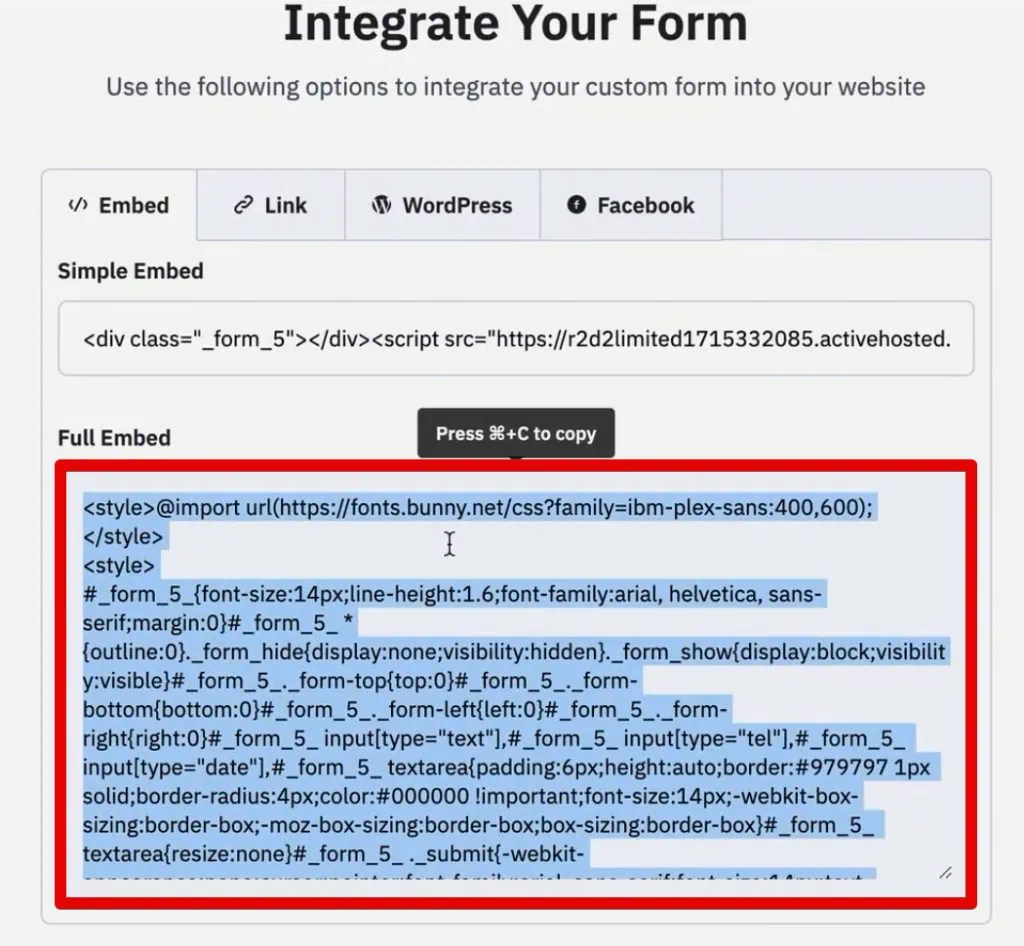
- Copy the full embed HTML code provided by ActiveCampaign for your newly created form.
- Paste this code into the source HTML of the desired page on your website (e.g., a WordPress page editor in HTML/text mode).
- Verify that the form loads correctly on your website, observing the visible UTM parameter fields.
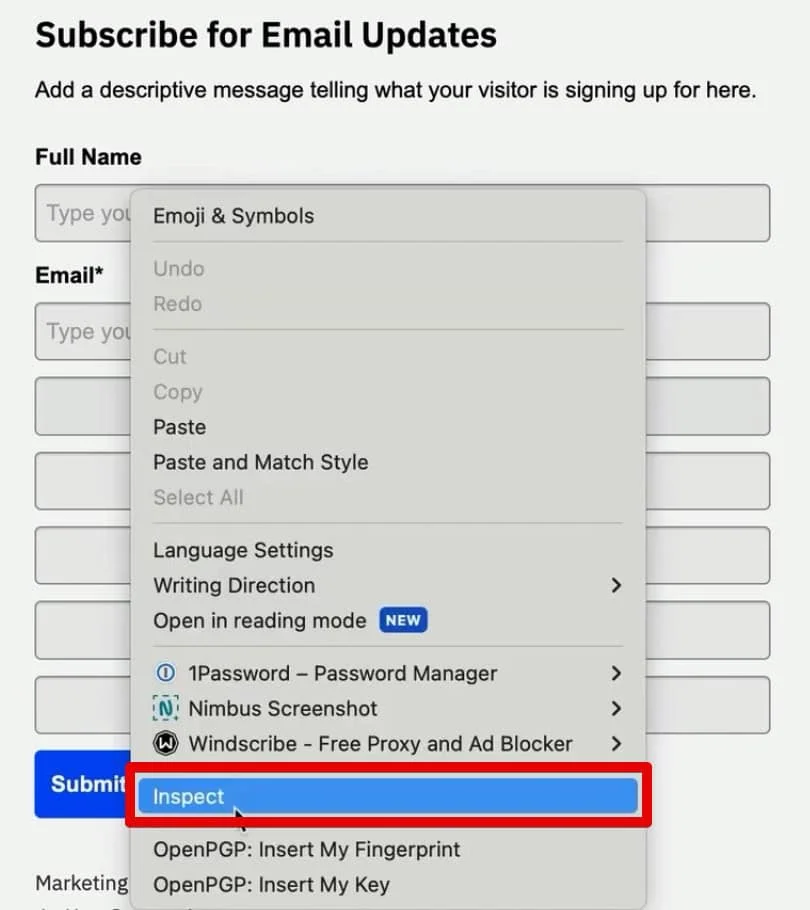
- Utilize browser developer tools (e.g., Chrome Developer Tools) to inspect the HTML elements of these visible UTM fields. Right-clicking on a field and selecting "Inspect" will reveal its underlying code, including its
idanddata-nameattributes. - Identify the
inputtags corresponding to each UTM field. Change thetypeattribute of theseinputtags fromtexttohidden.- For example,
<input type="text" id="field_5" name="field_5" data-name="utmsource" ...>becomes<input type="hidden" id="field_5" name="field_5" data-name="utmsource" ...>.
- For example,
- Update the website page with these modified HTML changes.
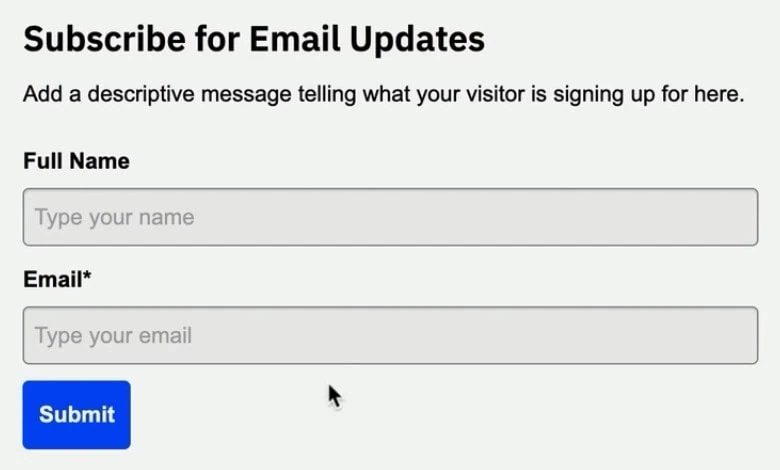
Supporting Data: By changing the input type to hidden, the fields remain part of the form’s structure and can still receive data programmatically, but they are completely invisible to the user. This ensures a streamlined user experience while preserving the capacity for critical data collection in the background. Thoroughly test the updated page to confirm that only the essential user-facing fields (like Name and Email) are visible.

4. Preserving the Trail: First-Party Cookies via Google Tag Manager
UTM parameters are typically appended to a URL as a "query string" and are only present on the landing page. If a user navigates to another page on your website, these parameters disappear from the URL. To retain this crucial first-touch attribution information throughout the user’s session, it must be stored persistently. First-party cookies, managed through Google Tag Manager, offer an elegant solution.
Chronology:

- Access your Google Tag Manager (GTM) workspace.
- Go to Tags and click New.
- Select Tag Configuration and choose Custom HTML.
- Insert a custom JavaScript code (often referred to as a "Source Form Fill" script) designed to parse the URL’s query string and store the UTM parameters into a first-party cookie. This script should create a cookie (e.g.,
source_query) that holds the full query string. - Name this tag descriptively (e.g., "Custom HTML – Set UTM Cookie").
- Configure the Trigger for this tag. It should fire specifically when a user first lands on a page containing UTM parameters.
- Select a Page View trigger.
- Set the trigger condition to Some Page Views where the Page URL contains
utm_medium. This ensures the cookie is only set when actual UTM parameters are present, preventing unnecessary cookie creation on direct visits. - Save both the trigger and the tag.
Official Responses/Expert Insights: The use of first-party cookies is a privacy-conscious approach. Unlike third-party cookies, which are set by domains other than the one the user is visiting, first-party cookies are set by your own domain and are generally more accepted by browsers and users. This strategy ensures that even if a user browses multiple pages before converting, the initial source information is retained. GTM acts as the orchestrator, deploying this JavaScript logic without requiring direct code modifications to your website’s core files.
Testing:

- Enter GTM’s Preview Mode.
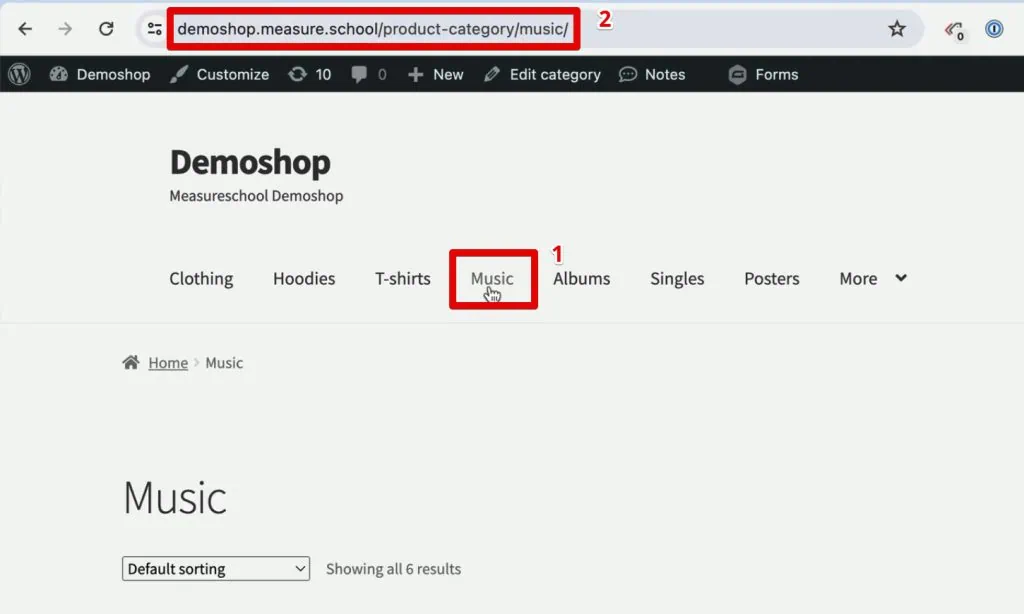
- Load your website with a URL appended with all relevant UTM parameters (e.g.,
yourwebsite.com?utm_source=google&utm_medium=cpc&utm_campaign=summer_sale). - Verify in the GTM Debugger that the "Custom HTML – Set UTM Cookie" tag fired on the initial page load.
- Navigate to another page on your site where the UTM parameters are no longer in the URL.
- Open your browser’s Developer Tools, go to the Application tab, and inspect the Cookies section for your domain.
- Confirm the presence of the
source_querycookie and verify that its value contains the full query string, including all UTM parameters. This confirms the persistent storage of attribution data.
5. Bridging the Gap: Filling Hidden Form Fields with UTM Information
The final piece of the puzzle is to automatically populate the hidden ActiveCampaign form fields with the UTM data stored in the source_query cookie when the user reaches a form page.
Chronology:

- Return to your GTM workspace and create another New Tag.
- Select Tag Configuration and choose Custom HTML.
- Insert the second part of the "Source Form Fill" JavaScript. This script is designed to:
- Read the
source_querycookie. - Parse the UTM parameters from the cookie’s value.
- Identify the corresponding hidden form fields on the page using CSS selectors.
- Inject the parsed UTM values into these hidden form fields.
- Read the
- Name this tag (e.g., "Custom HTML – Populate UTM Form Fields").
- Configure the Trigger for this tag. It must fire when the form page is fully loaded and its elements are available for manipulation.
- Select a DOM Ready trigger. This ensures the script executes after the Document Object Model (DOM) is completely loaded and parsed, guaranteeing that the form fields exist on the page.
- Set the trigger condition to Some DOM Ready Events where the Page Path contains
crm-leads(or the specific path to your form page). - Crucially, modify the JavaScript within this tag to correctly map the UTM parameters from the cookie to the specific hidden input fields on your ActiveCampaign form. This requires accurate CSS selectors for each hidden field. For example, if your
utm_sourcefield has adata-name="utmsource", your script would targetinput[data-name="utmsource"]. Developer tools are invaluable for identifying these unique selectors. - Save the tag and its trigger.
Implications: This two-step GTM process ensures that the first-touch attribution data is captured on the landing page (cookie setting) and then seamlessly transferred to the ActiveCampaign form, regardless of how many pages the user visits in between. When the user submits the form, ActiveCampaign receives all the standard contact information along with the hidden UTM parameters, providing a complete picture of their origin.
Validation and Deployment: Ensuring Data Integrity
Thorough testing is paramount before deploying any tracking solution live.

Chronology:

- Re-enter GTM Preview Mode.
- Simulate a user journey:
- Arrive on your website with UTM parameters in the URL.
- Navigate to several other pages on your site (observing the UTMs disappear from the URL).
- Finally, go to the page containing your ActiveCampaign signup form.
- On the form page, use browser Developer Tools to temporarily unhide one of the UTM input fields (change its type back to
text). - Verify that the field is automatically populated with the correct UTM value from the initial landing page. Repeat for all UTM fields.
- Fill out the form with test data and submit it.
- Log into ActiveCampaign and navigate to the newly created contact’s profile.
- Confirm that the custom UTM fields are accurately populated with the data captured by your GTM setup.
Official Responses: Once verified, submit your changes in GTM. Provide a clear, descriptive version name (e.g., "Implemented ActiveCampaign UTM Tracking") and Publish the container. This makes your tracking solution live for all website visitors.
Strategic Implications and Future Outlook
The successful implementation of this lead source tracking system has profound implications for marketing and sales strategies:

Implications:

- Enhanced Marketing ROI: By understanding which channels, campaigns, and content truly drive qualified leads and conversions, businesses can optimize their marketing spend, reallocating budgets to the most effective initiatives.
- Optimized Budget Allocation: Granular data allows for data-driven budget decisions, moving away from guesswork and towards evidence-based investment.
- Personalized Customer Journeys: Knowing a lead’s origin enables more targeted and personalized follow-up communications in ActiveCampaign, improving engagement and conversion rates.
- Improved Sales Effectiveness: Sales teams can leverage source information to better understand a lead’s context and tailor their approach, leading to more productive conversations.
- Data-Driven Reporting: Accurate attribution data empowers comprehensive reporting, allowing marketers to demonstrate their value and impact on the bottom line.
Challenges and Considerations: While powerful, this manual implementation requires ongoing maintenance. Changes to ActiveCampaign form structures, website code, or GTM container versions may necessitate updates to the scripts and CSS selectors. Data privacy regulations (e.g., GDPR, CCPA) must also be considered, particularly regarding cookie consent.

Beyond UTMs: This technique can be extended to capture other valuable attribution identifiers, such as Google Click ID (GCLID) for Google Ads or Facebook Click ID (FBCLID) for Facebook Ads, facilitating more advanced offline conversion tracking.

For businesses seeking a simplified, automated solution to this complex challenge, specialized tools are emerging. The SourceLink App, for instance, promises to automate this entire process—from custom field creation to cookie management and form field population—eliminating the need for manual HTML manipulation and GTM scripting. Such solutions represent the next evolution in streamlined marketing attribution.

In conclusion, mastering lead source tracking in ActiveCampaign through the strategic deployment of JavaScript, Google Tag Manager, and hidden form fields transforms raw traffic data into actionable insights. It empowers businesses to make smarter marketing decisions, optimize their resources, and ultimately drive sustainable growth.

What other UTM information do you find most valuable in your CRM? Do you know of other techniques for tracking lead sources that offer unique advantages? Share your insights in the comments below!
