

Mastering UTM Parameters in Google Analytics 4: A Comprehensive Guide to Data Attribution
Last Modified: February 17, 2025

In the modern digital marketing landscape, the ability to trace the customer journey with surgical precision is not just an advantage—it is a necessity. As organizations shift away from fragmented data silos, Google Analytics 4 (GA4) has emerged as the industry standard for cross-platform measurement. However, a common frustration persists among marketing professionals: they have mastered the art of tagging links with UTM (Urchin Tracking Module) parameters, yet they remain unsure how to effectively extract, visualize, and interpret that data within the GA4 interface.

This guide provides a deep dive into the mechanics of UTM parameters, the methodologies for analyzing them within GA4, and the strategic implications of proper attribution for your broader marketing ecosystem.
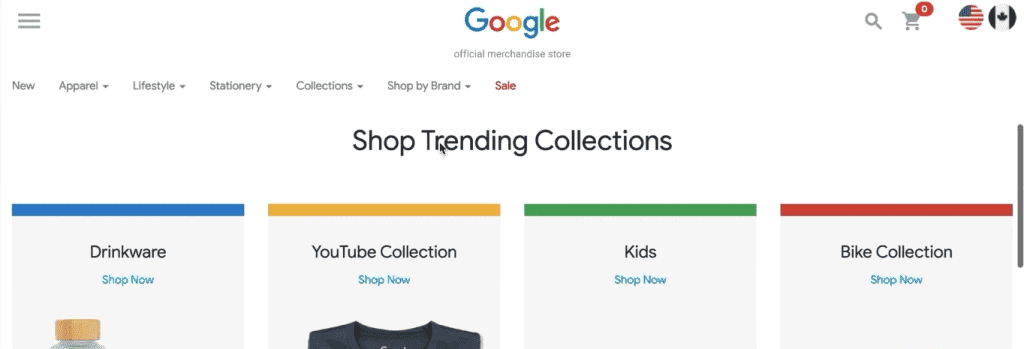
Main Facts: The Anatomy of UTM Parameters
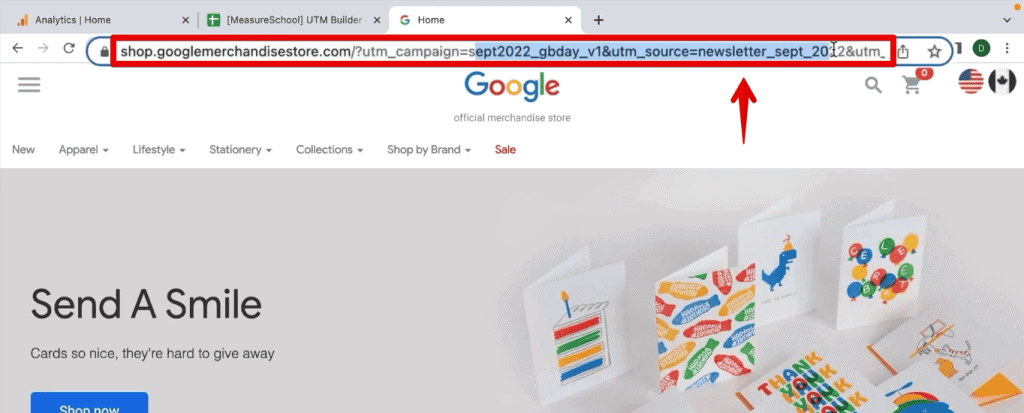
At its core, a UTM parameter is a simple snippet of text appended to the end of a URL. When a user clicks a tagged link, these parameters are passed to your analytics platform, allowing you to categorize traffic with granular detail.
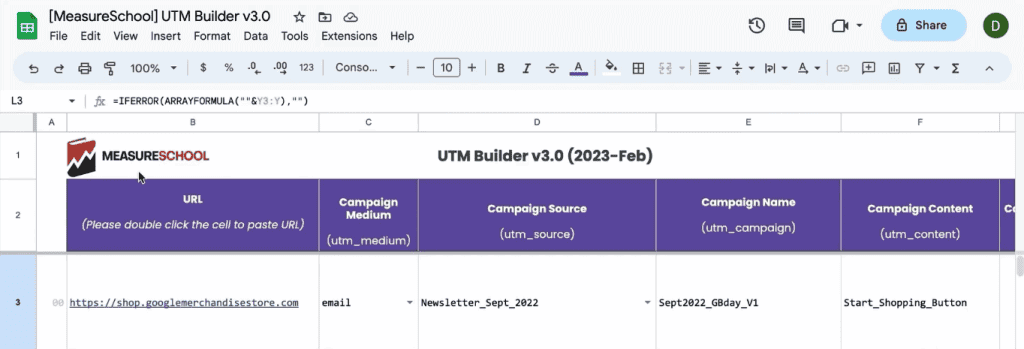
A standard tagged URL looks like this:
https://www.example.com/?utm_source=newsletter&utm_medium=email&utm_campaign=summer_sale
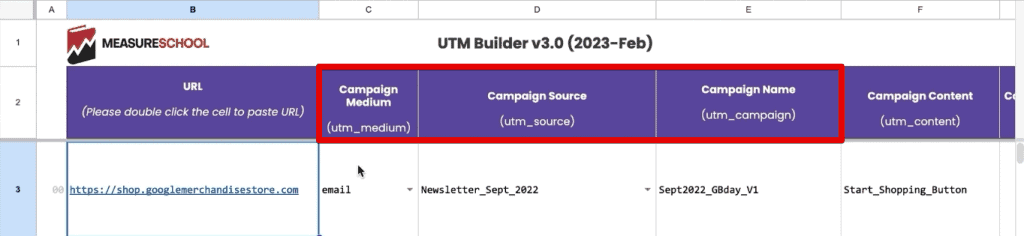
These codes answer the critical questions of "who," "how," and "what" regarding your traffic:
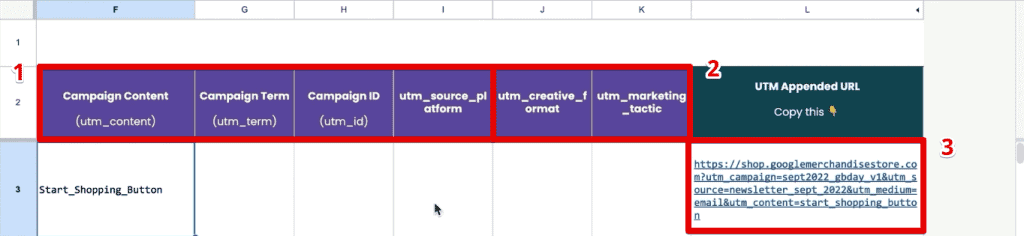
- utm_source: Identifies the platform (e.g., Google, LinkedIn, Newsletter).
- utm_medium: Defines the channel type (e.g., CPC, email, social).
- utm_campaign: Labels the specific initiative or promotion.
While UTM parameters are not recommended for internal site navigation, they are the gold standard for external inbound traffic. They transform anonymous clicks into actionable data, enabling marketers to move beyond "total visits" and into "total conversions per specific campaign."
Chronology: The Evolution of Campaign Tracking
The history of URL tagging reflects the evolution of web analytics itself. Originally developed for the Urchin software (which Google acquired in 2005), UTMs became the bedrock of Universal Analytics (UA).
With the sunsetting of UA and the full transition to Google Analytics 4, the way we handle these parameters has shifted. In the past, marketers could rely on rigid, pre-defined reports. Today, GA4 requires a more proactive approach. The platform no longer displays every single tag by default in every view; instead, it demands that users utilize the Traffic Acquisition report or the Exploration module to bridge the gap between raw clicks and business outcomes.
Supporting Data: Navigating the GA4 Interface
To effectively analyze UTM performance, you must understand where the data lives.
Standard Reporting
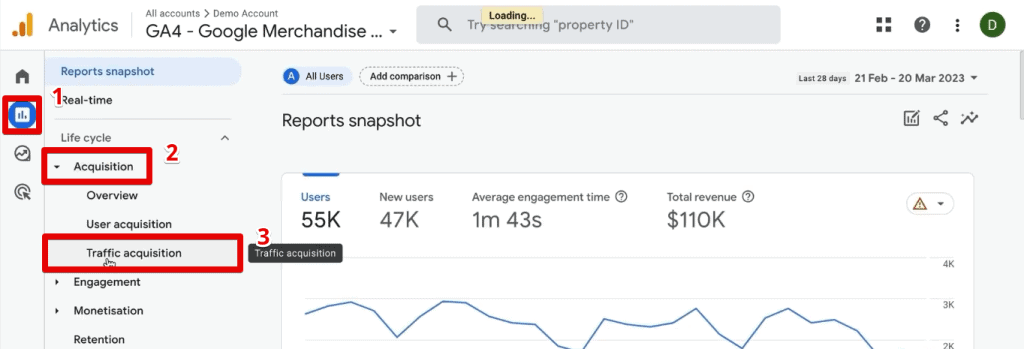
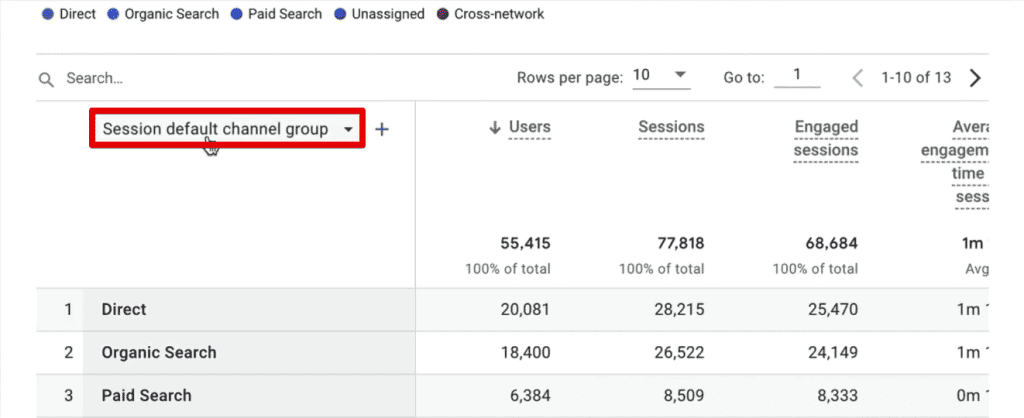
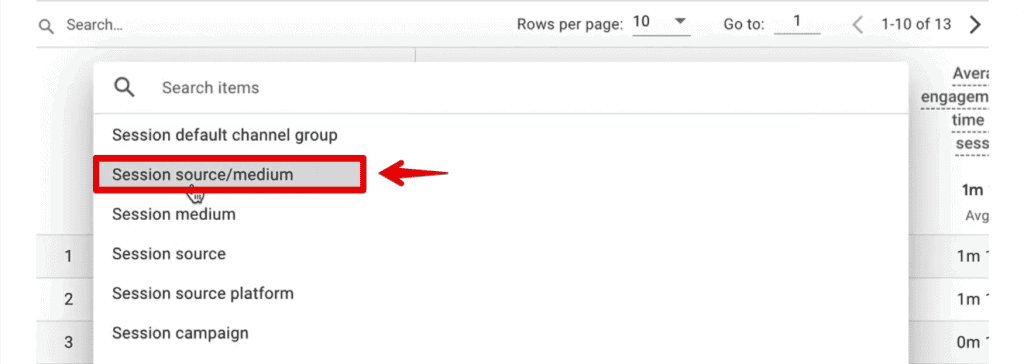
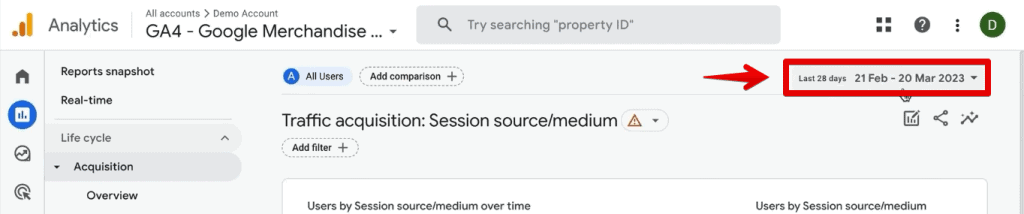
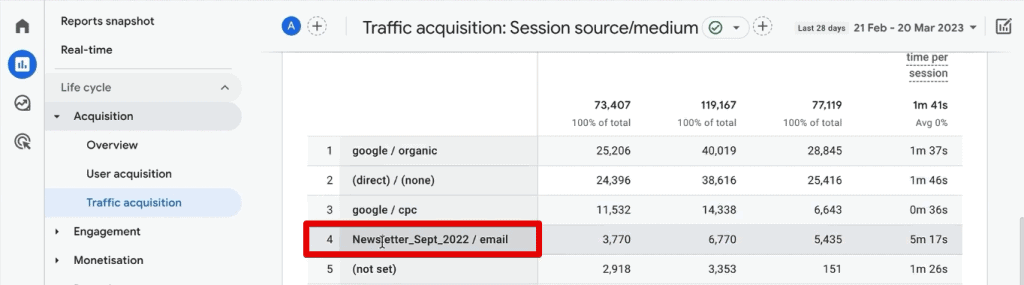
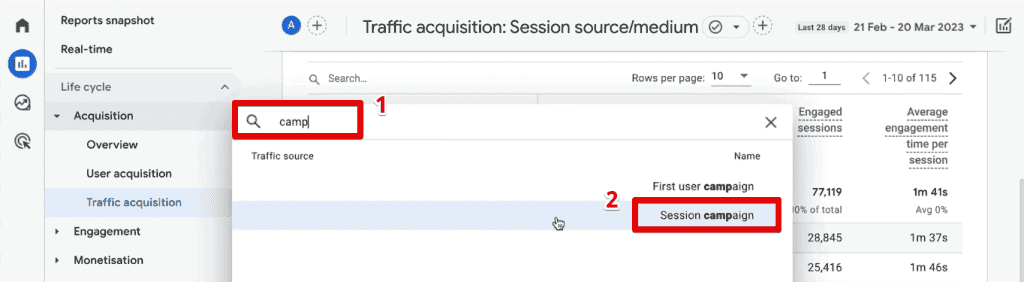
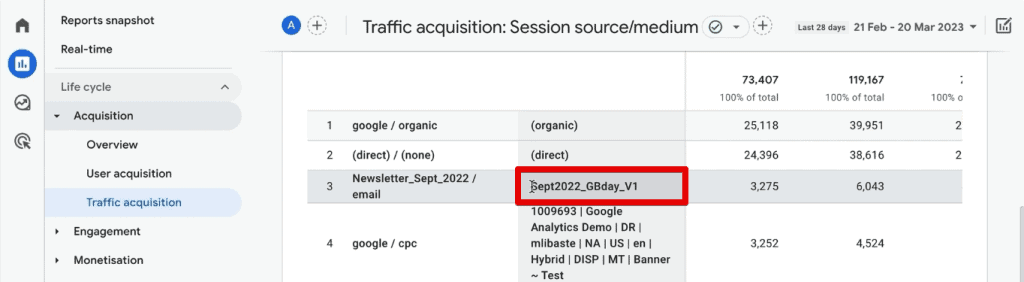
The most immediate way to view your tags is by navigating to Reports → Acquisition → Traffic Acquisition. By default, this table displays the "Session default channel group." To reveal your UTM data, click the dropdown menu for the primary dimension and select Session source/medium.
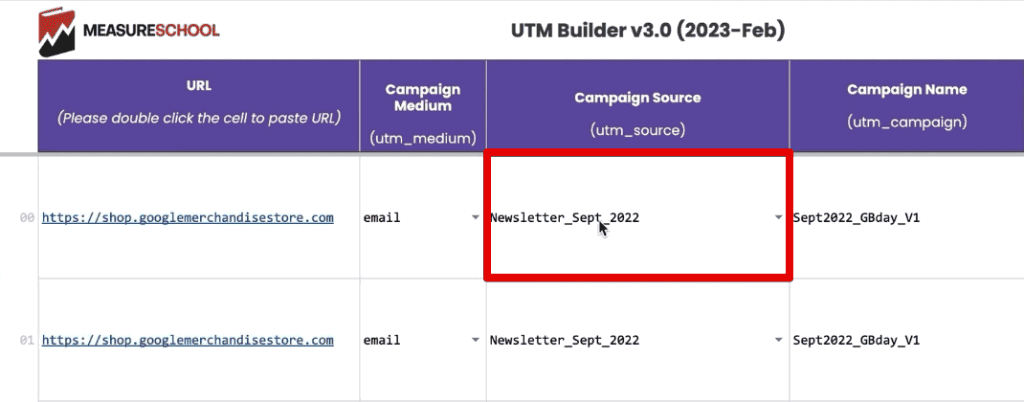
For deeper analysis, use the "+" sign to add a secondary dimension, such as Session campaign. This allows you to cross-reference your source with the specific campaign name, though this view is limited to two dimensions, which can be restrictive for complex campaigns.
The Power of Exploration Reports
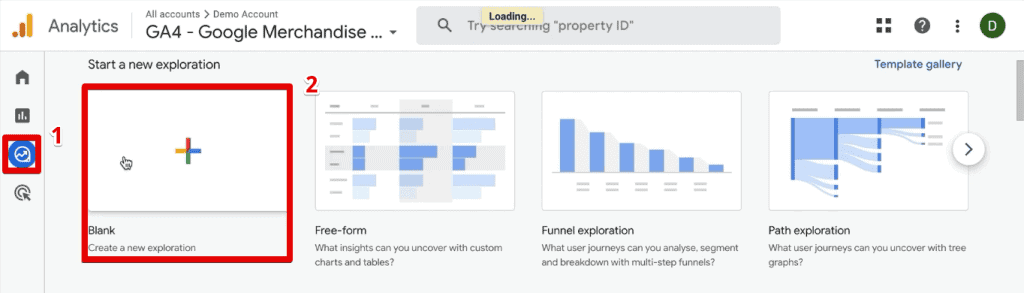
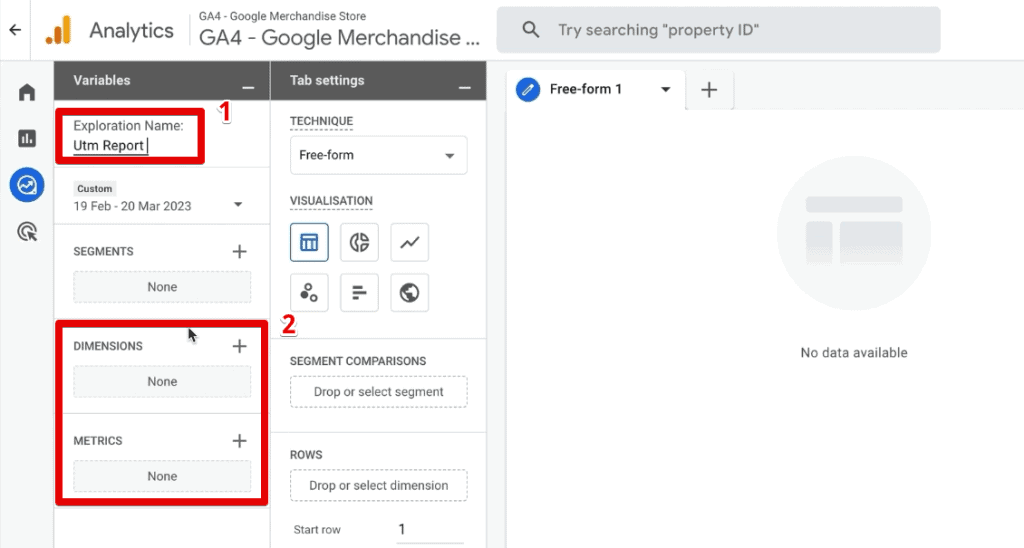
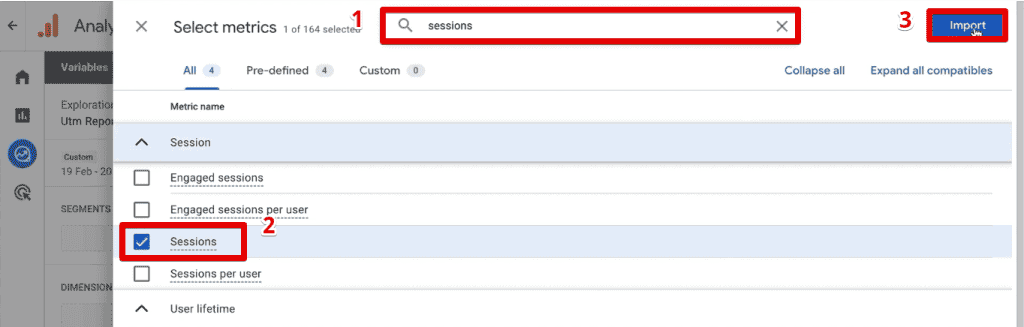
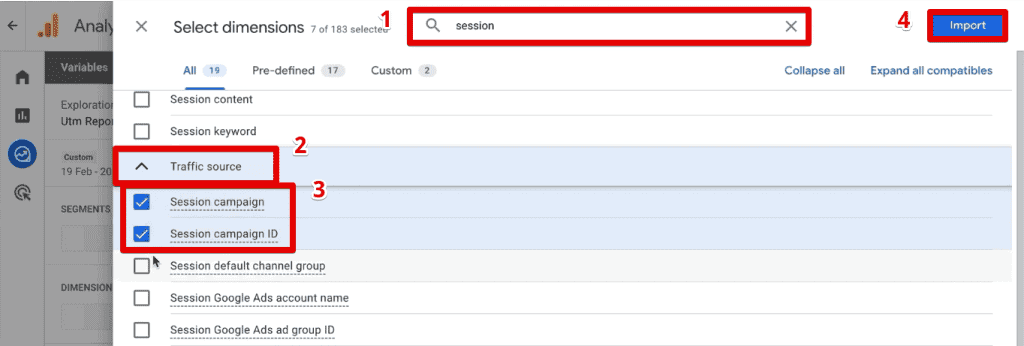
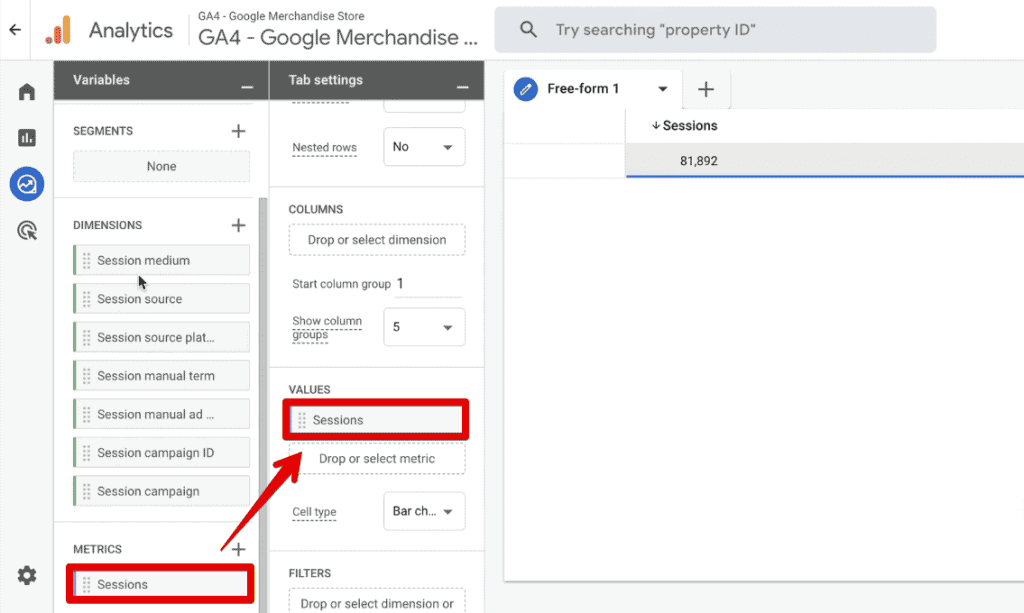
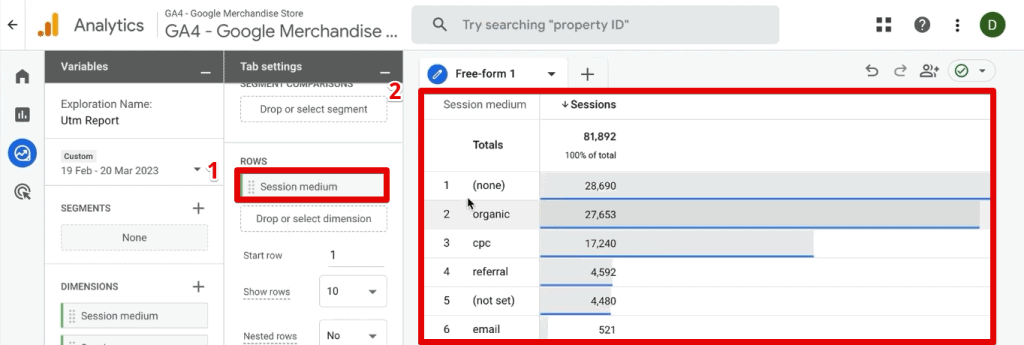
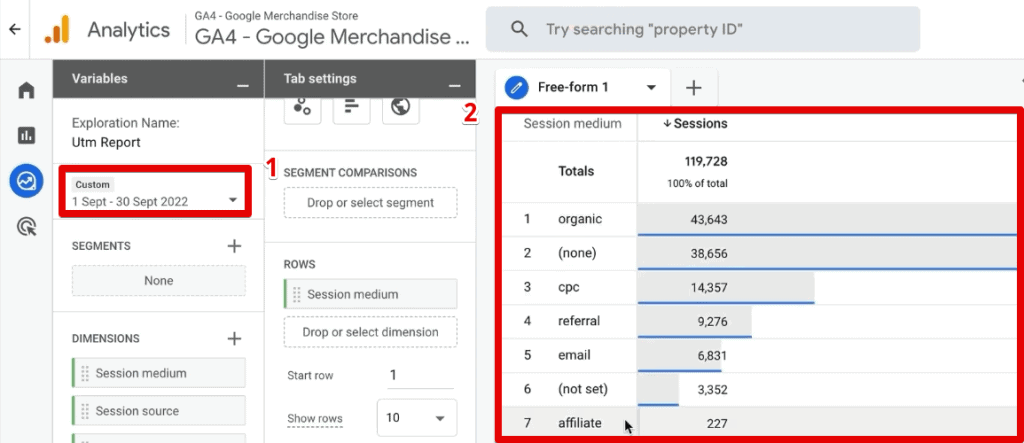
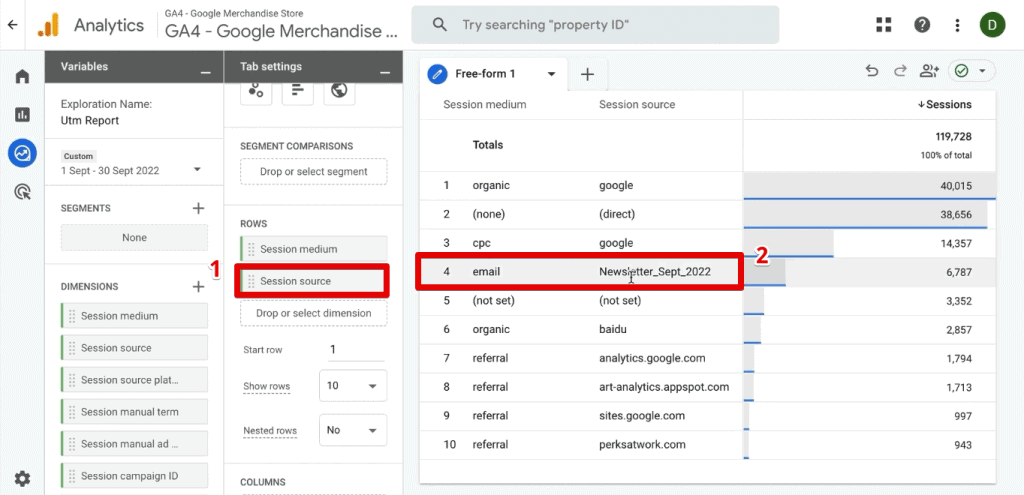
For advanced analysts, the Explore section is the true engine of GA4. By creating a Blank Exploration, you can drag and drop dimensions—such as Session source, Session medium, and Session campaign—alongside metrics like Sessions and Transactions.
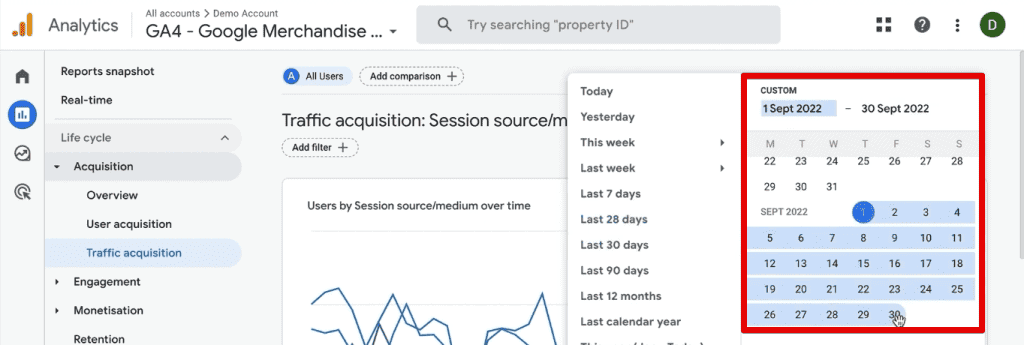
| Mapping UTMs to GA4 Dimensions: | UTM Parameter | GA4 Dimension |
|---|---|---|
| utm_id | Session campaign ID | |
| utm_source | Session source | |
| utm_medium | Session medium | |
| utm_campaign | Session campaign | |
| utm_term | Session manual term | |
| utm_content | Session manual ad content |
By utilizing the "Filters" section within an Exploration report, you can "Include Only Selection," allowing you to drill down into specific newsletters, ad variations, or social media posts without the noise of the entire traffic set.
Official Perspectives and Best Practices
Google’s documentation emphasizes that while GA4 is flexible, consistency is paramount. Misalignment between your naming conventions and Google’s recognized channel groupings can lead to significant data fragmentation.

Best Practices for UTM Integrity:
- Standardize Naming: Decide on a casing convention (lowercase is highly recommended) and stick to it.
utm_source=Facebookandutm_source=facebookwill be treated as two different sources in your reports. - Use Tools: Manual entry is prone to human error. Utilize established tools like the Google Campaign URL Builder or internal tracking sheets to ensure uniformity.
- Document Everything: Maintain a "Source of Truth" document where your team lists every active UTM configuration to avoid duplicate efforts or conflicting definitions.
Implications: Strategic Analysis and CRM Integration
The true power of UTMs is realized when you move data beyond the browser.
Advanced CRM Attribution
If you are running lead-generation campaigns, knowing a user clicked an ad is only half the battle; you need to know if that click turned into a high-value customer. By using cookies to capture UTM parameters upon the first touchpoint, you can pass these values into hidden fields on your web forms. When the user submits the form, the data is pushed into your CRM (e.g., Salesforce, HubSpot). This allows your sales team to see exactly which marketing campaign drove the lead, enabling true ROI calculation.
Troubleshooting Misattributed Traffic
If your analytics shows a disproportionate amount of "Direct" traffic (typically anything over 25%), it is a red flag. Often, this indicates that your external links are not being tagged correctly. Without UTMs, GA4 has no context for the user’s arrival, and it defaults to "Direct." Ensuring every outbound link is tagged is the only way to reclaim this lost visibility.
Segmenting for Retargeting
Once you have identified a high-performing campaign in your Exploration reports, you can right-click on that data point to Create Segment from Selection. This segment can then be turned into an Audience and pushed to Google Ads, allowing you to create hyper-targeted remarketing lists based on how users engaged with your specific campaigns.
Conclusion
Mastering UTM parameters in Google Analytics 4 is an ongoing process of refinement. It requires a shift from passive observation to active data construction. By standardizing your naming conventions, leveraging the flexibility of the Exploration module, and integrating your tracking with your CRM, you transform your analytics from a simple list of numbers into a strategic asset.
Whether you are comparing two versions of a newsletter or optimizing a high-spend CPC campaign, the ability to slice and dice your data ensures that every marketing dollar is accounted for. Start by auditing your current links, document your parameters, and begin exploring the granular insights hidden within your GA4 account today.
What is the most challenging part of your UTM tracking process? Let us know in the comments below.
Frequently Asked Questions (FAQ)
Can I analyze UTM parameters in Google Analytics 4 Exploration Reports?
Yes. The Exploration module is the most powerful way to analyze UTMs. By creating a blank report, you can add UTM parameters as dimensions, allowing for a fully custom view that is not possible in standard reports.
How can I compare different versions of UTM content in Google Analytics 4?
You can use the "Segment" feature in Exploration Reports. By filtering for specific UTM content values (e.g., "Version_A" vs. "Version_B"), you can create side-by-side comparisons of traffic, engagement, and conversion metrics to determine the winning creative.
Can I create segments and audiences based on UTM parameters in Google Analytics 4?
Absolutely. Once you have isolated a set of users via UTM filters, you can save that set as a Segment. Furthermore, these segments can be converted into Audiences, which can then be shared with connected Google Ads accounts for precision retargeting campaigns.
