
Decoding Visitor Intent: The Definitive Guide to WordPress Heatmap Tools
In the competitive landscape of digital commerce and content creation, understanding how users interact with your website is no longer a luxury—it is a necessity. For WordPress site owners, the "black box" of user behavior has been unlocked by heatmap technology. These tools transform complex, abstract analytics data into intuitive, color-coded visual overlays, allowing site owners to see exactly where visitors click, how far they scroll, and which elements cause confusion.
By mapping the "thermal" intensity of user engagement, marketers can move beyond guesswork. Whether you are aiming to boost conversion rates on an e-commerce storefront or improve the readability of a blog, heatmaps provide the empirical evidence needed to optimize the user experience (UX). This article explores the current state of heatmap technology, evaluates the top six tools available for WordPress, and analyzes the implications of implementing these powerful diagnostic utilities.
The Core Mechanics of Heatmap Visualization
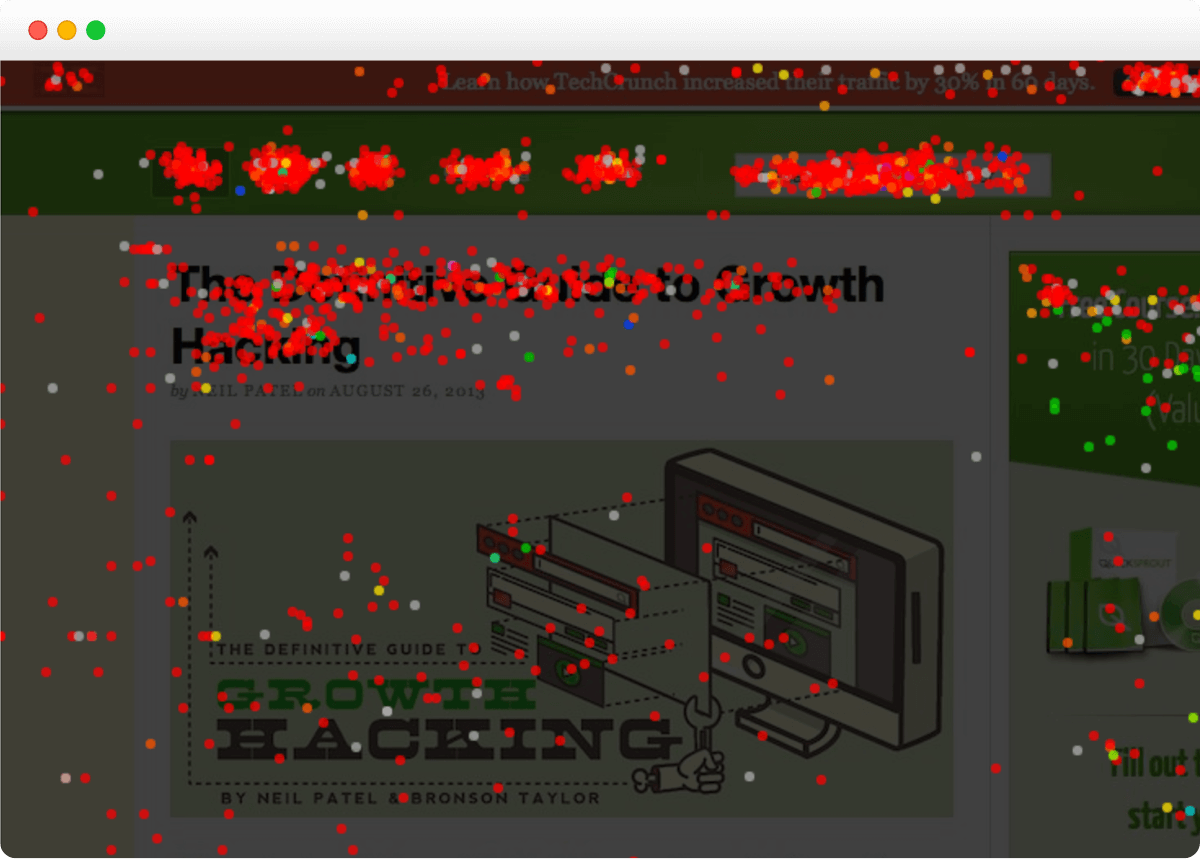
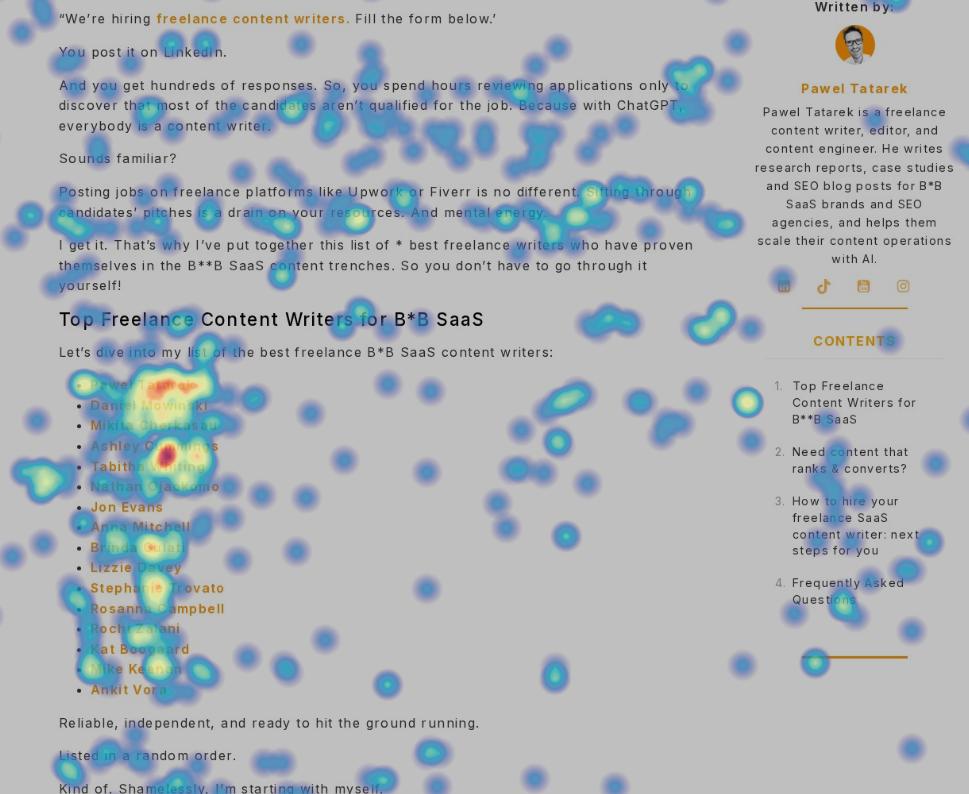
At its most fundamental level, a heatmap acts as a behavioral mirror. By injecting a lightweight JavaScript snippet into your WordPress theme, these tools track mouse movements, clicks, taps, and scrolling depth. The resulting data is rendered as a spectrum: "hot" colors (red and orange) indicate high-engagement zones, while "cold" colors (blue and green) highlight neglected areas.
The primary value proposition lies in identifying the disconnect between design intent and user reality. A designer might place a call-to-action (CTA) button in the top-right corner of a page, but a heatmap might reveal that users are consistently ignoring that area, opting instead to click on an unlinked image in the middle of the text. This "dead click" data is invaluable, as it highlights frustration and missed opportunities.

Comparative Overview of Leading Heatmap Solutions
Selecting the right tool requires balancing budget, traffic volume, and the complexity of your site. Below is a summary of the industry’s most prominent solutions:
| Tool | Best For | Key Strengths | Free Option |
|---|---|---|---|
| Crazy Egg | Full-funnel optimization | AI-driven insights, A/B testing | Yes (Instant Heatmaps) |
| Microsoft Clarity | High-traffic sites | Completely free, no limits | Yes (Full tool) |
| Hotjar | Funnel & survey integration | Behavioral insights & feedback | Yes (200k sessions/mo) |
| Mouseflow | Form & friction analysis | Deep session replay & filtering | Yes (500 sessions/mo) |
| Lucky Orange | E-commerce/Real-time chat | Real-time visitor interaction | Yes (100 sessions/mo) |
| Matomo | Data privacy/Self-hosting | Ownership of raw data | Core analytics free |
Deep Dive: The Top 6 Heatmap Tools for WordPress
1. Crazy Egg: The All-in-One Optimization Suite
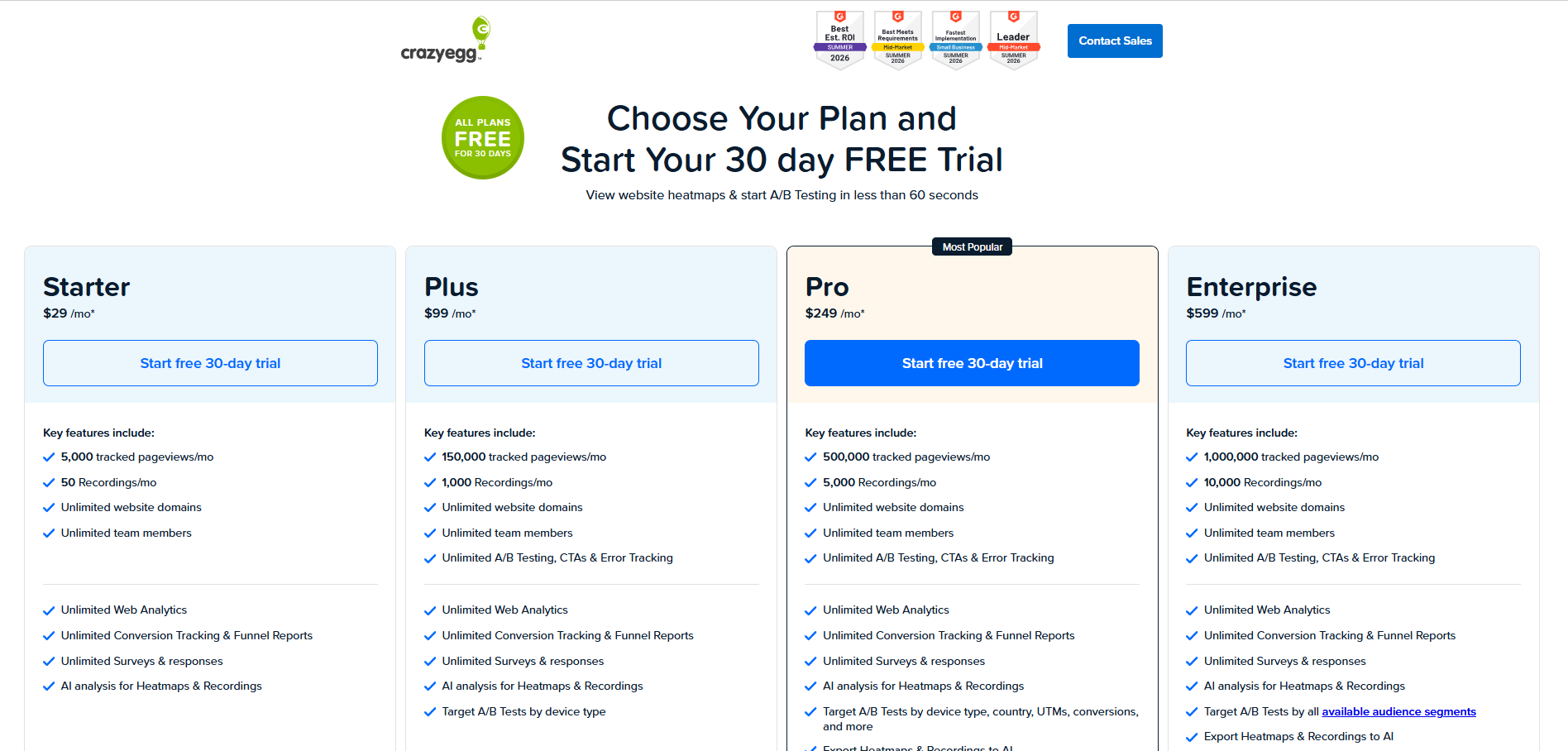
Crazy Egg stands out as a comprehensive platform designed for teams that prioritize the "optimization loop." Beyond basic heatmaps, it offers A/B testing and visitor recordings, making it a robust choice for conversion rate optimization (CRO) specialists.
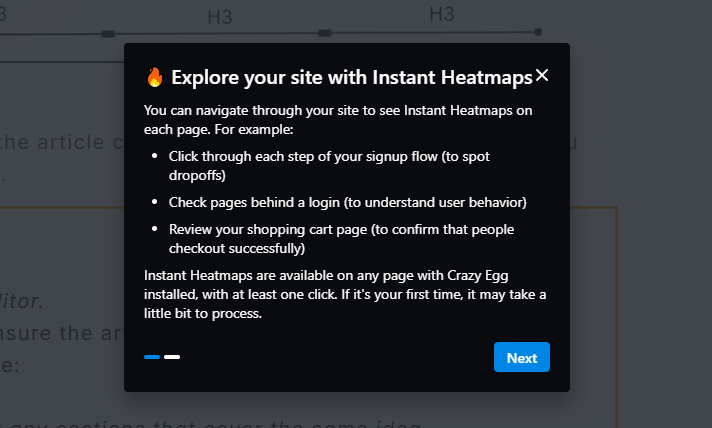
- Key Capability: The "Instant Heatmaps" feature is particularly powerful, offering automated reporting on every page without the need for manual configuration.
- AI Integration: Crazy Egg utilizes AI to summarize patterns, providing plain-language suggestions for page fixes, which lowers the barrier to entry for non-technical site managers.
- Best For: Marketing teams that want to consolidate their testing and analytics into a single dashboard.
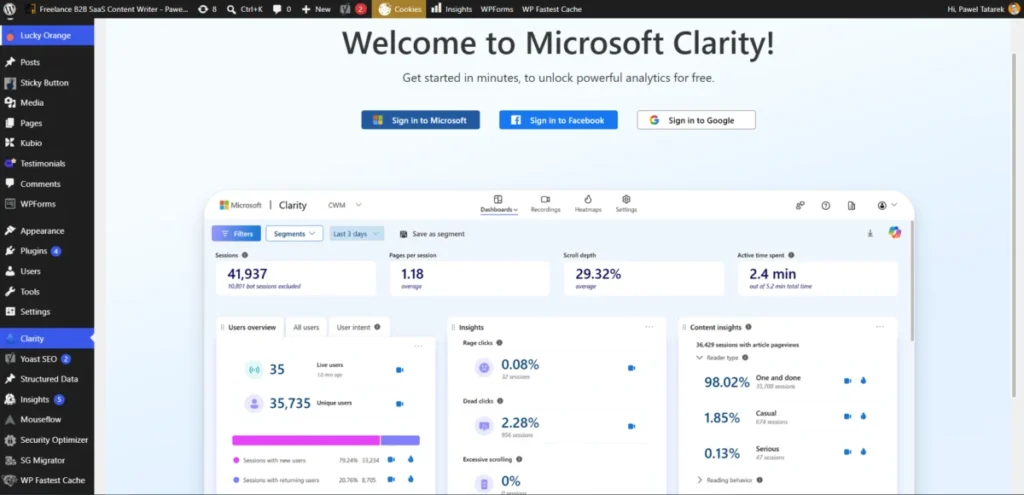
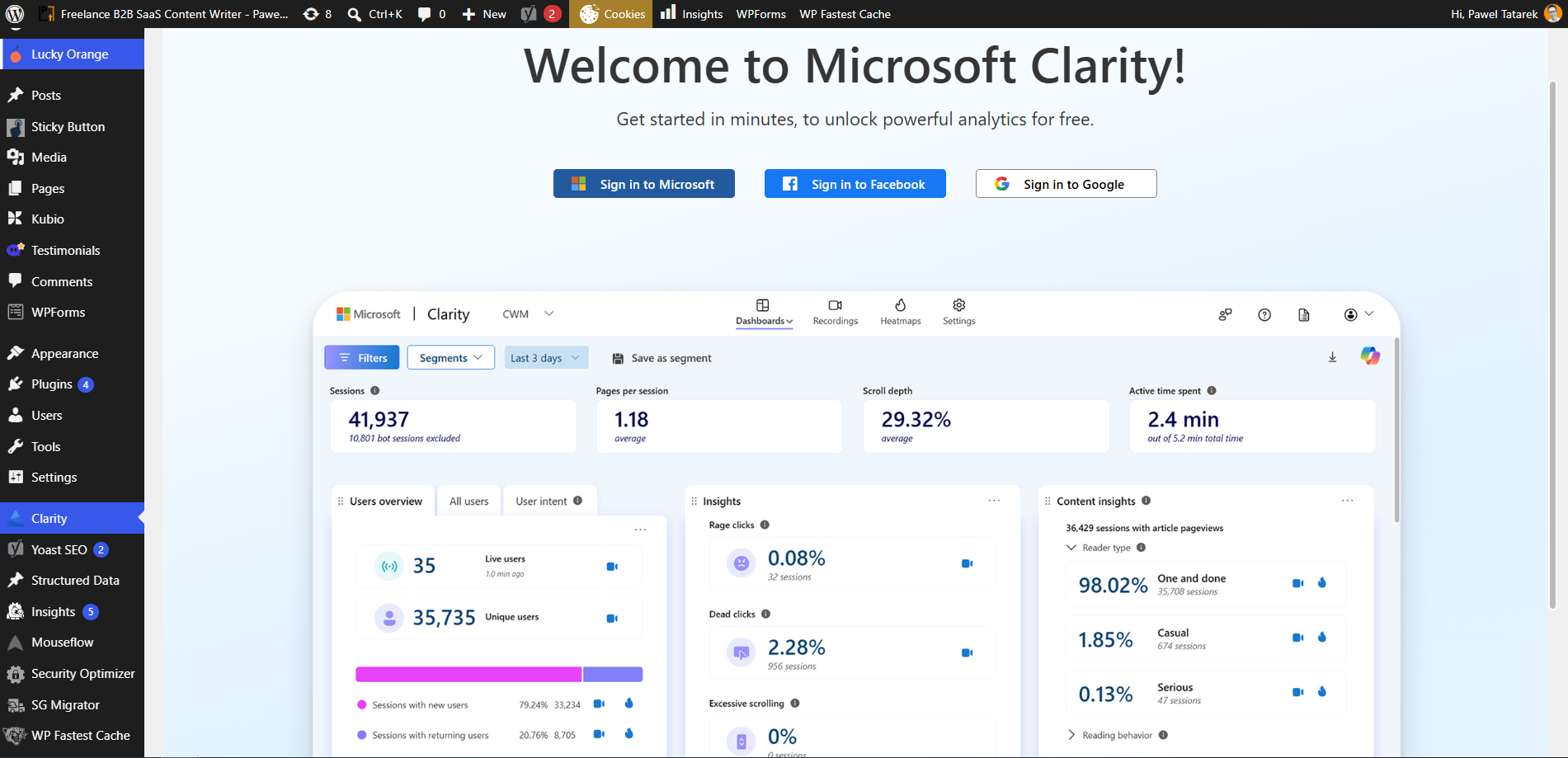
2. Microsoft Clarity: The Power of Scale
Microsoft’s entry into the space has been a game-changer for smaller businesses. By offering a high-tier product entirely for free, Microsoft has democratized access to enterprise-level behavioral analytics.
- Key Capability: Its "Attention Maps" and "Conversion Maps" provide granular insight into how users engage with specific page segments.
- Limitation: While highly functional, it lacks some of the advanced A/B testing features found in paid, dedicated suites.
- Best For: High-traffic WordPress sites that require robust analytics without the monthly subscription overhead.
3. Hotjar (Contentsquare): The Holistic Analytics Leader
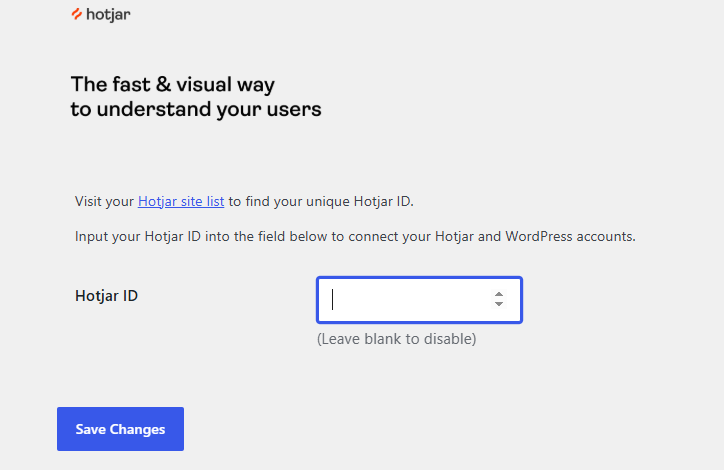
Acquired by Contentsquare, Hotjar has evolved into a powerhouse for product and marketing teams. It excels at bridging the gap between quantitative data (numbers) and qualitative insights (user sentiment).
- Key Capability: Its ability to pair heatmaps with on-page surveys and feedback widgets allows owners to ask why a user left a page, rather than just observing that they left.
- Best For: Businesses looking to integrate user feedback loops with visual behavioral data.
4. Mouseflow: The Friction Hunter
Mouseflow distinguishes itself through its focus on "friction analysis." By tracking rage clicks, dead clicks, and form abandonment, it helps site owners diagnose exactly why a checkout process might be failing.
- Key Capability: Interactive heatmaps that capture activity within dynamic elements like dropdowns and modals, which many simpler tools often miss.
- Best For: E-commerce sites and lead generation portals where form completion is the primary success metric.
5. Lucky Orange: Bridging Support and Analytics
Lucky Orange is unique because it integrates real-time live chat with heatmaps. This allows a support agent to see a live recording of a customer’s screen while assisting them, providing a high-touch customer service experience.
- Key Capability: Its "Discovery AI" synthesizes heatmap data into actionable tasks, effectively acting as an automated consultant for your UX.
- Best For: Online stores that want to combine conversion optimization with customer support efficiency.
6. Matomo: The Privacy-First Choice
For organizations that must comply with strict data sovereignty laws (such as GDPR or CCPA), Matomo is the gold standard. As an open-source, self-hosted platform, it keeps all data within your own WordPress database.
- Key Capability: Complete data ownership. You are not relying on third-party servers, which is a major advantage for sensitive sectors like healthcare or government.
- Best For: Sites with strict data privacy requirements that prioritize self-hosting over SaaS convenience.
The Chronology of Implementation
Successfully integrating a heatmap tool into your WordPress environment generally follows a standard lifecycle:

- Selection & Testing: Evaluate tools based on session limits and specific feature needs (e.g., do you need form analytics?).
- Plugin Installation: Most tools provide a dedicated WordPress plugin. For those that do not, a Google Tag Manager (GTM) implementation is recommended to keep your site’s
functions.phpfile clean. - Baseline Observation (Weeks 1-2): Allow the tool to collect raw data. Resist the urge to make changes immediately; you need statistical significance to avoid acting on anomalies.
- Hypothesis Generation: Use the heatmaps to identify "cold" spots where key information is being missed, or "hot" spots where users are clicking on non-interactive elements.
- A/B Testing & Iteration: Implement changes based on findings. If you move a CTA to a "hot" zone, monitor the performance for two weeks to confirm an increase in conversions.
Supporting Data and Performance Implications
A common concern among WordPress administrators is whether these tools negatively impact page load times. Most modern heatmap providers, such as Hotjar and Crazy Egg, utilize asynchronous loading. This ensures that the primary content of your page renders before the heatmap tracking script initiates.
Independent testing indicates that these scripts typically add between 0.1 to 0.4 seconds to total page load time. While this is negligible for most sites, administrators should always monitor "Core Web Vitals" before and after installation. If you are running an extremely lean site, consider using a tag manager to trigger the heatmap script only on specific pages rather than globally.
The Privacy Imperative: Official Perspectives
The legal landscape regarding tracking is shifting. Under the GDPR (General Data Protection Regulation) and similar international statutes, tracking user behavior requires transparent disclosure.
Most vendors now provide "Privacy-by-Design" settings. For instance, they allow for the masking of input fields (to prevent the capture of sensitive user data like credit card numbers or passwords) and offer robust opt-out mechanisms. It is essential for site owners to:
- Update their Privacy Policy to explicitly mention the use of heatmap technology.
- Implement a cookie consent banner that only triggers the heatmap script after the user grants permission.
Implications for Future Design
The rise of AI-integrated heatmapping is fundamentally changing how web design is practiced. In the past, design was an iterative process driven by creative intuition. Today, design is increasingly data-driven. The ability to "query" a heatmap—asking an AI, "Why is my checkout page failing?" and receiving a synthesized answer—represents a massive shift in workflow efficiency.
As we look toward the future, these tools are moving beyond simple click-mapping. We are seeing a transition toward "predictive engagement," where tools analyze thousands of session recordings to predict which layout changes will yield the highest conversion uplift before a single line of code is changed.

Conclusion
The best heatmap tool for your WordPress site is ultimately the one that aligns with your specific organizational goals. If you are a high-volume e-commerce site, the friction analysis of Mouseflow or the live-chat integration of Lucky Orange may be worth the investment. For the budget-conscious, Microsoft Clarity provides an unbeatable feature set at no cost. For those managing a sophisticated, data-driven team, Crazy Egg remains the industry standard for closing the loop between insight and action.
By moving from anecdotal observation to empirical visualization, you ensure that your website serves its purpose: guiding visitors seamlessly toward the action you want them to take. As you begin your journey with heatmaps, remember that the software is only as good as the strategy behind it. Test, observe, iterate, and repeat.
