
Last Modified on February 17, 2025
The Enduring Power of Regular Expressions in Google Analytics 4: A Comprehensive Guide
Digital analytics has undergone a profound transformation, moving from basic data collection to sophisticated systems capable of unearthing deep, actionable insights. At the heart of this evolution, facilitating precise data manipulation and pattern recognition, lies a seemingly small yet immensely powerful tool: Regular Expressions, often abbreviated as RegEx, RegExp, or Regex. As the analytics world fully embraces Google Analytics 4 (GA4), understanding and leveraging RegEx is not just beneficial—it’s essential for advanced data practitioners.
This article delves into the critical role of RegEx within GA4, exploring its fundamental principles, practical applications across various GA4 interfaces, and the strategic advantages it offers in a data-driven landscape.

What is RegEx and Why is it Indispensable for GA4?
Regular Expressions are a sequence of characters that define a search pattern. They act as miniature, highly efficient programming languages, enabling users to identify, match, and manipulate specific strings of text based on complex criteria. Far predating the advent of Google Analytics, RegEx has been a cornerstone of programming languages, text editors, and search tools for decades. Its power lies in its ability to abstract common patterns, making it possible to query vast datasets for dynamic, non-exact matches with remarkable precision.
In digital analytics, particularly within the GA4 ecosystem, RegEx serves several vital functions:
- Precise Data Filtering: Isolating specific subsets of data from broad categories (e.g., filtering for multiple campaign names or specific URL patterns).
- Advanced Segmentation: Creating nuanced user segments and audiences based on intricate behavioral or demographic patterns.
- Streamlined Data Transformation: Standardizing or categorizing data that might otherwise be disparate or messy (e.g., grouping various subdomains into a single entity).
- Enhanced Reporting: Tailoring reports to focus on specific user journeys, content types, or traffic sources that conform to defined patterns.
Without RegEx, analysts would be forced to manually list every possible variation of a data point, an often impossible and always inefficient task, especially when dealing with dynamic values like URLs, query parameters, or user-generated content. Its capacity to handle ambiguity and variability makes it an indispensable asset for extracting meaningful intelligence from the deluge of digital data.
The Evolution of RegEx in Google Analytics: From Universal to GA4
The journey of RegEx in Google Analytics reflects the broader evolution of web analytics itself. Its utility was well-established in Universal Analytics (UA), where it played a pivotal role in configuring views, filters, goals, and custom reports. Many seasoned analysts honed their RegEx skills within UA, using it to define complex funnel steps, filter out internal IP addresses, and group diverse content pages.
The Shift to Google Analytics 4
With the sunsetting of UA and the full transition to GA4, the underlying data model and interface paradigms have significantly changed. GA4, built on an event-driven data model, fundamentally alters how data is collected and processed. This shift, however, has not diminished the importance of RegEx; rather, it has reframed its application.
While some of the familiar UA interfaces where RegEx thrived have been replaced, its core function of pattern matching remains critical for navigating GA4’s flexible event parameters and properties. The primary difference lies in where and how RegEx is implemented within the new interface, often requiring a slightly different approach due to GA4’s architecture and its adoption of the RE2 RegEx engine.

GA4’s RE2 Engine and Its Implications
Google Analytics 4 utilizes the RE2 RegEx syntax, a high-performance, regular expression matching engine developed by Google. The choice of RE2 is largely driven by its emphasis on speed and safety, making it suitable for processing large volumes of data efficiently. However, this performance comes with certain trade-offs compared to more feature-rich RegEx engines found in other programming languages or even UA.
Key limitations of RE2 include:
- No Backreferences: RE2 does not support backreferences (e.g.,
1,2), which are used to match a previously captured group. This means patterns that rely on repeating specific captured text later in the string cannot be directly implemented. - No Lookarounds: Positive/negative lookaheads and lookbehinds (e.g.,
(?=...),(?!...)) are not supported. These constructs allow asserting whether a pattern is followed or preceded by another pattern without including it in the match. - No Conditional Matching: Features like
(?(condition)true_pattern|false_pattern)are not available. - No Subroutine Calls: Reusing parts of a pattern within the same expression is not possible.
These limitations necessitate simpler, more direct RegEx patterns in GA4. While this might seem restrictive to advanced users, it often encourages more robust and performant expressions, aligning with GA4’s focus on scalable data processing. Understanding these constraints is crucial for effectively designing RegEx patterns that work reliably within the GA4 environment.

Leveraging RegEx Across Google Analytics 4: Practical Applications and Supporting Data
RegEx can be deployed across several key areas within the GA4 interface to enhance data analysis, configuration, and reporting. While the exact match types might vary slightly by context, the underlying principle of pattern matching remains constant.
1. Standard Reports: Refining Your View of Core Data
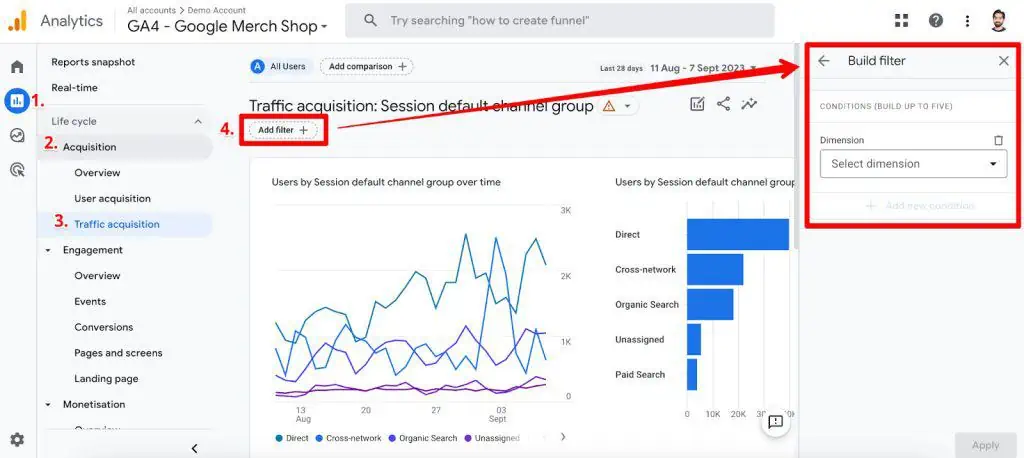
Standard reports in GA4 provide readily available data on user acquisition, engagement, monetization, and retention. RegEx can be used here to apply sophisticated filters, allowing analysts to focus on specific data subsets that meet complex criteria.
Application: Filtering for multiple traffic sources, specific campaign names, or groups of content pages.

How it Works: Navigate to a standard report (e.g., "Traffic Acquisition"). Click the "Add filter" button at the top. Here, you’ll select a dimension (e.g., "Session default channel group") and then choose "matches regex" or "matches partial regex."
Example: To view traffic performance for both "Organic Search" and "Email" channels, you would select "Session default channel group," choose "matches partial regex," and enter the value Organic|Email. The pipe | acts as an "OR" operator, matching either "Organic" or "Email" within the channel group name.
Supporting Detail: It’s important to note that "matches partial regex" offers more flexibility than "matches regex" in standard reports. "Matches regex" would require an exact match of the entire string to your RegEx, which is less common for broad categories like channel groups. Unfortunately, this "partial" option is not universally available across all GA4 interfaces.

2. Explorations: Unlocking Deeper Insights
GA4’s Explorations provide a flexible canvas for ad-hoc analysis, segment building, and funnel visualization. RegEx is a powerful tool within Explorations for filtering data and defining granular segments.
Application: Analyzing specific combinations of source/medium, grouping related page paths, or filtering events based on complex parameter values.
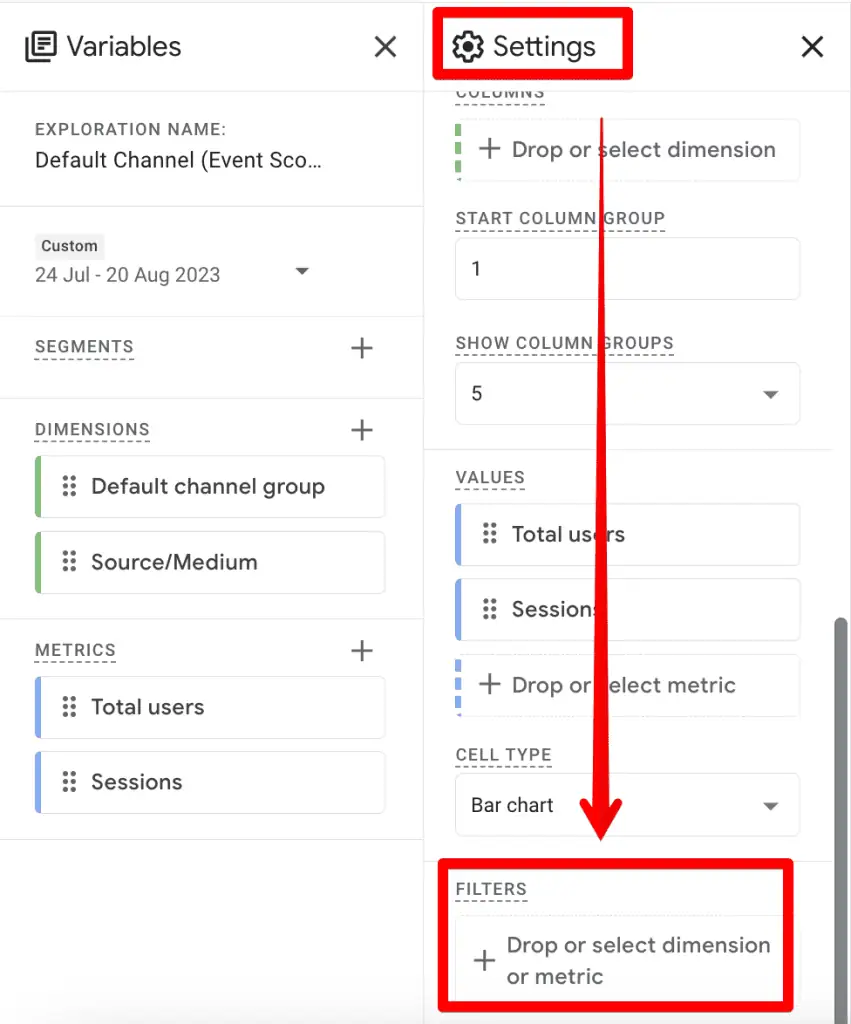
How it Works: In an Exploration report, locate the "Filters" section under the "Settings" column. Drag and drop a dimension or metric into the filter area.

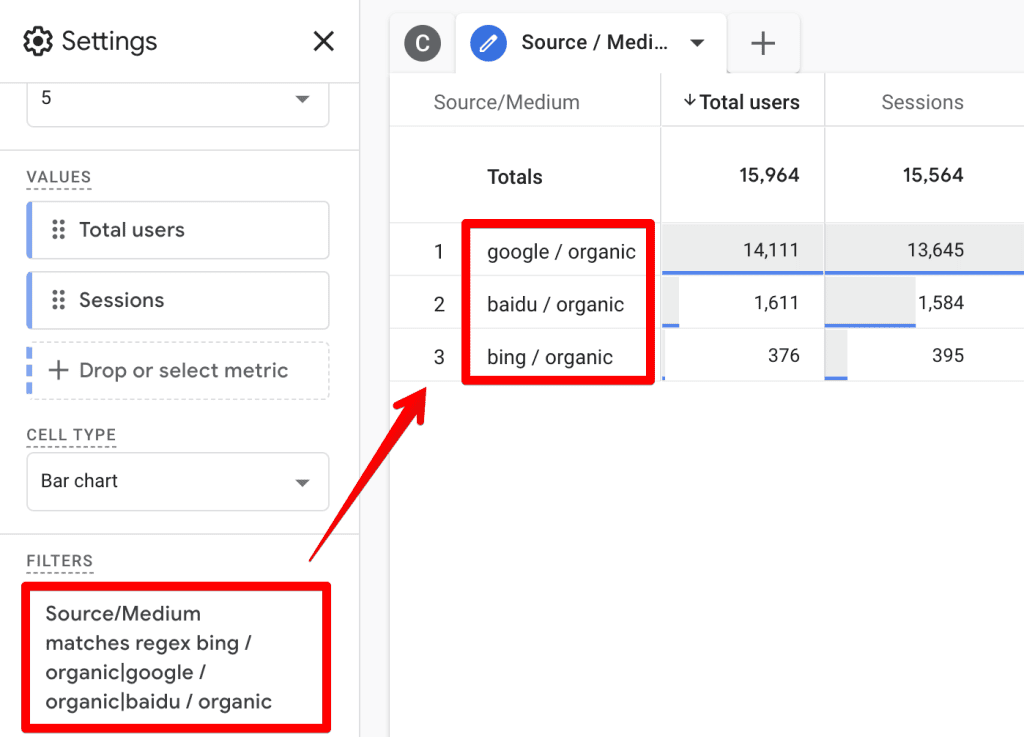
Example: If you want to filter "Source/Medium" for all organic traffic from Google, Bing, and Baidu, you would typically use google / organic|bing / organic|baidu / organic with the "matches regex" condition.
Supporting Detail & Workaround: A significant limitation in Explorations (and Segments/Audiences) is the absence of a "matches partial regex" option. The default "matches regex" requires the RegEx to match the entire string. To achieve partial matching behavior, you must explicitly anchor your RegEx pattern to match any part of the string. For instance, to match any "Source/Medium" containing "organic", you would use .*organic.* where . matches any character and * matches zero or more occurrences. So, .*organic.* would match google / organic, bing / organic, yahoo / organic, etc. This workaround is critical for broader pattern matching in Explorations.
3. Segments and Audiences: Precision Targeting
RegEx allows for the creation of highly specific user segments and audiences, which are crucial for targeted analysis and personalized marketing efforts.

Application: Defining segments based on user behavior patterns (e.g., users visiting specific product categories), device types, or custom event parameters.
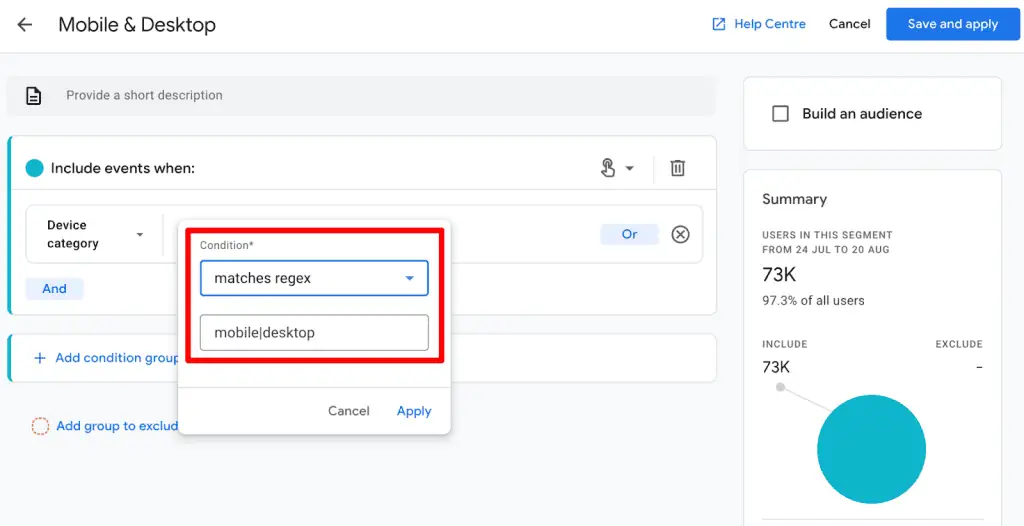
How it Works: Within an Exploration, create a new segment. In the segment builder, you’ll define conditions for users, sessions, or events.
Example: To create a segment of users who viewed any product page under /products/ and /shop/, you could set a condition on "Page path + query string" (or "Page location") using ^/(products|shop)/.* with "matches regex." The ^ anchors the match to the start of the string, and .* matches any characters following the specified path.

Supporting Detail: Similar to Explorations, Segments and Audiences also primarily offer "matches regex" (and "does not match regex"). Therefore, the .*pattern.* workaround for partial matching is equally relevant here. When building audiences, RegEx can be particularly powerful in conjunction with GA4’s sequence-based audience creation, allowing for the definition of complex user journeys.
4. Internal Traffic and Unwanted Referrals: Ensuring Data Purity
Maintaining clean and accurate data is paramount in analytics. RegEx plays a crucial role in filtering out noise, such as internal company traffic or irrelevant referral sources.
Application: Excluding internal IP addresses from data collection, or identifying and excluding self-referrals and third-party payment gateways.
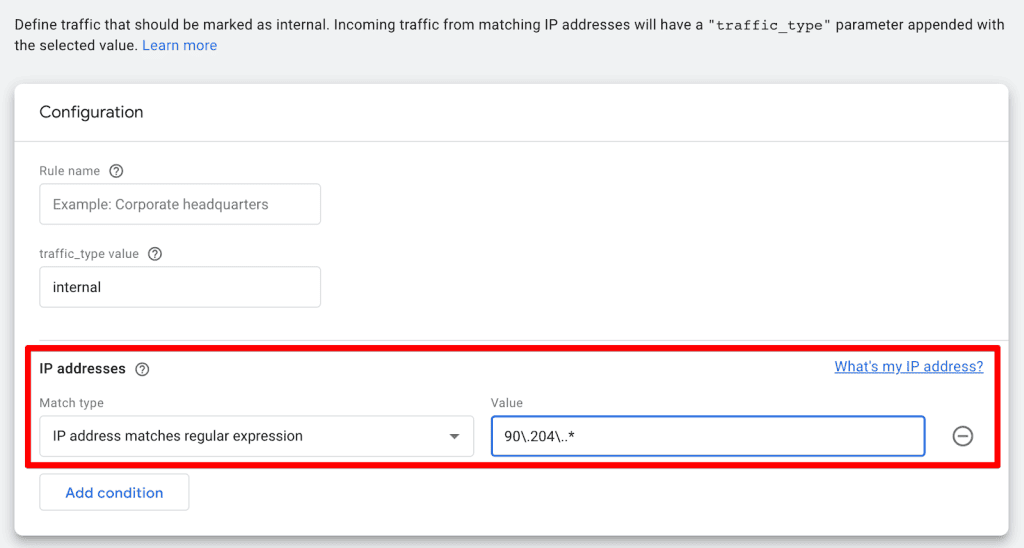
How it Works: These configurations are found under Admin > Data Streams > Configure tag settings.
Example 1 (Internal Traffic): To define internal traffic based on IP addresses within a certain range or pattern, you can use "IP address matches regular expression." For instance, ^192.168..*|90.204..* would exclude traffic from specific local network ranges and a particular external IP block. Note the escaped dots . which treat them as literal dots, not "any character."
Example 2 (Unwanted Referrals): To exclude payment processors or other non-value-adding referral domains, select "Referral domain matches RegEx." A pattern like ^(stripe|paypal).com would exclude stripe.com and paypal.com (and their subdomains, as . matches any character after the escaped dot). Using . ensures only literal dots are matched.

Supporting Detail: These settings are critical for data hygiene, preventing skewed metrics caused by internal activity or technical redirects. The "matches regular expression" here is more forgiving, often behaving like a partial match for domains, but explicit anchoring (^, $) can provide stricter control if needed.
5. Create or Modify Events: Granular Event Management
GA4’s event-driven model means that events are the foundation of all data. RegEx allows for precise control over event creation and modification, enabling more meaningful event tracking without developer intervention.
Application: Creating new events from existing ones based on complex conditions, or modifying event parameters for better reporting.
How it Works: Go to Admin > Events. You’ll find options to "Create event" or "Modify event."
Example: To create a new event purchase_completed when a page_view event occurs on any URL containing /thank-you/ or /confirmation/, you could use a RegEx condition on the page_location parameter: .*(thank-you|confirmation).* with "matches regular expression." Alternatively, if the URL must start with a specific base, you might use https://yourdomain.com/(thank-you|confirmation)/.*.
Supporting Detail: Here, GA4 offers "matches regular expression" and "matches regular expression (ignore case)." The lack of a "partial" option means you’ll often need to use .* for wildcard matching at the beginning or end of your pattern. Google often provides a warning here, advising against RegEx if simpler match types suffice, emphasizing performance and maintainability.

6. Custom Channel Groups: Tailored Traffic Attribution
Custom Channel Groupings in GA4 allow businesses to define their own categorization of traffic sources, providing a more relevant view of marketing performance. RegEx is instrumental in this customization.
Application: Grouping diverse traffic sources into specific, business-defined channels (e.g., "QR Code Campaigns," "Partnerships," "Affiliate Marketing").
How it Works: Navigate to Admin > Data Settings > Channel Groups. Create a new channel group or edit an existing one. When defining a new channel within the group, you’ll set conditions.

Example: To create a "QR Code" channel that captures all traffic where the Medium dimension contains "qr" or "code" (case-insensitively), you would set a condition for Medium using "partially matches regex" with the value (qr|code). This is one of the instances where the "partially matches regex" option is explicitly available and highly useful.
Supporting Detail: The availability of "partially matches regex" in custom channel groups is a significant advantage, allowing for flexible and robust channel definitions that can adapt to varying naming conventions without needing to list every single exact match.
Mastering Common RegEx Characters in GA4
While RegEx can appear daunting, understanding a few common characters unlocks much of its power in GA4:

.(Dot): Matches any single character (except newline).- GA4 Example:
page.viewcould matchpage-vieworpage_view.
- GA4 Example:
- *`` (Asterisk):** Matches the preceding character zero or more times.
- GA4 Example:
page.*matchespage,page-1,page_about.
- GA4 Example:
+(Plus): Matches the preceding character one or more times.- GA4 Example:
page.+matchespage-1,page_about, but notpage.
- GA4 Example:
?(Question Mark): Matches the preceding character zero or one time (makes it optional).- GA4 Example:
pages?matchespageorpages.
- GA4 Example:
|(Pipe): Acts as an "OR" operator, matching either the expression before or after it.- GA4 Example:
organic|emailmatchesorganicoremail.
- GA4 Example:
^(Caret): Anchors the match to the beginning of the string.- GA4 Example:
^/blogmatches/blog/post-1but not/category/blog.
- GA4 Example:
$(Dollar Sign): Anchors the match to the end of the string.- GA4 Example:
product-page$matches/products/product-pagebut not/products/product-page?id=1.
- GA4 Example:
[](Square Brackets): Matches any one character within the brackets.- GA4 Example:
[0-9]matches any single digit.[a-zA-Z]matches any single letter.
- GA4 Example:
()(Parentheses): Creates a capturing group, often used for grouping expressions for|or quantifiers (*,+).- GA4 Example:
(blog|news)matchesblogornews.
- GA4 Example:
(Backslash): Escapes a special character, treating it as a literal character.- GA4 Example:
google.commatches the literal stringgoogle.com, notgoogleXcom.
- GA4 Example:
n(Curly Braces): Matches the preceding character exactlyntimes.- GA4 Example:
[0-9]3matches exactly three digits (e.g.,123).
- GA4 Example:
n,m(Curly Braces): Matches the preceding character at leastntimes and at mostmtimes.- GA4 Example:
[0-9]1,3matches one to three digits.
- GA4 Example:
Understanding these characters is the foundation for constructing effective RegEx patterns in GA4.
Best Practices and Strategic Implications for GA4 RegEx
To maximize the benefits of RegEx in GA4 and avoid common pitfalls, adherence to best practices is crucial:
- Test Your RegEx: Always test your RegEx patterns before deploying them in a live GA4 environment. Tools like Regex101.com are invaluable. For GA4’s RE2 syntax, select the "Golang" flavor on Regex101, as it’s based on the RE2 engine. This ensures your patterns will behave as expected within GA4.
- Start Simple: Begin with the simplest RegEx that achieves your goal. Overly complex patterns are harder to read, debug, and maintain. If a "contains," "starts with," or "ends with" condition works, use it instead of RegEx.
- Be Mindful of Case Sensitivity: GA4’s RegEx match types are generally case-sensitive by default, except where explicitly noted (e.g., "matches regular expression (ignore case)" for event creation). Always consider if your pattern needs to account for variations in capitalization (e.g.,
(organic|Organic)or using the ignore case option). - Use Anchors Wisely (
^,$): Explicitly anchoring your RegEx to the beginning (^) or end ($) of a string provides precision. When you need a partial match and "matches partial regex" isn’t available, remember the.*workaround (e.g.,.*keyword.*). - Escape Special Characters: Always escape special RegEx characters (
.,?,+,*,|,(,),[,],,,^,$,) if you intend to match them literally. For instance, to matchexample.com, useexample.com. - Document Your Patterns: Maintain clear documentation of your RegEx patterns, their purpose, and where they are used within GA4. This aids future maintenance and collaboration.
- Leverage AI Tools: Modern AI tools like ChatGPT can be incredibly helpful for generating or explaining RegEx patterns, especially for those new to the syntax. However, always verify the output with a testing tool.
Official Stance and Community Insights
While Google rarely issues direct "official responses" on granular feature implementations like RegEx syntax, its design choices in GA4 (like adopting RE2) implicitly communicate a focus on performance and scalability. The occasional warnings within the UI about using RegEx only when necessary underscore a desire for efficient, well-considered implementations. The broader analytics community, through forums and expert guides, consistently advocates for the best practices outlined above, reinforcing the need for careful application and thorough testing.
Implications for Digital Marketers and Analysts
For digital marketers and analysts, a solid grasp of RegEx translates directly into enhanced capabilities:
- Deeper Segmentation: Create hyper-targeted audiences for remarketing or personalized content delivery.
- Precise Reporting: Generate custom reports that truly reflect specific business questions, free from irrelevant data.
- Improved Data Quality: Proactively clean and organize incoming data, leading to more reliable insights.
- Efficiency: Automate data filtering and categorization tasks that would otherwise be manual and time-consuming.
- Strategic Advantage: Move beyond basic analytics to extract nuanced patterns that drive competitive advantage.
In an increasingly complex digital ecosystem, the ability to wield RegEx is a differentiator. It empowers analysts to take ownership of their data, transforming raw information into strategic intelligence. As GA4 continues to evolve, the foundational skill of Regular Expressions will remain a constant, enabling practitioners to adapt and thrive in the ever-changing world of digital measurement.
Conclusion
Regular Expressions, though a concept older than the internet itself, continues to be a cornerstone of effective digital analytics in Google Analytics 4. From refining standard reports and powering advanced explorations to building precise segments, managing events, and defining custom channel groups, RegEx offers unparalleled flexibility and precision.

While GA4’s adoption of the RE2 engine introduces certain limitations compared to other RegEx flavors, understanding these nuances and applying best practices—such as rigorous testing, thoughtful pattern design, and leveraging tools like Regex101.com—ensures optimal utilization. The journey to mastering RegEx is one of continuous practice and exploration, but even a basic understanding can significantly elevate your analytical capabilities.
The future of digital analytics is characterized by vast datasets and the demand for increasingly granular insights. In this landscape, RegEx stands as a vital skill, empowering analysts to effectively communicate with data and unlock its full potential. So, embrace the challenge, practice your patterns, and watch as RegEx transforms your GA4 analysis.
