
Unlocking Advanced Insights: The Enduring Power of Regular Expressions in Google Analytics 4
Last Modified on February 17, 2025
Digital analytics has undergone a transformative evolution, shifting from rudimentary data collection to sophisticated systems capable of yielding profound insights into user behavior. At the heart of this analytical revolution lies a powerful, albeit often underestimated, tool: Regular Expressions, colloquially known as RegEx, RegExp, or Regex. Far from being a niche programming construct, RegEx remains an indispensable asset for digital marketers and analysts navigating the complex landscape of Google Analytics 4 (GA4). This article delves into the critical role RegEx plays in GA4, exploring its applications, nuances, and best practices for leveraging its full potential.

The Unseen Architect: RegEx as a Foundation of Digital Analytics
The journey of digital analytics has been one of increasing precision and automation. From the early days of basic pageview tracking, we’ve progressed to intricate models that map customer journeys across diverse platforms. Throughout this evolution, RegEx has served as an unseen architect, empowering analysts to define, filter, and extract specific patterns from vast datasets.
Anyone who has engaged with the predecessor, Universal Analytics, or the current iteration, Google Tag Manager (GTM), will undoubtedly have encountered RegEx. While some users may have developed a deep proficiency, many have operated with a basic understanding, employing simple patterns to achieve desired outcomes. The prevailing sentiment often was, "If it works, it works." However, with the transition to GA4, the need for a more comprehensive understanding of RegEx has become more pronounced, as its strategic application can significantly enhance data accuracy and analytical depth.
GA4 represents a fundamental shift in data modeling, moving from a session-based approach to an event-driven paradigm. This change, while offering greater flexibility, also introduces new complexities in data manipulation. RegEx, however, has maintained its relevance, proving to be a potent instrument for customizing data collection, refining reports, and segmenting audiences in this new environment. It stands as a testament to the principle that small, precisely crafted tools can yield enormous operational leverage.
What is RegEx and Why is it Indispensable?
At its core, a Regular Expression is a sequence of characters that defines a search pattern. These patterns are primarily used for "pattern matching" with strings, or blocks of text. Predating the existence of Google Analytics by decades, RegEx has long been a staple in computer science, used across various programming languages for tasks ranging from data validation to text manipulation. Its enduring utility stems from its ability to efficiently locate, extract, and replace text based on highly specific criteria, rather than exact strings.

The objective of RegEx is to match a defined pattern and return all values within a text that satisfy that pattern. This capability is paramount in digital analytics, where data often arrives in unstructured or semi-structured formats. Instead of laboriously sifting through individual items, especially when exact values are unknown or dynamic, RegEx allows for the swift identification of relevant data points. For instance, imagine filtering URLs that follow a specific naming convention but have varying product IDs. RegEx can capture all such URLs with a single, elegant pattern.
The power of RegEx is further amplified by its flexibility in defining match types. Whether seeking a pattern that simply "contains" a specific string, "exactly matches" it, or adheres to more complex "starts with" or "ends with" conditions, RegEx provides the granular control necessary for precise data analysis. This precision translates into cleaner data, more accurate reports, and ultimately, more informed business decisions.

Key Applications of RegEx in Digital Analytics:
- Data Validation: Ensuring that collected data adheres to predefined formats (e.g., email addresses, phone numbers).
- URL Parameter Extraction: Isolating specific values from complex URLs for reporting or event triggering.
- Content Grouping: Categorizing pages or content based on URL patterns for aggregated analysis.
- Search Term Analysis: Identifying variations of search queries to understand user intent.
- Filtering and Segmentation: Creating highly targeted filters and audience segments based on complex criteria.
- Event Parameter Modification: Transforming event parameters on the fly to standardize data.
- Excluding Spam/Internal Traffic: Precisely identifying and filtering out irrelevant traffic sources.
While its applications are broad, its most common use in GA4 often revolves around text data extraction and filtering, providing a level of dynamism and efficiency that manual methods simply cannot match.

Navigating RegEx Match Types in GA4
Understanding match types is fundamental to effectively deploying RegEx in GA4. These are the filtering conditions that determine how a RegEx pattern is applied to your data. While basic match types like "contains" or "exactly matches" exist without RegEx, the introduction of RegEx significantly enhances their capability, allowing for far more complex and dynamic matching.
Standard RegEx Match Types in GA4 (where available):

- Matches RegEx: This requires the entire string to match the specified RegEx pattern. It implies an exact match, but with the flexibility of a RegEx pattern. If the pattern
^Organic|Email$is used with "matches regex", it would only match strings that are exactly "Organic" or "Email". - Matches Partial RegEx: This is a more lenient match, where the RegEx pattern only needs to be found anywhere within the string. Using
Organic|Emailwith "matches partial regex" would match "Organic Search," "Paid Email," or simply "Organic." - Does Not Match RegEx: Excludes data where the entire string matches the RegEx pattern.
- Does Not Match Partial RegEx: Excludes data where the RegEx pattern is found anywhere within the string.
It’s crucial to remember that GA4’s filtering conditions are inherently case-sensitive by default. A RegEx pattern looking for "organic" will not match "Organic" unless specific case-insensitive flags or patterns are incorporated into the RegEx itself. This often overlooked detail can lead to frustrating troubleshooting sessions if not accounted for.
The Nuances of GA4’s Default RegEx Behavior: RE2 Syntax
At the time of writing, GA4 employs an "exact match" behavior for its "Matches RegEx" condition in many areas, particularly in Explorations. This can be a significant point of confusion for users accustomed to more flexible RegEx engines. The underlying reason for this behavior lies in GA4’s adoption of the RE2 regex syntax.

RE2 is a fast, safe, and efficient RegEx engine developed by Google. While optimized for performance and security, it comes with certain limitations compared to more feature-rich RegEx flavors (like PCRE – Perl Compatible Regular Expressions, often found in other tools).
Key Limitations of RE2 Syntax in GA4:

- No Backreferences: RE2 does not support backreferences (e.g.,
(pattern)1), which are used to match a previously captured group. This limits the ability to find repeated patterns within a string. - No Lookarounds: Lookaheads (
(?=...)) and lookbehinds ((?<=...)) are not supported. These allow for matching patterns based on what precedes or follows them, without including those preceding/following characters in the match itself. This often requires more creative RegEx solutions or multi-step processing. - No Recursive Patterns: Complex recursive patterns are not available.
- No Conditional Matching: Patterns that match based on certain conditions are not supported.
- Limited Flags: While some engines offer flags for global matching, multiline, or dotall, RE2’s flag support is more restricted within GA4’s interface.
- No
K(Keep Matched Text): This feature, useful for resetting the starting point of the match, is absent. - No
G(Previous Match End): This anchor, which matches the position where the previous match ended, is not available.
These limitations mean that certain advanced RegEx techniques commonly used in other environments might require workarounds or simply be impossible directly within GA4’s interface. Analysts must be mindful of RE2’s capabilities and constraints, especially when patterns that function elsewhere fail to produce expected results in GA4 Explorations or Segments.
Strategic Deployment: Where RegEx Shines in GA4
RegEx can be applied across several critical areas within the GA4 interface, each offering unique opportunities for enhanced data control and insight. Understanding these touchpoints is key to maximizing its value.

-
Standard Reports:
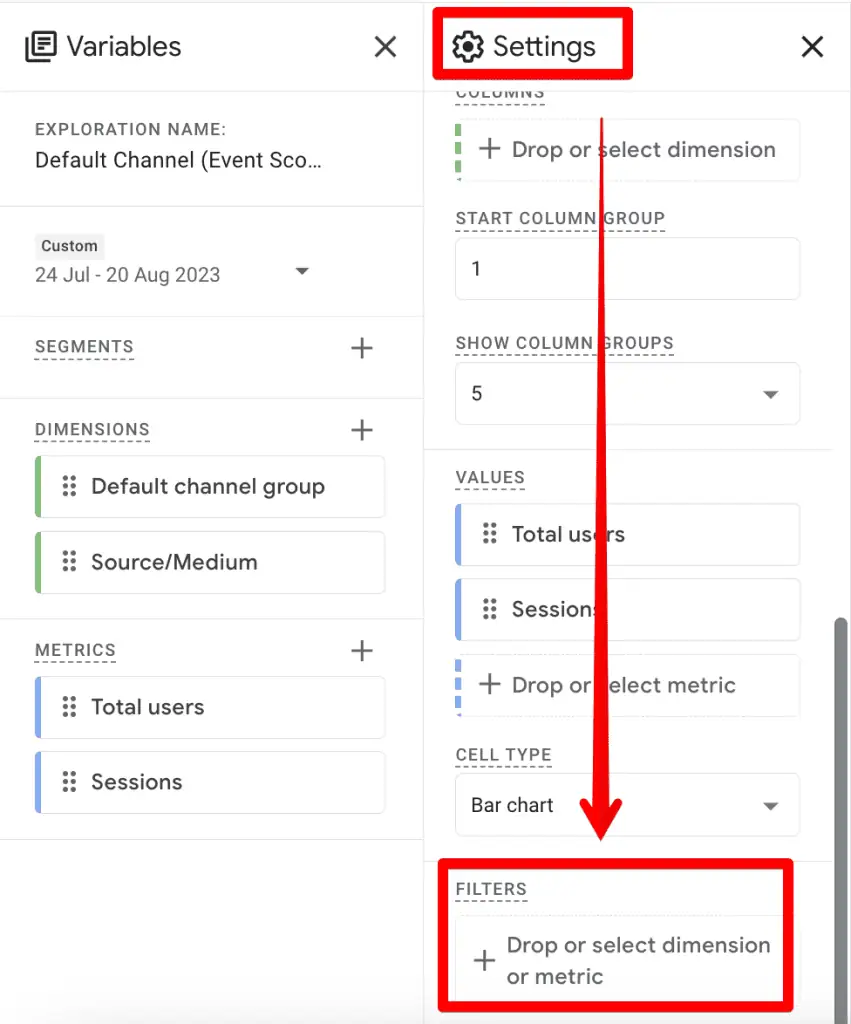
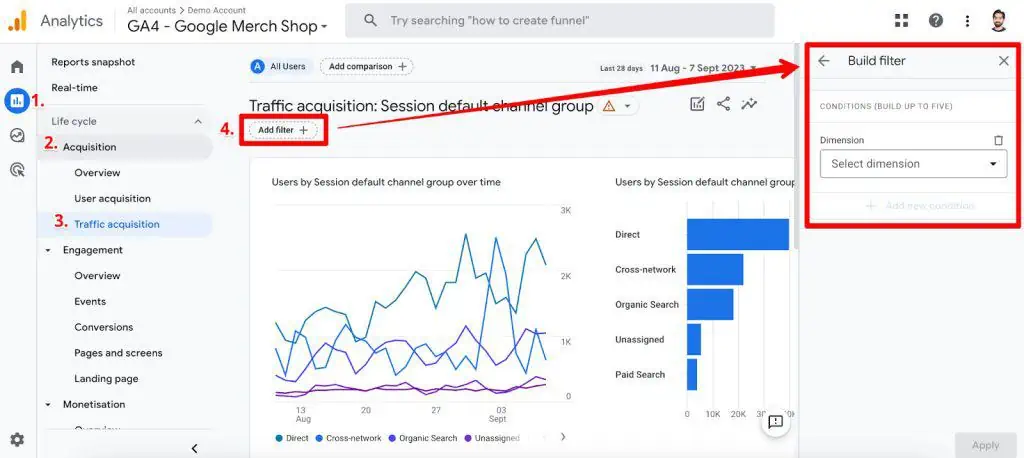
Standard reports, the default views in your GA4 account, offer limited but crucial RegEx application. Specifically, the "Add a filter" option at the top of many detailed reports (e.g., Traffic Acquisition, Engagement) allows for RegEx-based filtering.- Example: To analyze traffic performance from "Organic Search" and "Email" channels simultaneously, you would navigate to Reports > Acquisition > Traffic Acquisition. Click "Add a filter," select "Session default channel group" as the dimension, and choose "matches partial regex." Input
Organic|Emailin the value field. The pipe (|) acts as an "OR" operator, efficiently capturing both channel groups. This flexibility eliminates the need to create multiple filters or export data for external processing. Conversely, selecting "does not match partial regex" allows for the exclusion of specific channels, focusing on all others. - Official Response/Implication: The current absence of RegEx in comparisons and table filters within standard reports represents a missed opportunity for quick, dynamic analysis directly within these views. This suggests a design choice prioritizing simplicity in core reports, pushing complex filtering to dedicated analytical tools.
- Example: To analyze traffic performance from "Organic Search" and "Email" channels simultaneously, you would navigate to Reports > Acquisition > Traffic Acquisition. Click "Add a filter," select "Session default channel group" as the dimension, and choose "matches partial regex." Input
-
Explorations:
GA4’s Explorations provide a flexible canvas for deep-dive analysis, and RegEx plays a vital role in refining these investigations.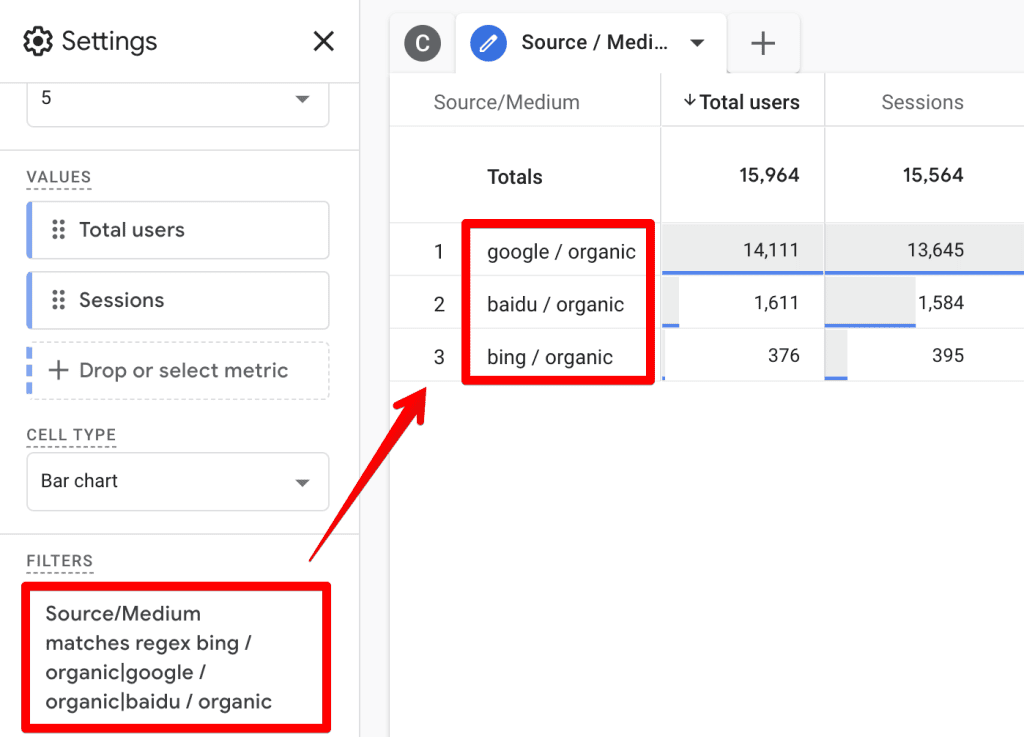
- Challenge: In Explorations, filters often only offer "matches regex" (and "does not match regex"), lacking the "matches partial regex" option seen in standard reports. This means patterns must match the entire dimension value.
- Example & Implication: To filter "Source/Medium" for all organic traffic, one cannot simply use
organic. Instead, you would need to list every exact organic source/medium combination observed:bing / organic|google / organic|baidu / organic. This limitation can be cumbersome, as it requires prior knowledge of all possible values and increases the risk of missing dynamic or less common entries. This highlights the need for careful data reconnaissance or more creative RegEx patterns (as discussed in Common Characters) to simulate partial matching. The community often hopes for Google to introduce "matches partial regex" here to streamline complex filtering.
-
Segments and Audiences:
Segments allow for highly granular analysis of user groups, while Audiences enable remarketing and personalization. RegEx is instrumental in defining these groups with precision.- Example: Creating a segment for users on "mobile" or "desktop" devices would involve selecting "Device category" and using "matches regex" with the pattern
mobile|desktop. While straightforward for known, discrete values, the "matches regex" limitation applies here too, meaning patterns must be exact. - Implication: The power of RegEx in segments and audiences lies in its ability to target users based on complex behavioral patterns, not just simple attributes. For instance, defining an audience of users who visited pages with "product" in the URL and then "checkout" (using RegEx for page paths) allows for highly effective funnel analysis and targeted advertising. The "Build an audience" feature, which can be derived from segments, further extends this power to activate RegEx-defined user groups for marketing campaigns.
- Example: Creating a segment for users on "mobile" or "desktop" devices would involve selecting "Device category" and using "matches regex" with the pattern
-
Internal Traffic and Unwanted Referrals:
Maintaining clean, accurate data is paramount. RegEx offers robust mechanisms for filtering out internal team activity and irrelevant referral sources.
- Internal Traffic: Under Admin > Data Streams > Configure tag settings, you can define internal traffic using "IP address matches regular expression."
- Example: To exclude a range of internal IP addresses, you might use a pattern like
^90.204..*. This pattern captures any IP address starting with "90.204." followed by any characters, effectively filtering an entire subnet.
- Example: To exclude a range of internal IP addresses, you might use a pattern like
- Unwanted Referrals: Similarly, under "List unwanted referrals," you can use "Referral domain matches RegEx."
- Example: To exclude payment processors like Stripe and PayPal, the pattern
stripe.com|paypal.comwould be used. The backslashbefore the dot.is crucial here, as.is a special RegEx character meaning "any character." Escaping it ensures it’s treated as a literal dot.
- Example: To exclude payment processors like Stripe and PayPal, the pattern
- Implication: This application of RegEx directly impacts data quality, ensuring that your analytics reflect genuine customer behavior rather than internal operations or spurious referral events.
- Internal Traffic: Under Admin > Data Streams > Configure tag settings, you can define internal traffic using "IP address matches regular expression."
-
Create or Modify Events:
GA4’s event-driven model means event creation and modification are central to data strategy. RegEx provides unparalleled flexibility in defining and transforming events.- Process: Navigate to Admin > Events. Choose "Create event" or "Modify event." Here, you’ll find "matches regular expression" and "matches regular expression (ignore case)."
- Example: To create a new event,
measuremasters_visit, whenever a user lands on the "MeasureMasters" page, you might configure it based on the existingpage_viewevent. The condition forpage_locationwould bematches regular expressionwith the valuehttps://measureschool.com/measure-masters/. Notice the escaped forward slashes/and dots., as these are special characters in RegEx. - Implication: This capability allows for highly customized event tracking without needing direct code changes or complex GTM setups for every nuance. It’s a powerful tool for standardizing event data, extracting specific parameters, and ensuring that meaningful user interactions are accurately captured.
-
Custom Channel Groups:
Custom channel groupings allow for bespoke classification of traffic sources, aligning with specific business objectives. RegEx is critical for defining these complex groupings.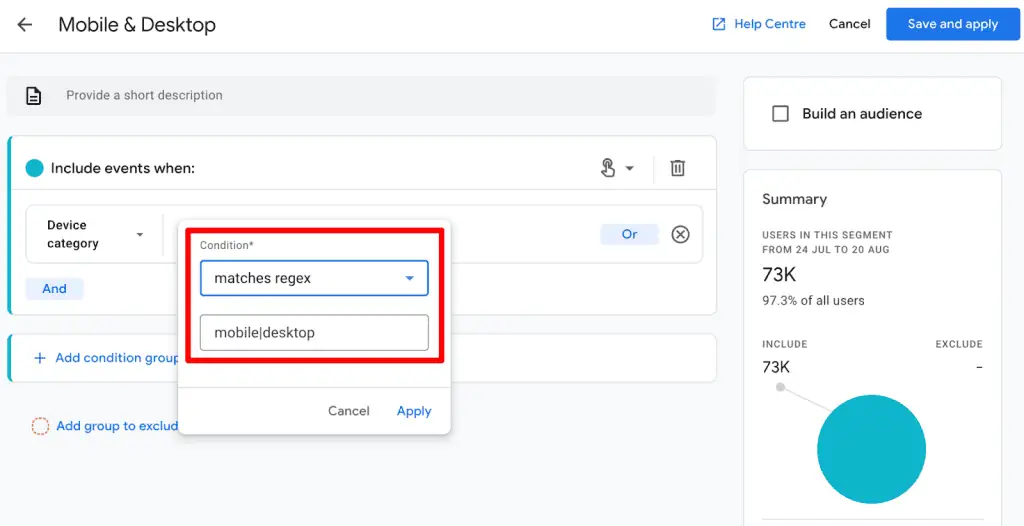
- Process: Go to Admin > Data Settings > Channel Groups. When creating a new channel, the "partially matches regex" option becomes available, which is highly beneficial here.
- Example: To create a "QR Codes" channel group, you could define a rule where "Medium" "partially matches regex" with the pattern
qr|code. This would capture any medium containing "qr" or "code" (e.g., "qr_scan," "code_promo," "QR-code"). - Implication: This provides unparalleled flexibility in how traffic sources are categorized, moving beyond GA4’s default groupings. It allows businesses to define channels that truly reflect their marketing efforts and measure their effectiveness more accurately.
Demystifying Common RegEx Characters in GA4
While mastering RegEx can be a long journey, familiarity with a core set of characters can unlock immediate power in GA4. The following are commonly used, especially within the constraints of RE2 syntax:
.(Dot): Matches any single character (except newline).- GA4 Example:
page.htmlwould match "page.html", "page-html", "pageXhtml". Use.for a literal dot.
- GA4 Example:
- *`` (Asterisk):** Matches the preceding character zero or more times.
- GA4 Example:
abc*matches "ab", "abc", "abcc", "abccc".
- GA4 Example:
+(Plus): Matches the preceding character one or more times.- GA4 Example:
abc+matches "abc", "abcc", but not "ab".
- GA4 Example:
?(Question Mark): Matches the preceding character zero or one time (making it optional).- GA4 Example:
colou?rmatches "color" and "colour".
- GA4 Example:
|(Pipe): Acts as an "OR" operator. Matches either the expression before or after the pipe.- GA4 Example:
(Organic|Email)matches "Organic" or "Email". This is extremely useful for combining multiple conditions.
- GA4 Example:
()(Parentheses): Groups expressions together. Can be used to apply quantifiers to a group or for alternation (with|).- GA4 Example:
(product|service)smatches "products" or "services".
- GA4 Example:
[](Square Brackets): Defines a character set. Matches any one character within the set.- GA4 Example:
[aeiou]matches any single vowel.[0-9]matches any single digit.
- GA4 Example:
-(Hyphen inside[]): Specifies a range within a character set.- GA4 Example:
[a-z]matches any lowercase letter.
- GA4 Example:
^(Caret): Matches the beginning of the string.- GA4 Example:
^/blogmatches URLs that start with "/blog".
- GA4 Example:
$(Dollar Sign): Matches the end of the string.- GA4 Example:
html$matches strings that end with "html".
- GA4 Example:
(Backslash): Escapes a special character, treating it as a literal. Essential for matching.?*+()[]|^$.- GA4 Example:
www.example.commatches the literal "www.example.com".
- GA4 Example:
d: Matches any digit (equivalent to[0-9]).- GA4 Example:
product-d+matches "product-1", "product-123".
- GA4 Example:
w: Matches any word character (alphanumeric and underscore, equivalent to[a-zA-Z0-9_]).- GA4 Example:
user_w+matches "user_id1", "user_name".
- GA4 Example:
- *`.
:** This is a very common and powerful combination..matches any character, and` matches it zero or more times. Together, they match any string of any length*.- GA4 Example: Often used with
^and$to simulate "contains" when only "matches regex" is available:^.*your_keyword.*$effectively matches any string containing "your_keyword". This is the workaround for the lack of "matches partial regex" in Explorations!
- GA4 Example: Often used with
Best Practices for Effective GA4 RegEx Usage
To harness the power of RegEx efficiently and avoid common pitfalls, adherence to best practices is essential:

- Start Simple and Iterate: Begin with the most straightforward pattern that achieves your goal. Gradually add complexity as needed. Overly complex RegEx can be difficult to debug and maintain.
- Test Thoroughly: Never implement a RegEx pattern in a live GA4 environment without rigorous testing. Tools like regex101.com are invaluable for this.
- Supporting Data: On regex101.com, input your sample data (e.g., a list of URLs, channel names, IP addresses) and your RegEx pattern. Crucially, select the "Golang" flavor, as it is based on the RE2 engine used by GA4. This provides accurate feedback on matches, explanations of your pattern, and a quick reference guide, significantly reducing errors.
- Document Your Patterns: RegEx can be cryptic. Document the purpose of each pattern, especially complex ones, and where it’s being used within GA4. This aids future troubleshooting and collaboration.
- Prioritize Simplicity: If a simpler match type (e.g., "contains," "starts with") can achieve the desired outcome, use it. RegEx, while powerful, adds a layer of complexity that should only be introduced when necessary.
- Be Mindful of Case Sensitivity: Remember GA4’s default case sensitivity. If you need case-insensitive matching, consider using the "matches regular expression (ignore case)" option where available, or build patterns that account for both cases (e.g.,
[Oo]rganic). - Escape Special Characters: Always escape special RegEx characters (
.,?,*,+,(,),[,],|,^,$) with a backslash () if you intend to match them literally. - Leverage AI Tools: Modern AI assistants like ChatGPT can be incredibly helpful for generating or debugging RegEx patterns. Provide clear instructions and examples of the text you want to match (and not match). However, always verify AI-generated patterns with a testing tool like regex101.com before deployment. This aligns with broader trends in digital marketing leveraging AI for efficiency.
Summary and Future Implications
Today’s digital analytics professional operates in an environment demanding precision and adaptability. Regular Expressions, with their enduring power to identify, filter, and manipulate text patterns, remain a cornerstone of effective data analysis in Google Analytics 4. We’ve explored its fundamental nature, the specific match types available within GA4, and its critical applications across standard reports, explorations, segments, audiences, event management, and custom channel groupings.
The nuances of GA4’s RE2 RegEx engine, particularly its "exact match" default in some areas and its limitations regarding advanced features like lookarounds and backreferences, underscore the need for careful pattern construction and thorough testing. However, with a solid understanding of common RegEx characters—especially the versatile pipe (|) for "OR" conditions and the .* combination for simulating partial matches—analysts can overcome many of these challenges.

Mastering RegEx is not merely a technical skill; it’s a strategic capability that empowers analysts to extract deeper, more relevant insights from their data. It enables the creation of highly targeted marketing campaigns, robust data quality controls, and customized reporting that truly reflects business objectives. While the learning curve can be steep, consistent practice, coupled with the use of dedicated testing tools and even AI assistance, will undoubtedly lead to greater proficiency. As digital analytics continues to evolve, the ability to precisely define and manipulate data patterns with RegEx will only grow in importance, solidifying its place as an essential skill for any data-driven professional.
