
RegEx: The Unseen Architect of Precision in Google Analytics 4
Last Modified on February 17, 2025

Digital analytics has undergone a transformative journey, evolving from rudimentary data collection to sophisticated systems capable of delivering profound insights into user behavior. At the heart of this evolution lies a seemingly small yet incredibly powerful tool: Regular Expressions, often abbreviated as RegEx, RegExp, or Regex. Far from being a niche programming construct, RegEx has emerged as an indispensable ally for data analysts, marketers, and developers navigating the complex landscape of digital data, particularly with the advent of Google Analytics 4 (GA4).
This article delves into the critical role of RegEx in GA4, exploring its fundamental principles, practical applications, inherent limitations, and best practices for leveraging its power to unlock deeper, more precise analytics.
The Enduring Power of Pattern Matching in Digital Analytics
What is RegEx and Why is it Indispensable?
Regular Expressions are sequences of characters that define a search pattern. Born in the theoretical computer science realm in the 1950s, their utility quickly expanded into programming languages, text editors, and search tools. In digital analytics, RegEx serves as the ultimate pattern-matching engine, enabling users to identify, extract, and manipulate strings of text based on specific criteria.
The core objective of RegEx in analytics is to efficiently match dynamic values within vast datasets. Imagine sifting through millions of page URLs, search queries, or event parameters to find specific patterns that indicate user intent or behavior. Manually identifying each instance would be a Sisyphean task. RegEx automates this process, allowing analysts to:

- Consolidate disparate data: Group variations of similar URLs, event names, or traffic sources.
- Extract specific information: Pull out dynamic IDs from URLs or parameters from custom dimensions.
- Filter complex datasets: Isolate specific user segments or traffic types that meet multiple conditions.
- Clean and standardize data: Harmonize inconsistent naming conventions or data inputs.
With Google Analytics 4’s event-centric data model, the ability to precisely define and filter event parameters, page locations, and user properties has become more critical than ever. RegEx provides the granular control necessary to make sense of this rich, flexible data stream.
A Chronicle of RegEx in Analytics: From Universal to GA4
RegEx in the Universal Analytics Era
For years, digital analysts relied heavily on RegEx within Universal Analytics (UA). It was a cornerstone for defining precise filters for views, crafting intricate goal configurations based on URL patterns, segmenting reports, and structuring content groupings. The matches RegEx and contains RegEx operators were ubiquitous, allowing analysts to easily group traffic from various subdomains, segment users who visited a series of specific pages, or track conversions on dynamically generated URLs. The flexibility offered by UA’s RegEx implementation became a familiar and powerful tool for data practitioners.

The Transition to Google Analytics 4
The shift from Universal Analytics to Google Analytics 4 marked a significant paradigm change in how data is collected and processed. GA4’s event-driven data model, designed for a privacy-centric, cross-platform world, introduced new structures and interfaces. This transition, while offering enhanced capabilities, also brought about a period of adjustment for RegEx users.
Initially, some analysts expressed concern about the compatibility and behavior of RegEx in GA4, wondering if its utility would diminish. However, as GA4 matured, it became clear that RegEx remains a vital component, albeit with some nuanced differences in its application. While the core functionality of pattern matching persists, the specific "match types" available across various GA4 interfaces and the underlying RegEx engine (RE2) introduce distinct characteristics that demand a fresh understanding. The challenge for many has been adapting their established RegEx practices from UA to GA4’s new environment, particularly concerning default match types and specific syntax limitations.

Supporting Data: Practical Applications of RegEx in GA4
RegEx is woven into the fabric of GA4’s advanced configuration and reporting capabilities. Understanding where and how to deploy it is key to unlocking the platform’s full potential.
Filtering Standard Reports
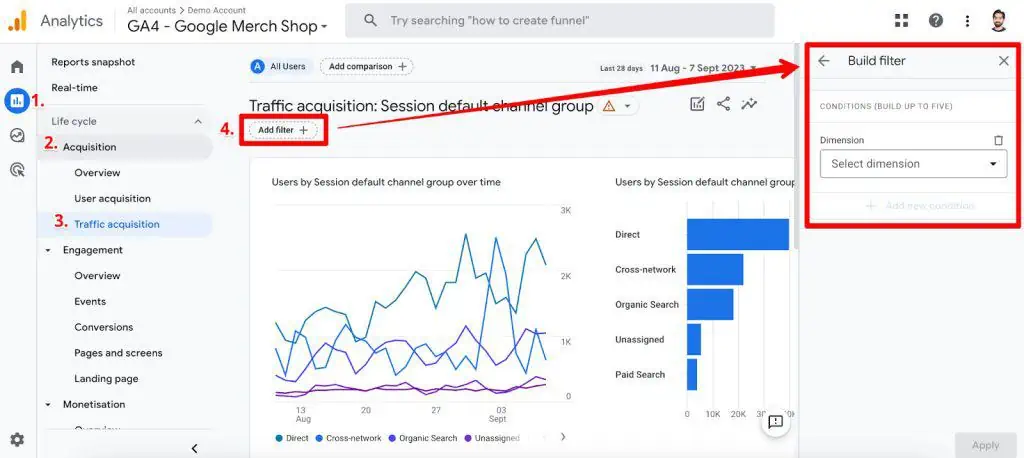
In GA4’s standard reports, RegEx offers a powerful way to refine the data displayed. While it’s currently limited to the "Add a filter" option at the top of certain reports (and not available for comparisons or inline table filters), its impact is significant.

Scenario: Analyzing traffic performance for specific marketing channels.
Application: Navigate to Reports → Acquisition → Traffic Acquisition. Click the "Add a filter" button. Select "Session default channel group" as the dimension.
Here, you’ll encounter two RegEx match types: "matches regex" (for exact matches) and "matches partial regex" (to find patterns within strings). For instance, to view data for both Organic and Email channels, you would select "matches partial regex" and enter Organic|Email. The pipe | acts as an "OR" operator, effectively telling GA4 to include any channel group containing "Organic" or "Email". This immediately provides a focused view, excluding all other traffic sources. Conversely, selecting "does not match partial regex" with the same pattern would show all traffic except Organic and Email.

This granular filtering is invaluable for marketers needing to quickly assess the performance of specific initiatives without exporting data or creating complex explorations.
Enhancing Data in Explorations
GA4’s Explorations offer a flexible canvas for deep dive analysis, and RegEx plays a crucial role in segmenting and filtering this data.

Scenario: Analyzing specific traffic sources/mediums.
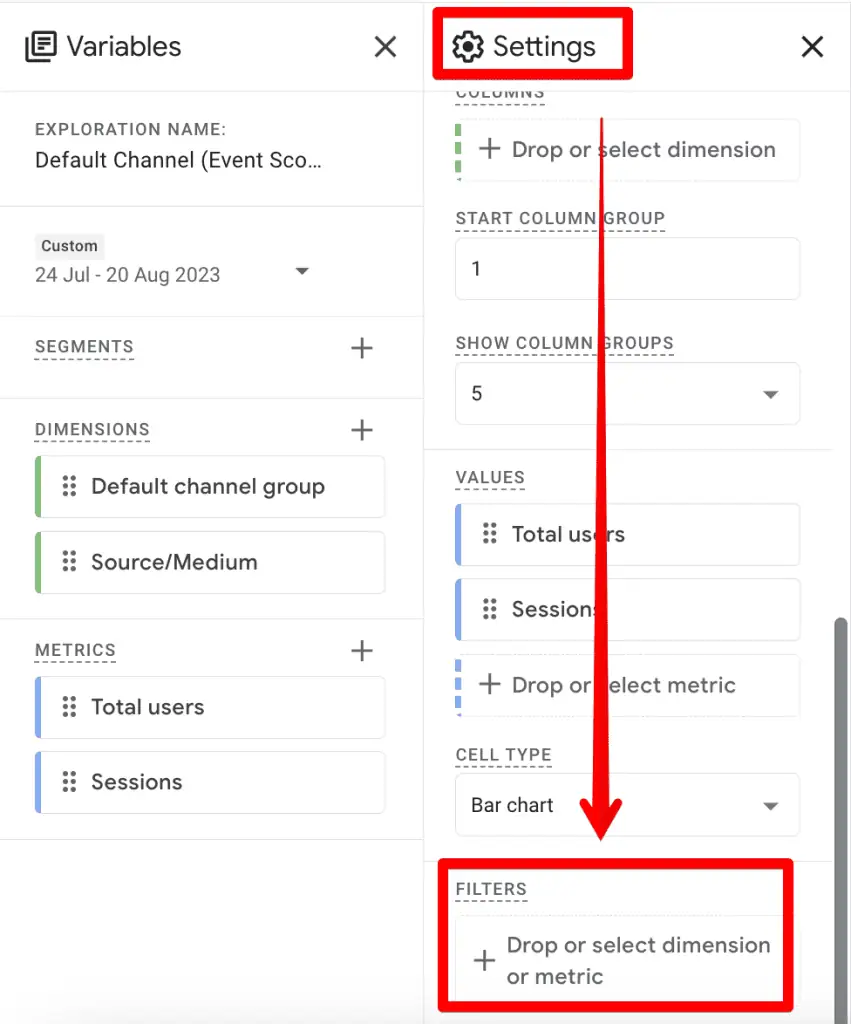
Application: In an Exploration report, under the "Settings" column, locate the "Filters" section. Drag and drop a dimension like "Source/Medium" or select it.
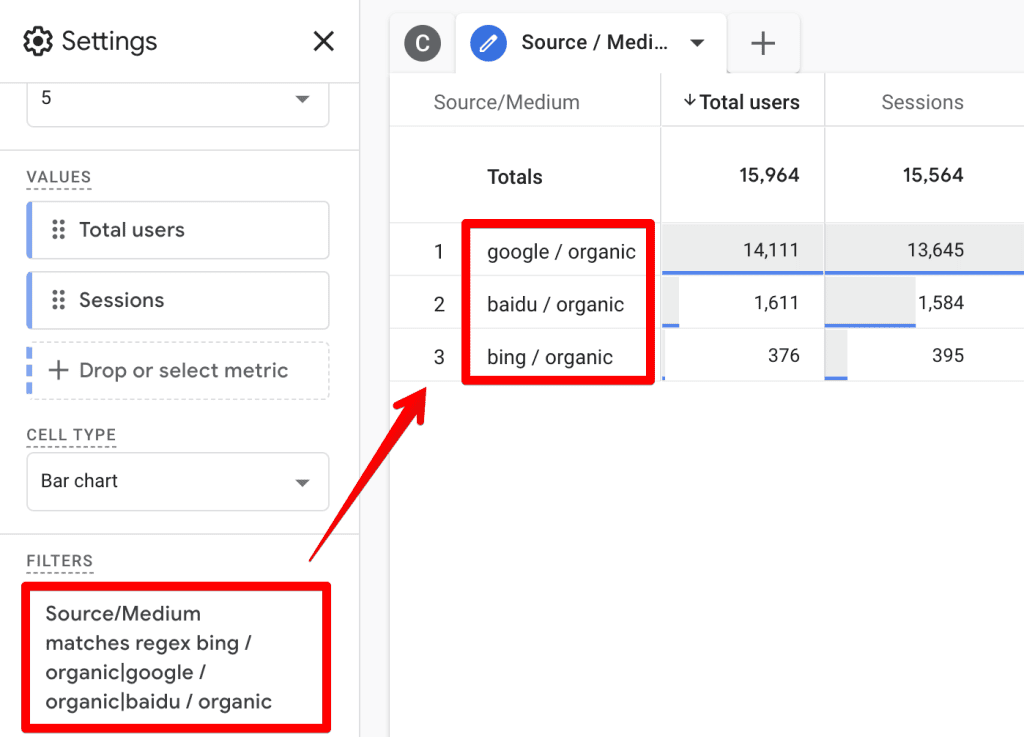
A notable distinction in Explorations is that, by default, only "matches regex" (and "does not match regex") is available, implying an exact match. This can be a stumbling block for patterns intended for partial matching. For example, if you wanted to see all "organic" source/medium combinations, simply entering organic would likely yield no results because entries are typically google / organic, bing / organic, etc.

To overcome this, you must construct a RegEx pattern that accounts for the full string or uses wildcards. For example, bing / organic|google / organic|baidu / organic would capture these specific entries. A more robust solution, utilizing the wildcard .* (dot-star), would be .*organic.* to match any string containing "organic". This pattern effectively simulates a "partial match" by allowing any characters before and after the word "organic". While more complex, this illustrates how understanding RegEx syntax can compensate for interface limitations. This precision is essential for segmenting complex attribution models or isolating specific campaign performance.
Defining Segments and Audiences
RegEx is a powerful tool for building highly targeted segments for analysis and audiences for remarketing within GA4. Segments are applied in Explorations, and audiences can be built from these segments.
Scenario: Analyzing user behavior across specific device categories or building remarketing lists.
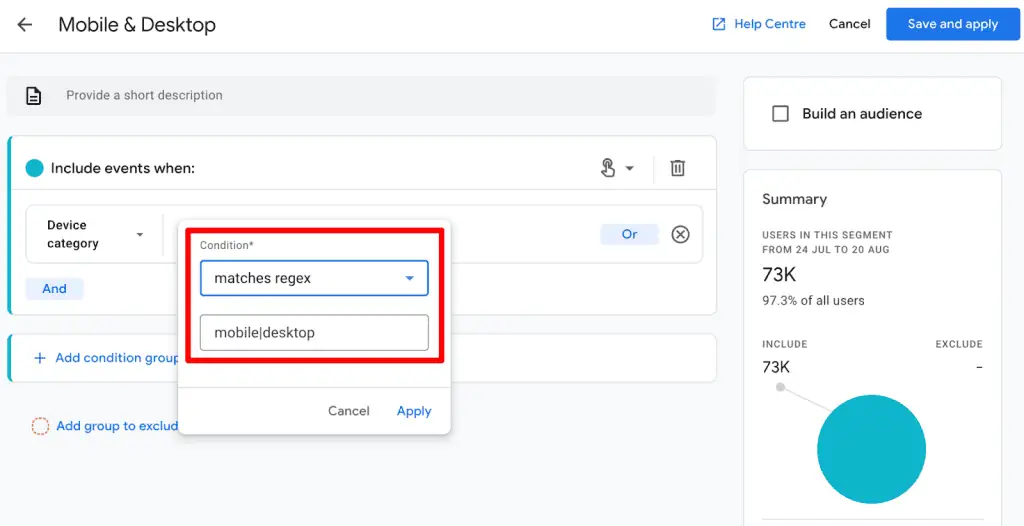
Application: In an Exploration, under the "Variables" column, create a new segment. Define conditions, for instance, based on "Device category."
Similar to Explorations, segments typically offer only the "matches regex" option. To include both mobile and desktop users, you would use mobile|desktop. This creates a segment encompassing users from these device types, allowing for direct comparison of their engagement, conversions, or other metrics.

When creating audiences, you can leverage these RegEx-powered segments. This is particularly useful for building remarketing lists based on complex behavioral patterns, such as users who visited a specific set of product pages (/product-category/(shoe|boot|sandal)/.*) or completed a multi-step form where page paths varied dynamically. The ability to define precise audience criteria through RegEx ensures that marketing efforts are directed at the most relevant user groups.
Managing Internal Traffic and Unwanted Referrals
Maintaining clean and accurate data is paramount in analytics, and RegEx is instrumental in excluding irrelevant traffic sources.
Scenario: Filtering out internal company traffic or unwanted referral spam.
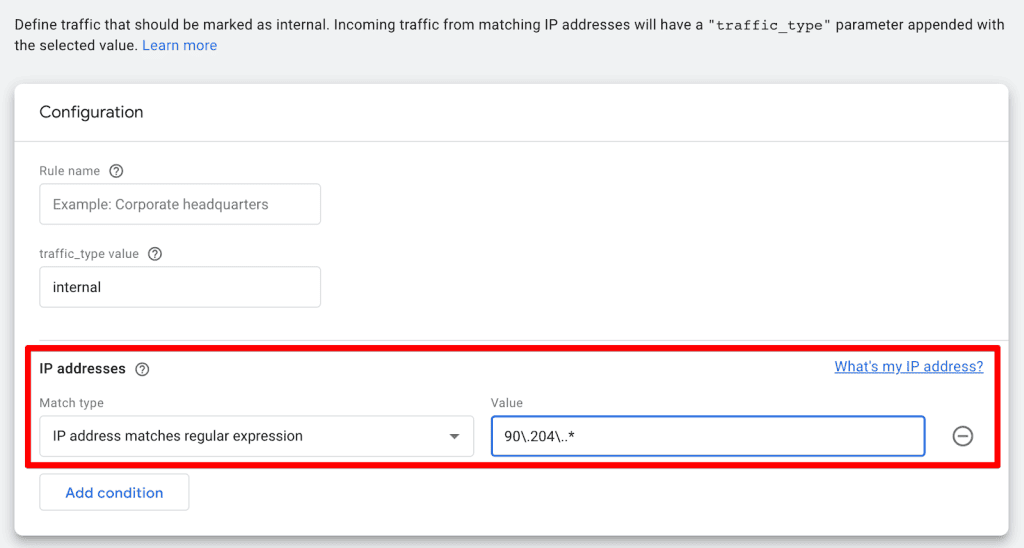
Application: Navigate to Admin → Data Streams → Configure tag settings. Here you’ll find options for "Define internal traffic" and "List unwanted referrals."
For internal traffic, you can use the "IP address matches regular expression" match type. This allows you to define patterns for multiple internal IP addresses or ranges. For example, 90.204..* would capture any IP address starting with 90.204. followed by any characters, effectively including an entire subnet. This prevents internal activity from skewing your legitimate user data.

For unwanted referrals, RegEx helps exclude domains that should not be credited as traffic sources, such as payment gateways or spam referrers. A common RegEx pattern like stripe|paypal.com would exclude referrals from both Stripe and PayPal. The backslash before the dot . in paypal.com is crucial, as the dot is a special RegEx character and must be escaped to be treated as a literal dot. This ensures that legitimate traffic isn’t misattributed to transactional platforms, providing a clearer picture of true acquisition channels.
Creating and Modifying Events
GA4’s event manipulation capabilities allow for significant customization, and RegEx enhances this flexibility.

Scenario: Creating new, more descriptive events from existing ones or standardizing event names.
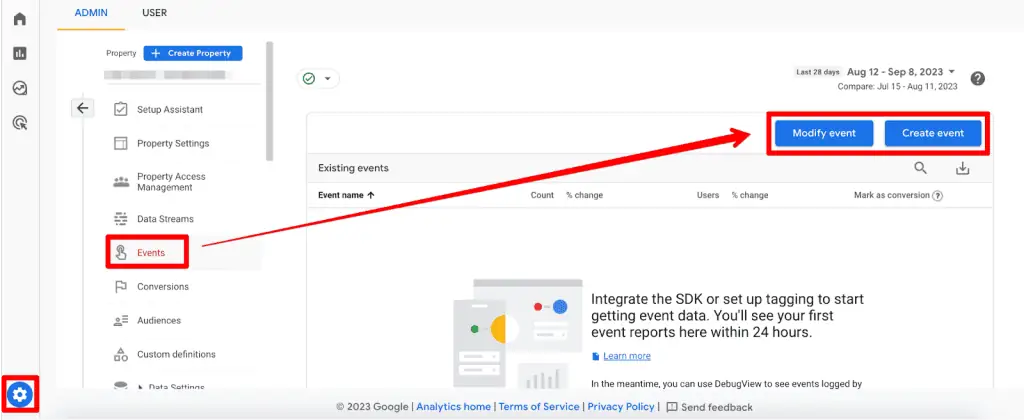
Application: Go to Admin → Events under property settings. Choose "Create event" or "Modify event."
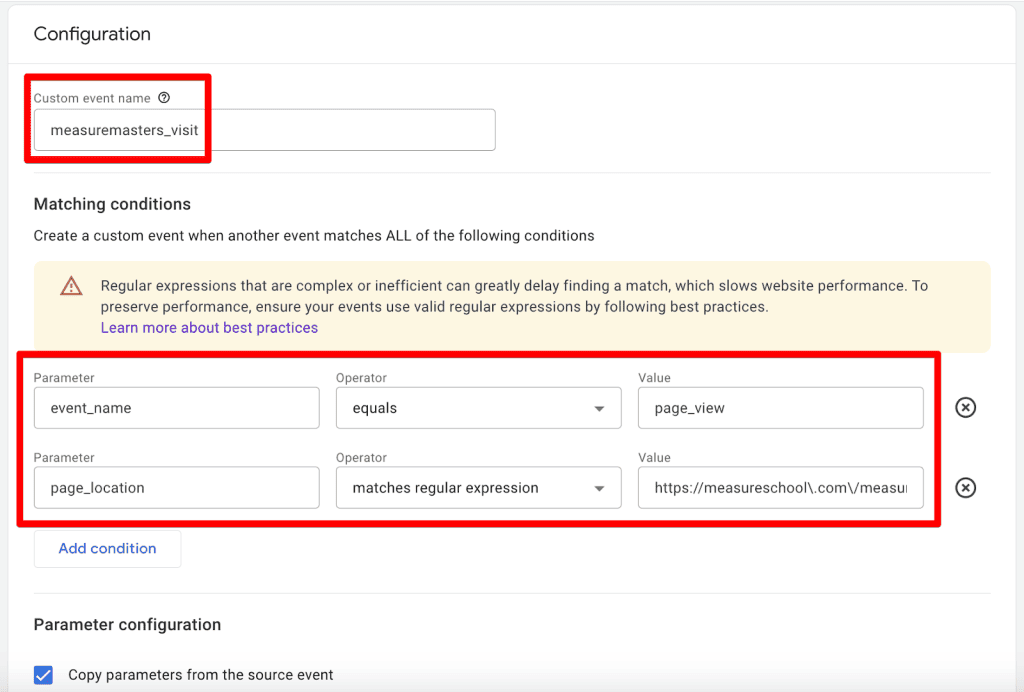
Here, you’ll find "matches regular expression" and "matches regular expression (ignore case)" options. For instance, to create a new event measuremasters_visit whenever someone visits a specific page like https://measureschool.com/measure-masters/, you would use the RegEx https://measureschool.com/measure-masters/. Notice the backslashes escaping the forward slashes and dots, which are special characters in RegEx.

Another powerful use case is consolidating similar events. If you have various download events like download_pdf, download_doc, download_image, you could modify them into a single file_download event using a RegEx pattern like download_.* for the event name, and then rename it. This simplifies reporting and ensures consistency. Google provides a warning against overusing RegEx here, suggesting simpler conditions when possible, emphasizing that RegEx should be reserved for scenarios where its power is truly needed.
Custom Channel Groups
Custom channel groupings are essential for tailoring attribution and reporting to specific business models, and RegEx is key to their definition.
Scenario: Defining new marketing channels based on specific medium or source patterns.
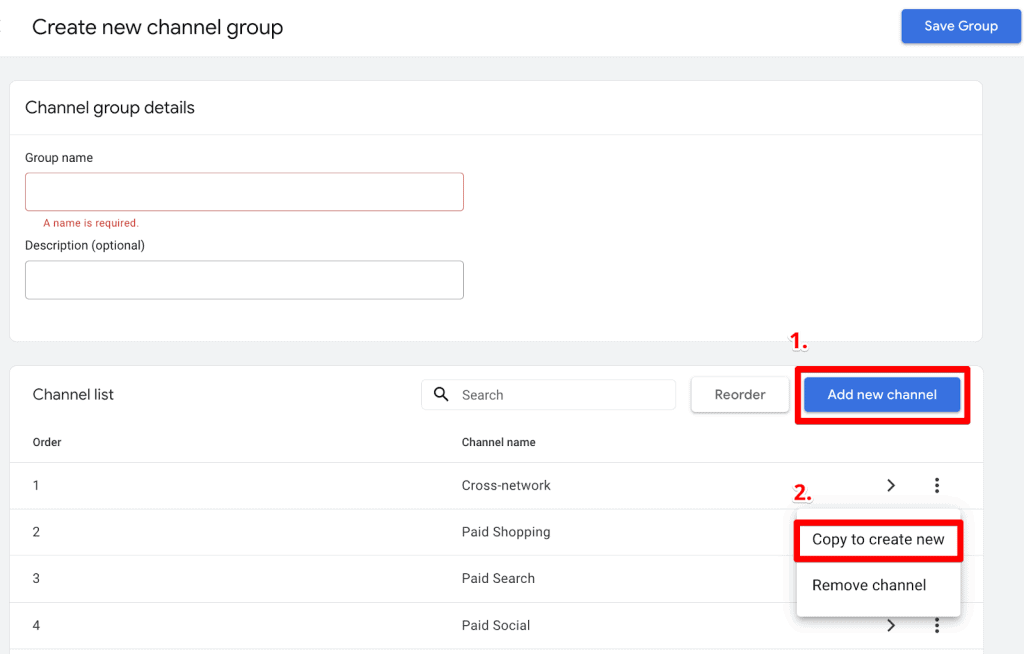
Application: Go to Admin → Data Settings → Channel Groups. Click "Create new channel group" and then "Add a new channel."
Unlike some other areas, custom channel groups offer the "partially matches regex" option, which is incredibly useful. For example, to create a new channel for "QR Codes," you could define a rule where "Medium partially matches regex" with the value qr|code. This pattern would capture any medium containing "qr" or "code" (e.g., qr_scan, qrcode_campaign, campaign_code). This allows for highly flexible and relevant channel definitions, providing superior insights into the performance of non-standard marketing initiatives.

Common RegEx Characters and Their Usage
Mastering RegEx involves familiarity with its special characters. Here are some commonly used ones in GA4:
.(Dot): Matches any single character (except newline).- Example:
page.viewmatchespage-view,page_view,page/view.
- Example:
*(Asterisk): Matches zero or more occurrences of the preceding character or group.- Example:
page.*matchespage,page_1,page-about-us.
- Example:
+(Plus): Matches one or more occurrences of the preceding character or group.- Example:
page.+matchespage_1,page-about-usbut notpage.
- Example:
?(Question Mark): Matches zero or one occurrence of the preceding character or group (makes it optional).- Example:
color?smatchescolorsorcols.
- Example:
|(Pipe): Acts as an "OR" operator, matching either the expression before or after it.- Example:
mobile|desktopmatchesmobileordesktop.
- Example:
^(Caret): Matches the beginning of a string.- Example:
^/blogmatches URLs starting with/blog.
- Example:
$(Dollar Sign): Matches the end of a string.- Example:
contact-us$matches URLs ending withcontact-us.
- Example:
()(Parentheses): Groups characters or expressions together. Useful for applying quantifiers or "OR" logic to a group.- Example:
(product|service)_pagematchesproduct_pageorservice_page.
- Example:
[](Square Brackets): Matches any one of the characters inside the brackets.- Example:
[abc]atmatchesaat,bat, orcat.[0-9]matches any digit.
- Example:
n,m(Curly Braces): Quantifier. Matches at leastnand at mostmoccurrences of the preceding character or group.- Example:
a2,4matchesaa,aaa,aaaa.
- Example:
(Backslash): Escapes a special character, treating it as a literal character.- Example:
.matches a literal dot, not any character./matches a literal forward slash.
- Example:
d: Matches any digit (equivalent to[0-9]).w: Matches any word character (alphanumeric and underscore, equivalent to[a-zA-Z0-9_]).s: Matches any whitespace character.
Official Responses and GA4’s RegEx Implementation
Google Analytics 4 utilizes the RE2 regex syntax, a fast, safe, and robust regular expression engine. While RE2 offers performance benefits, it also comes with specific limitations compared to some other RegEx flavors (like PCRE or JavaScript RegEx). Key limitations include:
- No Backreferences: You cannot refer to a previously matched group.
- No Lookaheads/Lookbehinds: Patterns that assert conditions without consuming characters are not supported.
- No Conditional Expressions:
(?(condition)true_regex|false_regex)is not available. - Limited Assertions: Features like
b(word boundary) are supported, but others are not.
These design choices by Google likely prioritize performance and security across the massive datasets GA4 processes. The absence of "partial match regex" in certain crucial GA4 interfaces (like Explorations and Segments) has been a point of discussion within the analytics community. While workarounds exist using .* wildcards, a native "partial match" option would simplify pattern construction for many common scenarios. It remains to be seen if Google will introduce more flexible RegEx options in future GA4 updates, potentially balancing the need for advanced filtering with the inherent constraints of the RE2 engine.
Implications: Best Practices for GA4 RegEx Mastery
Leveraging RegEx effectively in GA4 requires not just an understanding of syntax, but also a strategic approach to its application.
1. Test Your RegEx Patterns Thoroughly
Never deploy a RegEx pattern in a live GA4 environment without rigorous testing. Incorrect patterns can lead to data loss, misattribution, or flawed analysis.
- Use Online Testers: Websites like regex101.com are invaluable. When testing for GA4, select the "Golang" flavor, as it is based on the RE2 engine, ensuring compatibility with GA4’s implementation.
- Test with Real Data: Input actual examples of your GA4 data (URLs, event names, parameters) into the tester to verify that your pattern matches exactly what you intend, and only what you intend.
- Consider Edge Cases: Think about variations, missing elements, or unexpected inputs that your RegEx might encounter.
2. Prioritize Simplicity
While RegEx can handle immense complexity, simpler patterns are generally more robust, easier to maintain, and less prone to errors. If a simpler match type (e.g., "contains," "starts with," "equals") can achieve the desired outcome, use it. Reserve RegEx for situations where its specific power (like "OR" conditions or dynamic pattern matching) is truly necessary.

3. Document Your Patterns
Complex RegEx can quickly become indecipherable without proper documentation.
- Add Comments: While you can’t add comments directly into GA4’s RegEx fields, maintain an external document (e.g., a spreadsheet, a wiki) detailing each RegEx pattern, its purpose, the data it’s intended to match, and any assumptions made.
- Explain Logic: For team collaboration, clearly explain the logic behind more intricate patterns, especially those using multiple special characters or groups.
4. Be Mindful of Case Sensitivity
Remember that RegEx match types in GA4 are often case-sensitive unless explicitly stated (e.g., "matches regular expression (ignore case)" in event creation). Always consider whether your pattern needs to account for variations in capitalization. For example, organic will not match Organic without the appropriate case-insensitive flag or by including both variations (organic|Organic).
5. Escape Special Characters
Many characters have special meanings in RegEx (e.g., ., ?, *, +, (, ), [, ], , , ^, $, |, ). If you intend to match these characters literally, you must "escape" them with a backslash (). For example, to match a URL containing example.com?param=value, you’d need example.com?param=value. Failing to escape can lead to unexpected and incorrect matches.
The Broader Landscape and Future Outlook
RegEx remains a foundational skill for anyone working deeply with digital data. While its learning curve can be steep, the analytical precision it affords is unparalleled. The rise of AI tools like ChatGPT is also democratizing access to RegEx, allowing users to describe their needs in natural language and receive generated patterns. This signifies a future where RegEx continues to be indispensable, but perhaps more accessible to a wider audience.

In conclusion, RegEx is not merely a technical detail in GA4; it is a strategic asset. From refining standard reports and building granular explorations to segmenting audiences and maintaining data hygiene, its applications are diverse and critical. While GA4’s specific implementation has its nuances and limitations, the core power of RegEx to identify and act on complex data patterns ensures its enduring relevance in the dynamic world of digital analytics. Continuous practice, diligent testing, and adherence to best practices will empower analysts to harness this powerful tool, extracting richer, more actionable insights from their GA4 data.
How do you leverage RegEx in your daily GA4 analysis? Share your insights in the comments below!
