
RegEx: The Unsung Hero Powering Precision in Google Analytics 4
Last Modified: February 17, 2025
Digital analytics has undergone a significant transformation, moving from the foundational Universal Analytics (UA) to the event-driven architecture of Google Analytics 4 (GA4). This evolution has brought new capabilities and a fresh perspective on data collection and interpretation. Amidst these changes, one powerful tool has consistently proven its worth, adapting and enhancing our ability to extract valuable insights: Regular Expressions, often abbreviated as RegEx, RegExp, or Regex. Far from being a niche programming tool, RegEx remains a critical skill for anyone navigating the complexities of modern digital measurement.

For seasoned analysts who’ve worked with Google Tag Manager and Universal Analytics, RegEx is a familiar, if sometimes daunting, companion. It’s the elegant solution that allows a small set of characters to perform expansive, dynamic pattern matching across vast datasets. While some analysts possess an intuitive mastery, others may have relied on a more basic understanding, often with the pragmatic mantra: "As long as it works!" With GA4, the landscape has shifted, but RegEx’s fundamental utility endures, proving itself an indispensable asset when understood and applied strategically. This article delves into the core of RegEx in GA4, exploring its purpose, applications, and best practices to empower analysts to unlock deeper, more precise insights.
The Enduring Power of Pattern Matching: A RegEx Retrospective
Regular Expressions are a testament to the enduring power of concise, logical notation. Predating Google Analytics by decades, RegEx originated in theoretical computer science in the 1950s and quickly found practical applications in text editors, search tools, and programming languages. Its core function – identifying patterns within strings of text – makes it uniquely suited for the messy, varied data inherent in web analytics.
The transition from Universal Analytics to Google Analytics 4 marked a significant paradigm shift. UA was session-based, relying heavily on pageviews and predefined hits. GA4, in contrast, is event-based, treating every user interaction as an event. This change, while offering greater flexibility and a more unified view of user journeys across platforms, also introduced new challenges in data organization and filtering. Many of the familiar reports and filtering mechanisms from UA were either redesigned or replaced.
However, RegEx’s role has not diminished; it has merely evolved. Where UA might have used RegEx for view filters, goal definitions, or content groupings, GA4 leverages it for flexible filtering in explorations, defining audiences, shaping event data, and refining custom channel groups. This continuity underscores RegEx’s adaptability and its foundational importance in data manipulation, regardless of the underlying analytics architecture. The shift to GA4’s specific RE2 regex syntax (a lightweight, fast engine with some limitations compared to more feature-rich regex flavors) also means analysts must be aware of its particular nuances.

RegEx in Action: Unlocking Deeper GA4 Insights
At its heart, RegEx is a sequence of characters that define a search pattern. When you apply RegEx to text, it attempts to find matches based on that pattern. This seemingly simple concept becomes incredibly powerful when dealing with the dynamic and often inconsistent nature of digital data. Instead of manually sifting through thousands of URLs, campaign names, or user actions, RegEx allows analysts to precisely target and aggregate relevant information.
What is RegEx and Why is it Indispensable in GA4?
RegEx serves a singular objective: to match a specific pattern and return all values in a text string that satisfy the criteria. Its utility stems from several key benefits:

- Efficiency: Automates the identification of complex patterns, saving countless hours compared to manual searching or creating multiple "OR" conditions.
- Flexibility: Adapts to dynamic data where exact values are unknown or constantly changing.
- Precision: Allows for highly specific targeting or exclusion of data points, ensuring analytical accuracy.
- Consolidation: Groups similar but not identical data entries (e.g., various campaign URLs with slight variations) into unified categories for clearer reporting.
The output of a RegEx operation depends heavily on the "match type" – whether the pattern needs to be contained within the string, exactly match it, or follow other specific conditions. This granular control is vital for refining data.
Common use cases for RegEx in GA4 include:

- Filtering data in reports and explorations: Isolating specific traffic sources, page paths, or event parameters.
- Creating dynamic segments and audiences: Targeting users based on complex behavioral patterns or demographic characteristics.
- Defining internal traffic and unwanted referrals: Cleaning data by excluding irrelevant internal activity or third-party payment gateways.
- Modifying or creating events: Normalizing event names or parameters to ensure consistent data quality.
- Building custom channel groupings: Categorizing traffic sources more effectively than default groupings allow.
- Extracting specific data elements: Pulling out parts of URLs, event parameters, or other strings for custom reporting.
While RegEx has wide applications, its most common role in GA4 is undeniably text data extraction and filtering. It’s the analytical scalpel that allows analysts to carve out precisely the data they need from the broader dataset.
Navigating GA4’s RegEx Match Types
Understanding match types is crucial, as they dictate how RegEx patterns are applied and can significantly impact your results. Overlooking this detail is a common pitfall. Filter match types in GA4 are case-sensitive by default, a detail that requires careful consideration unless you explicitly account for case variations in your RegEx or select an "ignore case" option where available.

GA4 primarily offers two main RegEx match types:
- Matches RegEx: This requires an exact match of the entire string to the RegEx pattern. It’s akin to an "equals" condition but with the power of pattern matching.
- Matches Partial RegEx: This allows the RegEx pattern to match any part of the string. It’s similar to a "contains" condition, but with advanced pattern capabilities.
- Corresponding "does not match" variations also exist.
A key point of contention for many analysts is GA4’s default RegEx behavior. In many critical areas, particularly within Explorations, GA4 defaults to an "exact match" interpretation for matches regex. This means your RegEx pattern must account for the entire string, not just a substring. This can be counter-intuitive for users accustomed to more permissive "contains regex" behavior in other platforms or even in other parts of GA4 (like standard report filters).

This behavior stems from GA4’s adoption of the RE2 regex syntax. RE2 is optimized for speed and safety, often used in performance-critical applications. However, it comes with certain limitations compared to more traditional, feature-rich RegEx engines (like PCRE – Perl Compatible Regular Expressions, often used in UA). Key RE2 limitations include:
- No backtracking (implications for complex lookaheads/lookbehinds).
- No arbitrary code execution (enhances security).
- No conditional expressions.
- No recursive patterns.
- Limited support for backreferences.
- Only supports UTF-8.
- Does not support
A,Z,bfor word boundaries as robustly as other engines.
These limitations necessitate a slightly different approach to RegEx construction in GA4, especially when aiming for partial matches where only "matches regex" is available.

Strategic Applications: Where RegEx Shapes Your GA4 Data
RegEx can be deployed across various sections of the GA4 interface, each offering unique opportunities for refined data analysis and management.
Filtering Standard Reports for Precision
Standard, or detailed, reports are the backbone of GA4’s out-of-the-box reporting. While they offer general insights, RegEx allows for dynamic, on-the-fly filtering to hone in on specific data.

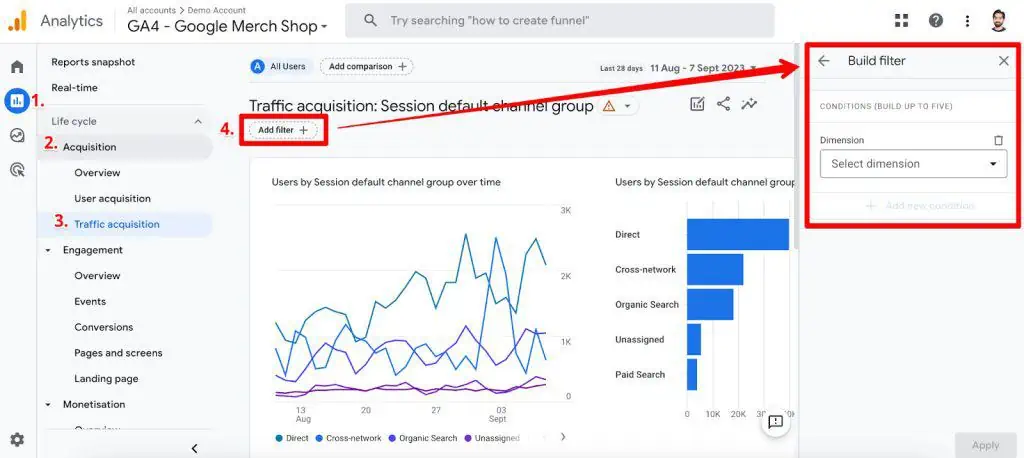
- Location: Primarily within the "Add a filter" option at the top of many standard reports (e.g., Traffic Acquisition, Engagement).
- Match Types: Crucially, here you’ll find both
matches regex(exact match) andmatches partial regex(contains match). - Example: To analyze traffic performance for both "Organic" and "Email" channels, you can set a filter on
Session default channel groupusingmatches partial regexwith the valueOrganic|Email. The pipe|acts as an "OR" operator, efficiently capturing both categories. Conversely,does not match partial regexcan exclude these channels, showing all others. - Implication: This is one of the most user-friendly applications of RegEx in GA4, allowing for quick, multi-conditional filtering that would otherwise require creating custom reports or segments. However, it’s not universally available for all filtering options within standard reports (e.g., comparisons or table filters).
Mastering Data Exploration with RegEx
Explorations are where GA4 truly shines for advanced analysis, offering a canvas for custom reports and deep dives. RegEx plays a pivotal role in refining the data used in these explorations.
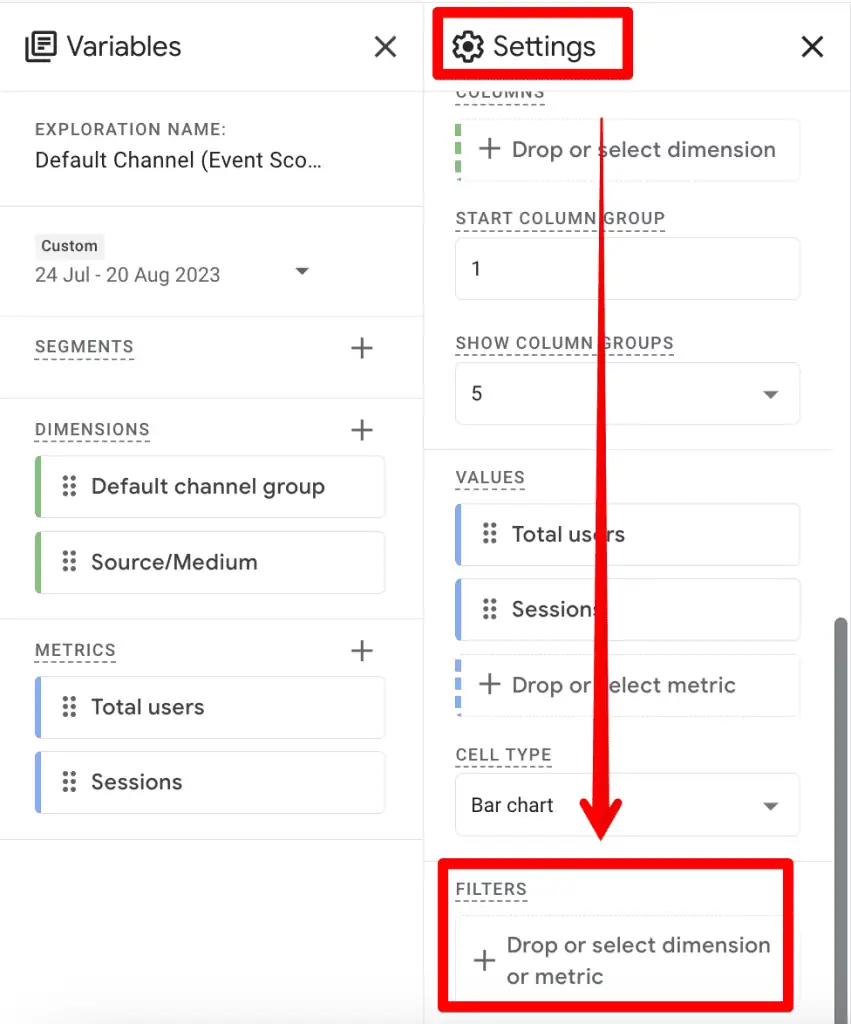
- Location: Within the "Filters" section under the Settings column of any Exploration report.
- Match Types: Here’s where the RE2 limitation becomes more apparent. Explorations only offer
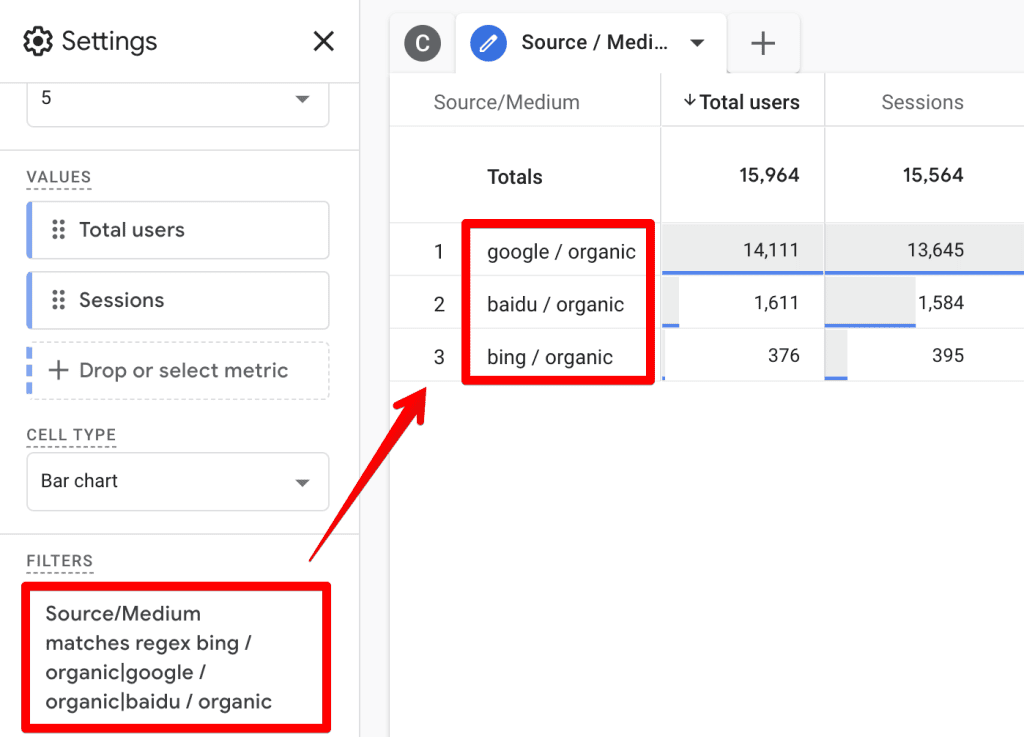
matches regex(anddoes not match regex). This means your RegEx must match the entire string of the dimension value. - Example: If you want to filter
Source / Mediumfor all organic traffic,matches regexwithorganicalone will not work because values are like "google / organic" or "bing / organic." You would need to explicitly list all expected exact values using the OR operator:bing / organic|google / organic|baidu / organic. This can be cumbersome and prone to omissions. - Implication: This limitation often forces analysts to either be exhaustive in their RegEx patterns or find workarounds (e.g., creating custom dimensions that pre-process values). It highlights the need for careful planning and understanding of the underlying data structure when using RegEx in Explorations.
Crafting Granular Segments and Audiences
Segments allow analysts to isolate specific subsets of users or events for deeper analysis, while audiences are groups of users that can be exported for remarketing or personalization. RegEx provides the precision needed to define these groups dynamically.
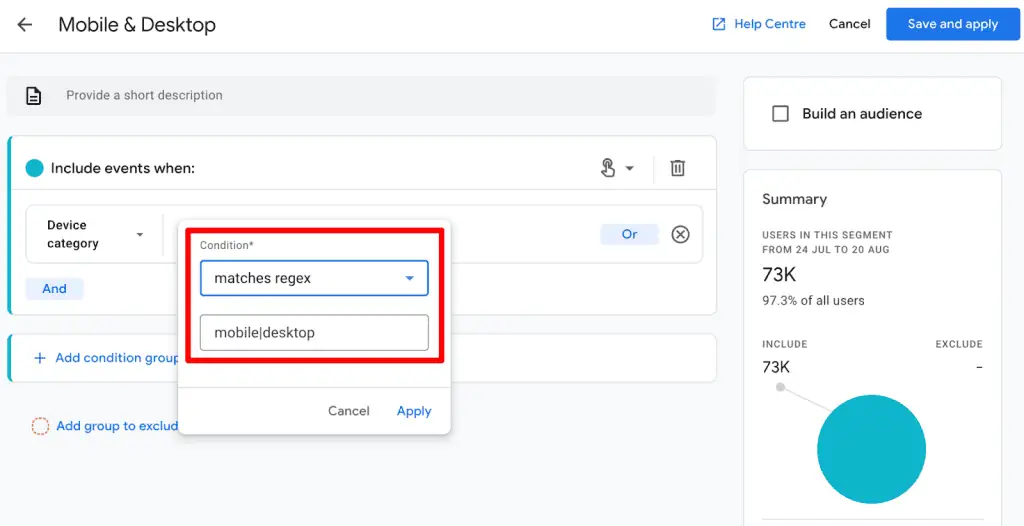
- Location: When creating a new segment (User, Session, or Event) within the Variables column of an Exploration, or when defining an audience.
- Match Types: Similar to Explorations, segments and audiences primarily use
matches regex(exact match). - Example: To create a segment for users on "mobile" or "desktop" devices, you would use
Device categorymatches regexmobile|desktop. This works well for predefined, exact categories. For more complex patterns, the same "exact match" constraint as in Explorations applies. - Implication: RegEx in segments and audiences is powerful for targeting specific user behaviors or demographics. The ability to build audiences directly from segments also means RegEx-defined groups can power personalized marketing efforts, extending the impact of your analytical precision.
Refining Data Quality: Internal Traffic and Unwanted Referrals
Data cleanliness is paramount for accurate analytics. RegEx is an invaluable tool for ensuring your GA4 property only captures relevant, external user data.
- Location: Admin -> Data Streams -> Configure tag settings -> Define internal traffic / List unwanted referrals.
- Match Types: Offers specific RegEx match types like
IP address matches regular expressionandReferral domain matches RegEx. - Example (Internal Traffic): To exclude internal traffic from specific IP ranges, you might use
90.204..*(where.needs to be escaped.and.*matches any characters following) to match any IP address starting with "90.204.". - Example (Unwanted Referrals): To exclude common payment gateways, use
stripe|paypal.com. This prevents transactions from being attributed to these intermediate domains rather than the original source. - Implication: These configurations are critical for data hygiene. By accurately defining internal traffic and unwanted referrals using RegEx, analysts ensure their reports reflect genuine external user behavior, leading to more reliable performance metrics and attribution models.
Dynamic Event Creation and Modification
GA4’s event-driven model means that manipulating event data is a core task. RegEx enables flexible event management directly within the GA4 interface.

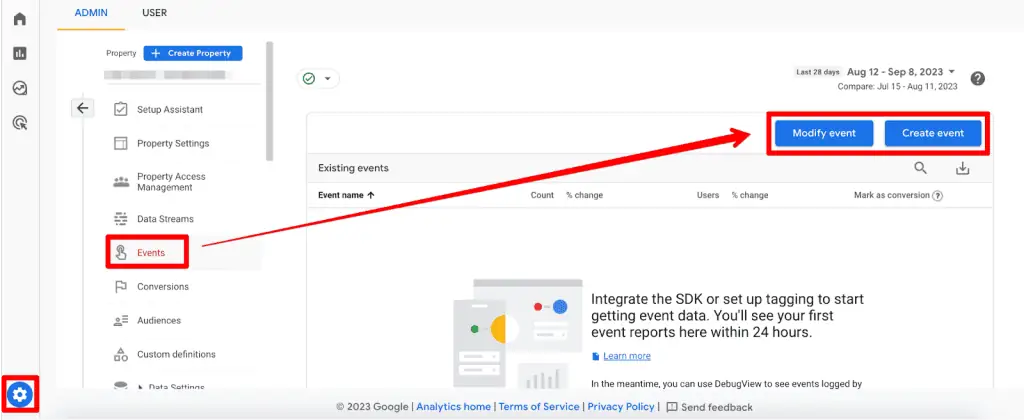
- Location: Admin -> Events -> Create event / Modify event.
- Match Types: Offers
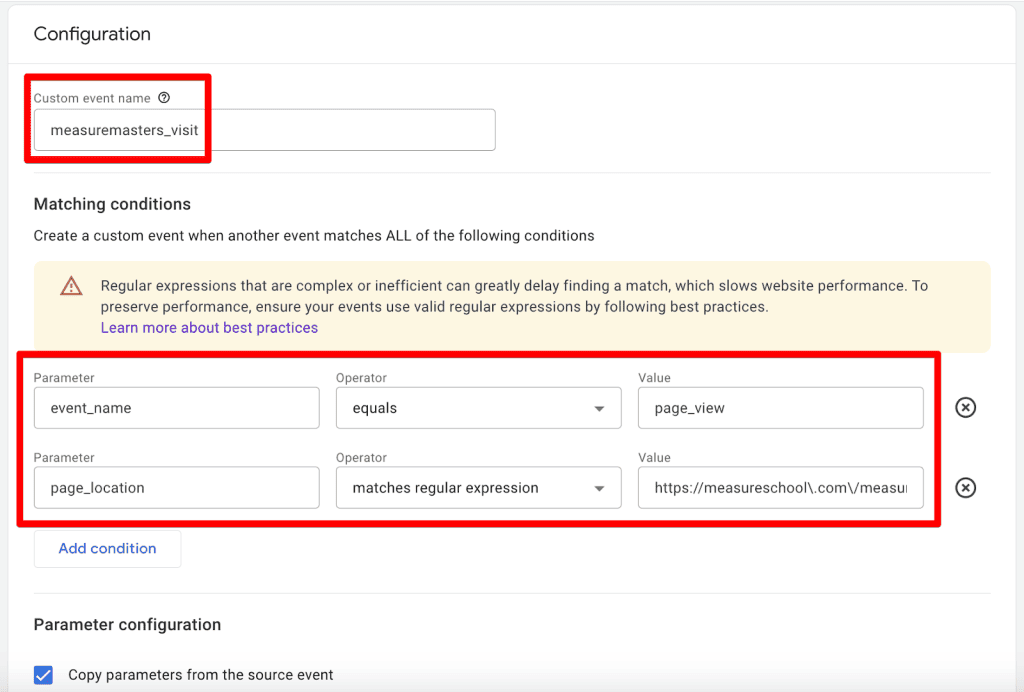
matches regular expressionandmatches regular expression (ignore case). No "partial match" here either. - Example: To create a new event
measuremasters_visitwhenever a user lands onhttps://measureschool.com/measure-masters/, you would use the conditionpage_locationmatches regular expressionhttps://measureschool.com/measure-masters/. Note the escaped forward slashes/and periods.. - Implication: This feature allows for the creation of new, more meaningful events from existing ones without needing to alter website code or Google Tag Manager configurations. It’s a powerful tool for event normalization and defining conversions based on complex page paths or parameter values. However, the exact match requirement means careful RegEx construction is needed for URLs.
Custom Channel Groupings for Tailored Reporting
GA4’s default channel groupings are useful, but businesses often need more specific categorizations. RegEx facilitates the creation of custom channel groups that align with unique marketing strategies.
- Location: Admin -> Data Settings -> Channel Groups -> Create new channel group.
- Match Types: This is one area where
partially matches regexis thankfully available when defining individual channel rules, alongsidematches regex. - Example: To create a "QR Codes" channel, you could define a rule where
Mediumpartially matches regexqr|code. This would capture any medium containing "qr" or "code," regardless of case or surrounding text. - Implication: Custom channel groupings, powered by RegEx, allow for highly customized attribution reporting, enabling marketers to gain a more accurate understanding of the performance of their unique traffic sources. The inclusion of
partially matches regexhere is a significant advantage, allowing for more flexible definitions.
Demystifying the Syntax: Essential RegEx Characters for GA4
While mastering RegEx is an ongoing journey, familiarity with common characters can immediately enhance your GA4 analysis. Remember that GA4 uses the RE2 syntax, so some advanced features found in other RegEx flavors might not be available.
Here are some commonly used RegEx characters in GA4:
.(Dot): Matches any single character (except newline).- Example:
cat.matches "cats", "cat!", "cata", etc.
- Example:
- *`` (Asterisk):** Matches the preceding character zero or more times.
- Example:
colou*rmatches "color" and "colour".
- Example:
+(Plus): Matches the preceding character one or more times.- Example:
go+glematches "gogle", "gooogle", but not "ggle".
- Example:
?(Question Mark): Matches the preceding character zero or one time (makes it optional). Also used for non-greedy matching.- Example:
colou?rmatches "color" and "colour".
- Example:
|(Pipe): Logical OR operator. Matches either the expression before or after the pipe.- Example:
apple|bananamatches "apple" or "banana". This is incredibly useful in GA4.
- Example:
()(Parentheses): Groups expressions together and creates capturing groups.- Example:
(web|app)sitematches "website" or "appsite".
- Example:
[](Square Brackets): Defines a character set. Matches any one character within the brackets.- Example:
gr[ae]ymatches "gray" or "grey". - Ranges:
[0-9]matches any digit;[a-z]matches any lowercase letter.
- Example:
^(Caret): Matches the beginning of the string.- Example:
^/blogmatches paths that start with "/blog".
- Example:
$(Dollar Sign): Matches the end of the string.- Example:
.html$matches strings that end with ".html".
- Example:
(Backslash): Escapes a special character, treating it as a literal character. Essential for matching.?*+|()[]^$literally.- Example:
measureschool.commatches "measureschool.com" literally.
- Example:
n(Curly Braces): Matches the preceding character exactlyntimes.- Example:
A3matches "AAA".
- Example:
n,m: Matches the preceding character betweennandmtimes (inclusive).- Example:
A2,4matches "AA", "AAA", "AAAA".
- Example:
Best Practices for GA4 RegEx: Maximizing Efficiency and Accuracy
Proficiency in RegEx isn’t just about knowing the characters; it’s about applying them wisely. Here are some best practices to ensure your GA4 RegEx implementations are robust and effective:

-
Test Your RegEx Rigorously: Never deploy a RegEx pattern in a live GA4 environment without thorough testing. Tools like regex101.com are invaluable. They allow you to input your pattern and test strings, showing you exactly what matches and why. Crucially, regex101.com allows you to select different "flavors" or engines; for GA4, choose the "Golang" flavor, as RE2 is implemented in Go. This ensures your testing environment mirrors GA4’s behavior as closely as possible, helping you catch potential discrepancies before they impact your data.
-
Start Simple, Then Add Complexity: Don’t jump straight into intricate patterns. Begin with the simplest RegEx that achieves your immediate goal. Once that works, gradually introduce more complex elements as needed. This iterative approach makes debugging easier.

-
Be Mindful of Case Sensitivity: Remember that GA4 RegEx filters are often case-sensitive. If you need to match both "Organic" and "organic," ensure your pattern accounts for both (e.g.,
(O|o)rganic) or use the "ignore case" option if available. -
Escape Special Characters: Always escape special RegEx characters (
.,?,*,+,|,(,),[,],^,$,) if you intend to match them literally. A common mistake is not escaping dots in URLs, which can lead to unintended matches.
-
Leverage the
|(OR) Operator: This is perhaps the most frequently used RegEx character in GA4 for combining multiple conditions into a single filter or definition. It drastically reduces the number of individual rules you need to create. -
Understand GA4’s Match Type Nuances: Be acutely aware of whether a specific GA4 interface (e.g., standard report filter vs. Exploration filter) uses "matches regex" (exact match) or "matches partial regex" (contains match). This often dictates the entire structure of your RegEx. For "exact match" scenarios where you want a "contains" behavior, you might need to use
.*yourpattern.*to match any string containing "yourpattern."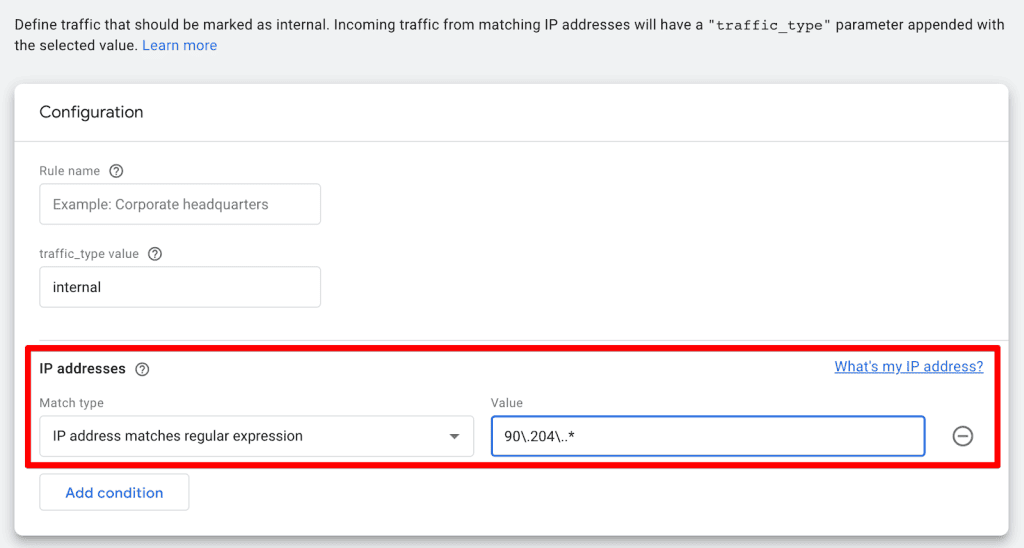
-
Document Your RegEx: Complex RegEx patterns can become opaque over time. Add comments or clear documentation explaining the purpose of each pattern, especially if multiple people manage the GA4 property.
-
Utilize AI Tools for Assistance: Generative AI tools like ChatGPT can be surprisingly helpful for RegEx. You can describe your matching requirements in natural language, and ChatGPT can often generate suitable RegEx patterns. Always test these generated patterns rigorously, as AI can sometimes produce incorrect or inefficient code.

These practices aren’t about becoming a RegEx guru overnight, but about making its application in GA4 more reliable, efficient, and less frustrating.
The Future of Analytics: RegEx as a Core Competency
The journey from Universal Analytics to Google Analytics 4 has underscored the increasing demand for data literacy and advanced analytical skills. In this evolving landscape, RegEx remains a cornerstone for digital marketers and analysts. It empowers them to move beyond surface-level reporting, enabling deep dives into user behavior, precise data segmentation, and robust data governance.
While GA4’s implementation of RegEx, particularly its reliance on the RE2 syntax and the prevalence of "exact match" conditions in certain areas, presents a learning curve, the benefits of mastering this tool far outweigh the initial challenges. As digital marketing becomes more data-driven, the ability to manipulate and extract precise information from analytics platforms will only grow in importance.
RegEx is not merely a technical tool; it’s a language that allows analysts to converse more effectively with their data. By understanding its nuances, practicing its application, and leveraging available resources (including AI assistants), analysts can transform raw data into actionable intelligence, driving smarter business decisions in the dynamic world of digital marketing. The power to get more done with less, to find the needle in the digital haystack, lies firmly within the grasp of those who embrace RegEx.
How do you leverage RegEx in your daily GA4 analysis? Share your experiences and tips in the comments below!
